

When a RevenueHero meeting is marked as no-show, log it in Airtable, alert the manager in Slack, then update the Airtable meeting status
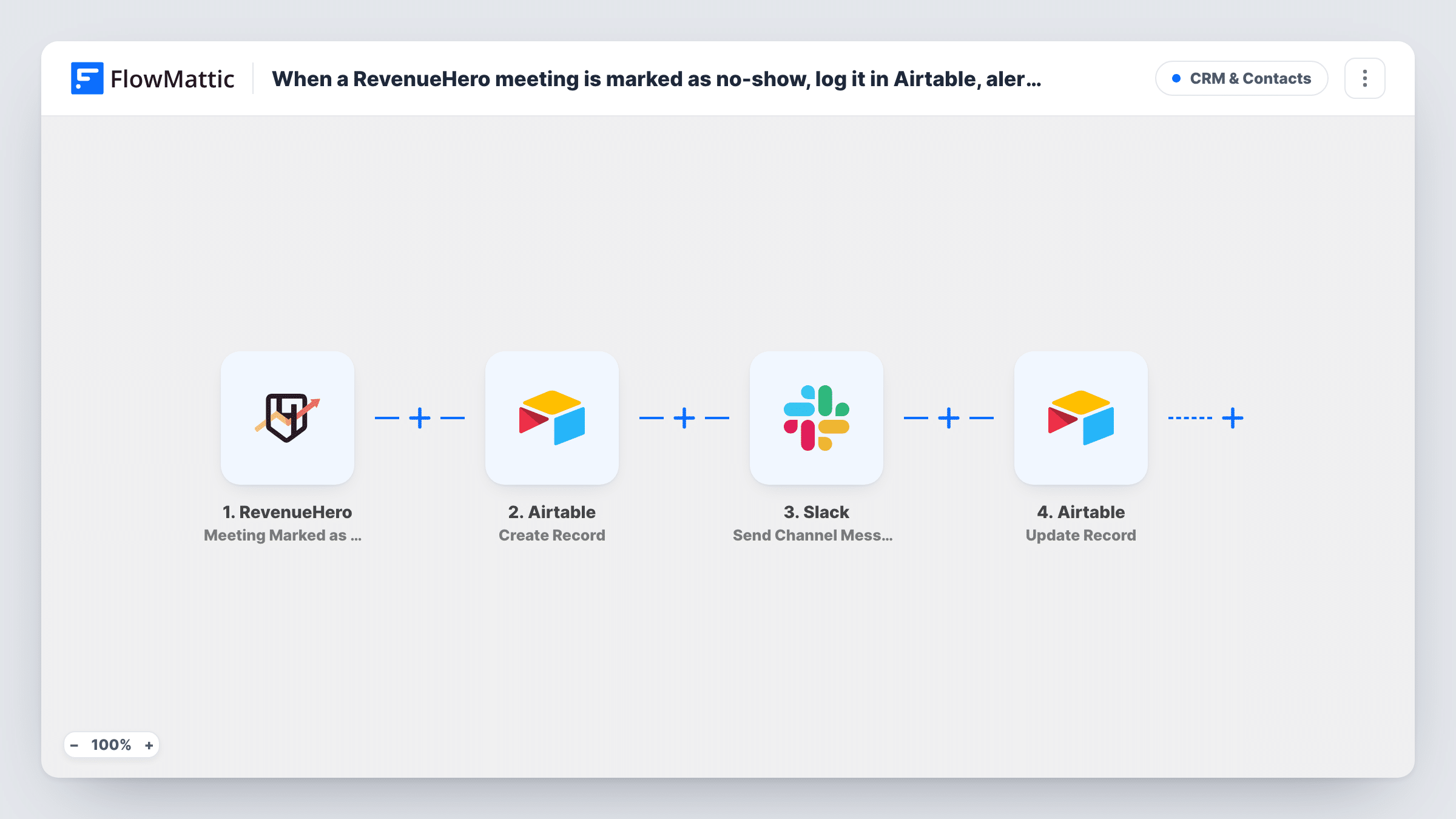
When RevenueHero marks a meeting as a no-show, this workflow adds a record to Airtable, posts an alert in a Slack channel for the manager, then updates that same Airtable record with a status you set.
 RevenueHero
 Airtable
 Slack
4 steps Setup ~8 min Used on 3.1k sites Free to import
What this workflow does
No-shows cost a rep a slot in their day, and managers want to know how often they happen and with whom. RevenueHero records the no-show, but the follow-up usually lives elsewhere. This workflow writes each one to Airtable and tells the team in Slack.
The RevenueHero trigger fires when a meeting is marked as No Show, and FlowMattic receives the meeting data. The Airtable step creates a record in the base and table you pick, holding the meeting fields you map. Next, the Slack step posts a message to the channel your manager watches. Last, a second Airtable step updates the record made two steps earlier, for example to set a status column to a value such as Manager alerted.
The update step works on the record this run just created, so map the record ID returned by the Create Record step into it. Both Airtable steps run on every no-show, so the table gains one row per event. Task History shows each step's result if something needs checking.
No-show log for a sales manager
Every missed demo lands in an Airtable table the manager reviews weekly, while Slack gives a same-day heads-up in the sales channel.
Rebooking queue for SDRs
SDRs filter the Airtable table by status to see which no-shows still need a rebooking attempt, and update the status as they work through them.
Spotting no-show patterns
Over a quarter, the Airtable records show which meeting types or lead sources produce the most no-shows, so the team can adjust its reminders.
How this workflow runs
What happens at each step once the workflow is on, and what you need before you import it.
 RevenueHero Meeting Marked as No Show
Fires when a RevenueHero meeting is marked as No Show. The meeting and prospect details RevenueHero sends become available to map into Airtable and Slack.
- Airtable Create Record
Creates a record in your chosen Airtable base and table. Map the prospect, the meeting time and any rep details the trigger carries into your columns.
- Slack Send Channel Message
Posts a message to the Slack channel you pick so the manager learns about the no-show. Include the prospect's name and meeting time from the trigger in the text.
- Airtable Update Record
Updates the Airtable record created in step 2. Map that step's record ID, then set the field you use for status, so the row shows the alert has gone out.
What you need
- FlowMatticCore
- RevenueHero AccountAccount
- Airtable AccountAccount
- Slack AccountAccount
After importing, map your own data. To keep the template universal, not every step is pre-filled. Open each step in the builder and connect your accounts and fields (channels, lists, sheets, recipients) before you switch the workflow on.
Make it yours
Changes worth making after you import it.
- Run a test no-show after import, then map the record ID from the Create Record step into Update Record. Without that ID, the update has no row to change.
- If the manager prefers a private alert, swap Send Channel Message for Slack's Send Direct Message, or use Send Private Channel Message for a private channel.
- Add a Delay before a further step, such as an email to the prospect offering a new time, if you want the rebooking message to go out a few hours after the no-show.
Questions about this workflow
Why does the template create an Airtable record and then update it?
The first step logs the no-show. The last step changes that same record after the Slack alert, so you can mark it with a status. You could instead set the status in Create Record and remove the update step.
Does a RevenueHero meeting marked as a no-show twice create two Airtable rows?
Each trigger event runs the whole workflow, so a second no-show event would add a second record. Task History lists every run, so you can trace where a duplicate came from.
Can the Slack message tag the manager by name?
You write the message text, so you can include the manager's Slack mention in it. The template posts to a channel; the manager must be a member to see it.
Do I need my Airtable table set up before importing?
Yes. Create the base, table and columns first, including a status field, so you can map RevenueHero data into them in both Airtable steps.
More CRM & Contacts workflows
Other ready-to-import templates from the same category.





Import this workflow into your WordPress site
Download the JSON, import it from the Workflows screen and connect your accounts. Every run stays on your server, with no per-task fees.
30-day money-back guarantee Unlimited workflows and runs Self-hosted