

When a support request is created in Fluent Support, run workflow in Leap AI to generate solution
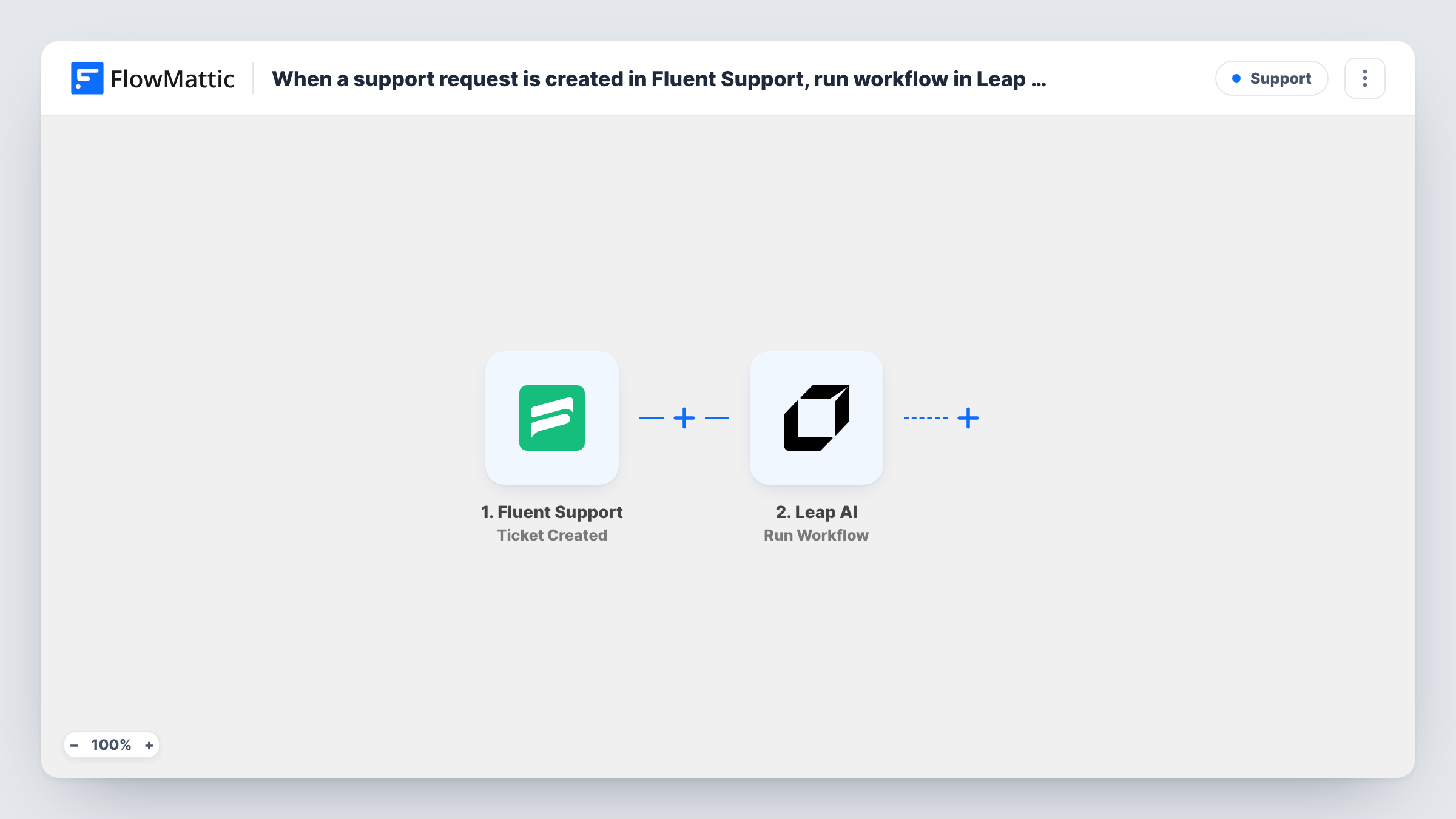
When a ticket is created in Fluent Support, this workflow starts a published Leap AI workflow with the ticket details as input, so your Leap AI workflow can work on a suggested solution for each new request.
 Fluent Support
 Leap AI
2 steps Setup ~5 min Used on 1.4k sites Free to import
What this workflow does
If you have built a Leap AI workflow that drafts answers to support questions, you still need to feed it each new ticket. Copying tickets across by hand defeats the point. This workflow starts your Leap AI workflow every time a ticket is created in Fluent Support.
The Fluent Support trigger fires when a new ticket is created by a customer or an agent. FlowMattic passes the ticket data to Leap AI, where the Run Workflow action executes a published workflow with input parameters. You map the ticket's subject and message, or whatever your Leap AI workflow expects, into those inputs.
As imported, this only starts the Leap AI run. Nothing brings the generated solution back to Fluent Support or to your agents, so you would read it in Leap AI or in Task History. To use the result, add Leap AI's Get Workflow Run step to check its status and results, then a step that delivers the answer.
Draft answers for common questions
Your Leap AI workflow is set up to draft replies for billing and account questions, and every new Fluent Support ticket is sent to it as input.
Testing an AI support workflow
Before you let AI answers near customers, run every new ticket through Leap AI and compare its output with what your agents actually replied.
Ticket triage experiments
A Leap AI workflow that suggests a category or priority receives each new ticket, so you can check its suggestions against real tickets.
How this workflow runs
What happens at each step once the workflow is on, and what you need before you import it.
 Fluent Support Ticket Created
Fires when a new ticket is created in Fluent Support, whether a customer or an agent opens it. The ticket data is passed to Leap AI.
- Leap AI Run Workflow
Runs a published Leap AI workflow with input parameters you map from the ticket. The result stays in Leap AI until you add a step that reads it.
What you need
- FlowMatticCore
- Fluent Support PluginPlugin
- Leap AI AccountAccount
After importing, map your own data. To keep the template universal, not every step is pre-filled. Open each step in the builder and connect your accounts and fields (channels, lists, sheets, recipients) before you switch the workflow on.
Make it yours
Changes worth making after you import it.
- Add a Delay, then Leap AI's Get Workflow Run step, to fetch the run's status and results once the Leap AI workflow has had time to finish.
- Post the fetched result to a private Slack channel for agents, rather than straight to the customer, until you trust the answers.
- Once you trust the output, add Fluent Support's Reply to Ticket step after Get Workflow Run. That reply goes to the customer as an agent reply, so review it first.
Questions about this workflow
Do Fluent Support agents see the Leap AI solution on the ticket?
Not as imported. The workflow only starts the Leap AI run. Add Get Workflow Run and a delivery step, such as Slack or Reply to Ticket, to put the result in front of agents.
Do I need my own Leap AI workflow for this template?
Yes. Run Workflow executes a published workflow from your Leap AI account. Build and publish it in Leap AI first, then pick it and map the inputs.
Do tickets created by agents also go to Leap AI?
Yes. The Ticket Created trigger fires for tickets created by either customers or agents. Add a Filter if you only want customer tickets.
More Support workflows
Other ready-to-import templates from the same category.








Import this workflow into your WordPress site
Download the JSON, import it from the Workflows screen and connect your accounts. Every run stays on your server, with no per-task fees.
30-day money-back guarantee Unlimited workflows and runs Self-hosted