

When a ticket is closed in NeetoChat, send a message in Slack
When a ticket is closed in NeetoChat, this workflow posts a message to a Slack channel you choose, so your team can see which customer conversations have been wrapped up.
 NeetoChat
 Slack
2 steps Setup ~5 min Used on 1.9k sites Free to import
What this workflow does
Closing a ticket is often the last thing an agent does, and the rest of the team rarely hears about it. Account managers want to know a customer's issue is done before they call, and leads want to see the queue moving. This workflow posts a note in Slack each time a NeetoChat ticket closes.
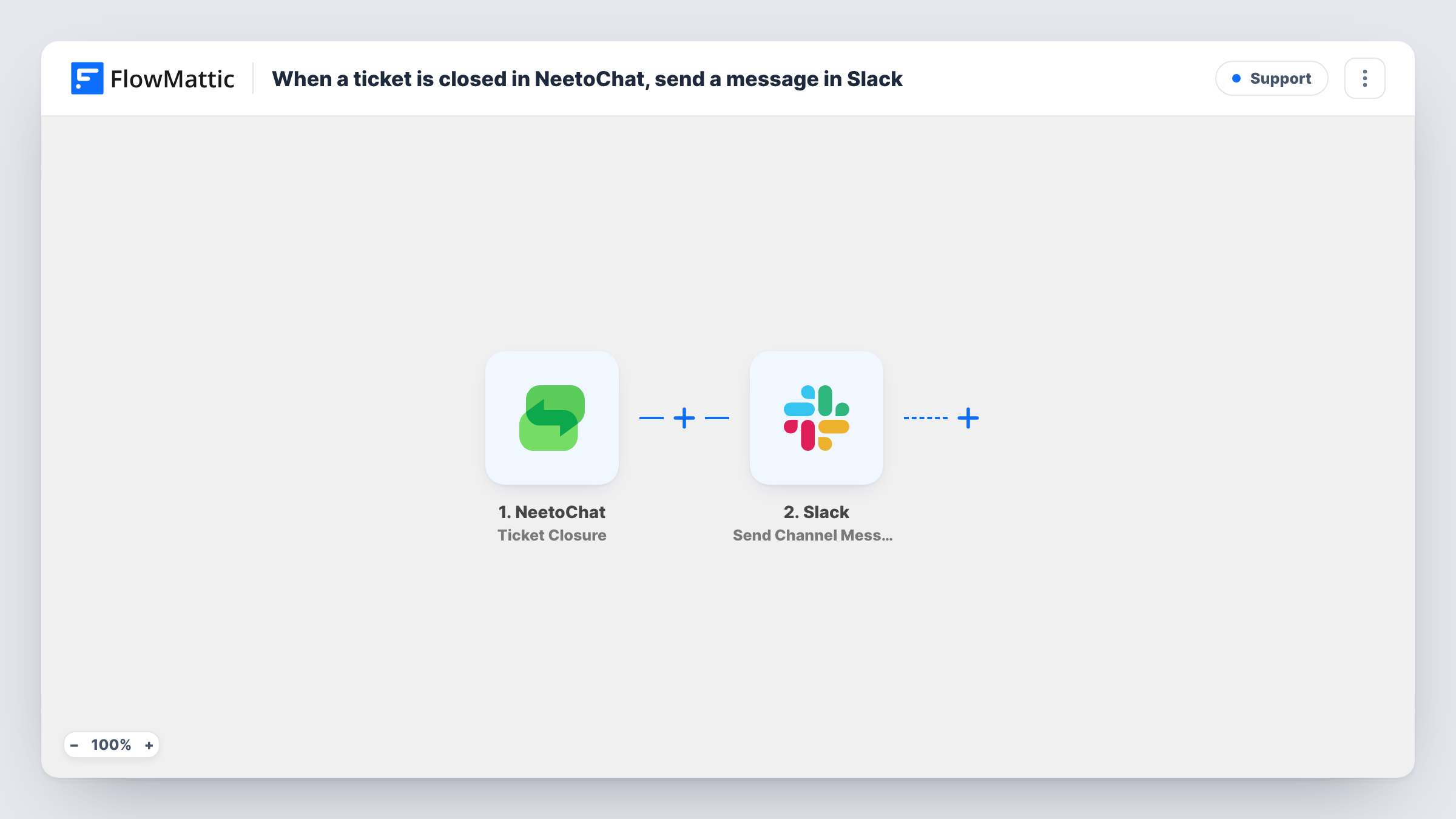
The NeetoChat trigger fires when a ticket is closed. FlowMattic receives the ticket details from that event and passes them to Slack. Send Channel Message then posts to the channel you choose, using the text you write and any ticket fields you place in it.
New tickets and visitor replies have their own NeetoChat triggers and don't post here. The workflow changes nothing in NeetoChat. Task History shows every run with the response Slack gave.
Account managers watching key customers
An account manager follows #support-closed and sees when a customer's chat ticket is done, before they pick up the phone for a renewal talk.
End-of-day support summary
The support lead scrolls one Slack channel to see every NeetoChat ticket closed that day instead of filtering inside the helpdesk.
Prompting a follow-up
A teammate in customer success sees the closure in Slack and sends a personal check-in to customers they look after.
How this workflow runs
What happens at each step once the workflow is on, and what you need before you import it.
 NeetoChat Ticket Closure
Runs when a ticket is closed in your NeetoChat account. The ticket details from that event are passed on for the Slack message.
- Slack Send Channel Message
Posts the closure note to the public Slack channel you select. Write the text, place NeetoChat ticket details in it and connect your Slack workspace.
What you need
- FlowMatticCore
- NeetoChat AccountAccount
- Slack AccountAccount
After importing, map your own data. To keep the template universal, not every step is pre-filled. Open each step in the builder and connect your accounts and fields (channels, lists, sheets, recipients) before you switch the workflow on.
Make it yours
Changes worth making after you import it.
- Use Slack's Send Private Channel Message instead if the closure notes belong in a private support channel.
- Add a Google Sheets step after Slack to log closed NeetoChat tickets with the date, for a simple weekly count.
- Close a test ticket after import so FlowMattic captures NeetoChat's fields before you write the Slack message.
Questions about this workflow
Does a new NeetoChat ticket post to Slack?
No. This workflow uses Ticket Closure. NeetoChat's Ticket Creation trigger is separate if you want new tickets announced too.
Can I send the NeetoChat closure to one person instead of a channel?
Yes. Change the action to Slack's Send Direct Message and pick the person, for example the account owner.
What ticket details can the Slack message include?
Whatever NeetoChat sends with the closure event. Check the trigger output from a test closure and map the fields you want.
More Support workflows
Other ready-to-import templates from the same category.







Import this workflow into your WordPress site
Download the JSON, import it from the Workflows screen and connect your accounts. Every run stays on your server, with no per-task fees.
30-day money-back guarantee Unlimited workflows and runs Self-hosted