

When a new conversation is created in ThriveDesk, add conversation details to Google Spreadsheet
When a new conversation is created in ThriveDesk, this workflow adds its details as a row in Google Sheets, building a running log of support requests you can sort, chart or share outside the helpdesk.
 ThriveDesk
 Google Sheets
2 steps Setup ~5 min Used on 486 sites Free to import
What this workflow does
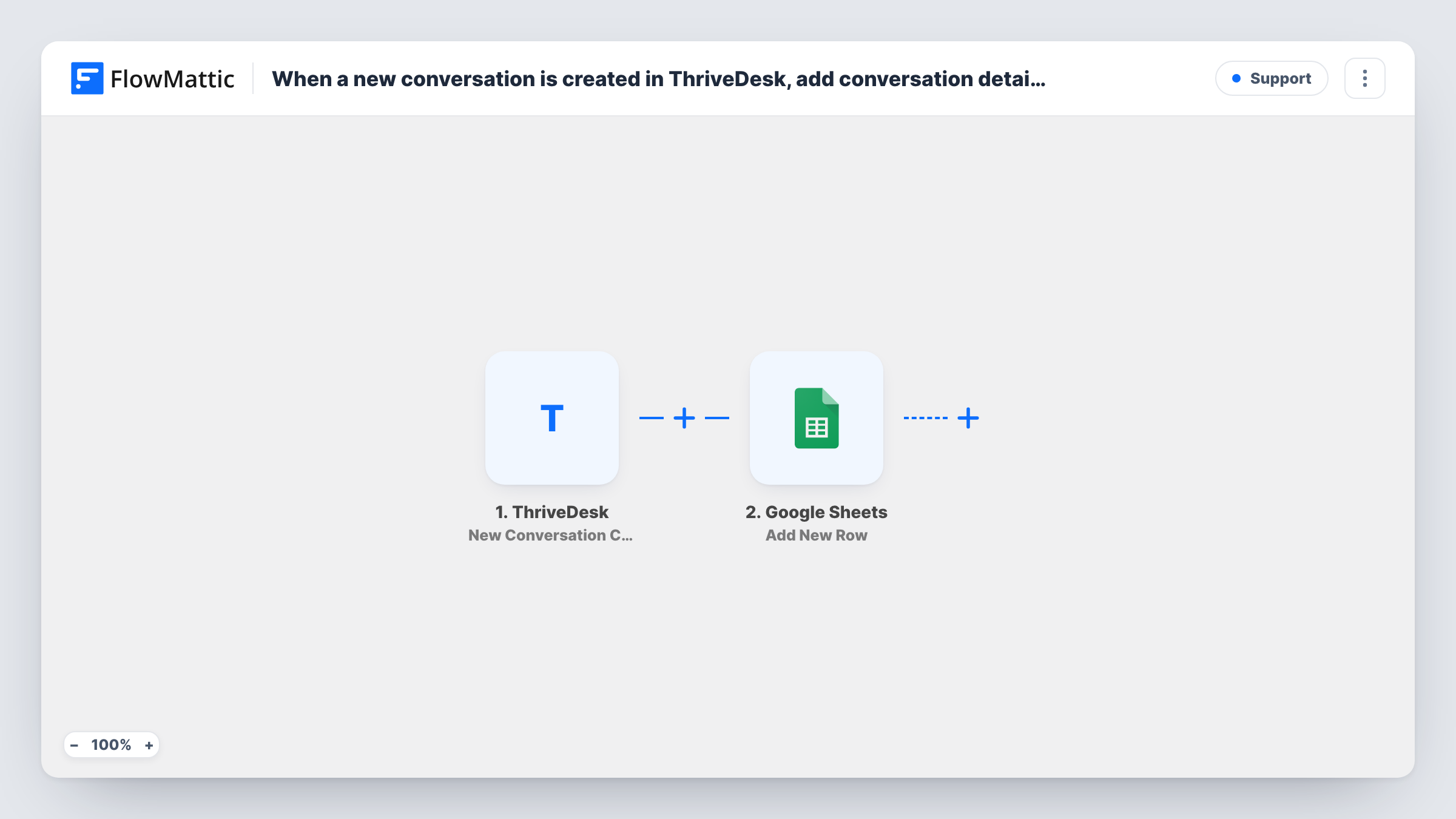
A helpdesk shows you what is open today, but questions like how many tickets came in last month, or which topics keep coming back, are easier to answer in a spreadsheet. Exporting by hand each week gets old fast. This workflow writes every new ThriveDesk conversation to Google Sheets as it is created.
The ThriveDesk trigger runs when a new conversation starts and passes its details to FlowMattic. The Google Sheets step then adds a row to the spreadsheet you pick, with the conversation values you map into each column, such as the subject and the customer's email if ThriveDesk sends them.
Rows are added when conversations are created. Later replies, status changes or closures are not written back to the sheet, so treat it as an intake log rather than a live view of the queue. A test conversation after import shows which details the trigger provides.
Monthly support volume reports
Each ThriveDesk conversation adds a row, and with a date column mapped, a chart or pivot table in Google Sheets shows how many requests arrived each week.
Sharing support themes with product
Product managers who never open ThriveDesk browse the sheet of new conversations and spot recurring questions about a feature.
Tracking requests per client
An agency supporting several clients filters the sheet by customer email to see how many conversations each client started.
How this workflow runs
What happens at each step once the workflow is on, and what you need before you import it.
 ThriveDesk New Conversation Created
Runs when a new conversation is created in your ThriveDesk account. The conversation details are passed on for mapping into the sheet.
- Google Sheets Add New Row
Puts each new ThriveDesk conversation on its own row in the spreadsheet you select. Map conversation values to the columns so it is recorded once, at the moment it starts.
What you need
- FlowMatticCore
- ThriveDesk AccountAccount
- Google Sheets AccountAccount
After importing, map your own data. To keep the template universal, not every step is pre-filled. Open each step in the builder and connect your accounts and fields (channels, lists, sheets, recipients) before you switch the workflow on.
Make it yours
Changes worth making after you import it.
- If your test run shows a date in the ThriveDesk data, map it into its own column so you can group conversations by day or week in the sheet.
- Add a Slack step after Google Sheets that posts new conversations to a support channel, so the team sees them outside the helpdesk too.
- Start a test conversation after import, then read the run in Task History to see the field names before you set up your sheet columns.
Questions about this workflow
Does the Google Sheets row update when the ThriveDesk conversation is closed?
No. The workflow writes one row when the conversation is created. Status changes and replies are not sent to the sheet.
Which ThriveDesk details can go into the sheet?
Any value the trigger receives for the new conversation. Run a test after import to see the full list, then map the ones you want.
Are conversations from before I import this added to Google Sheets?
No. Only conversations created after the workflow is switched on start a run.
Can the support log live in a shared Google Sheet?
Yes. The row goes to whatever spreadsheet the connected Google account can edit, so a shared sheet works as long as that account has edit access.
More Support workflows
Other ready-to-import templates from the same category.





Import this workflow into your WordPress site
Download the JSON, import it from the Workflows screen and connect your accounts. Every run stays on your server, with no per-task fees.
30-day money-back guarantee Unlimited workflows and runs Self-hosted