

When form response received in FluentForm, translate text by using Google Translate and send response to Fluent Form
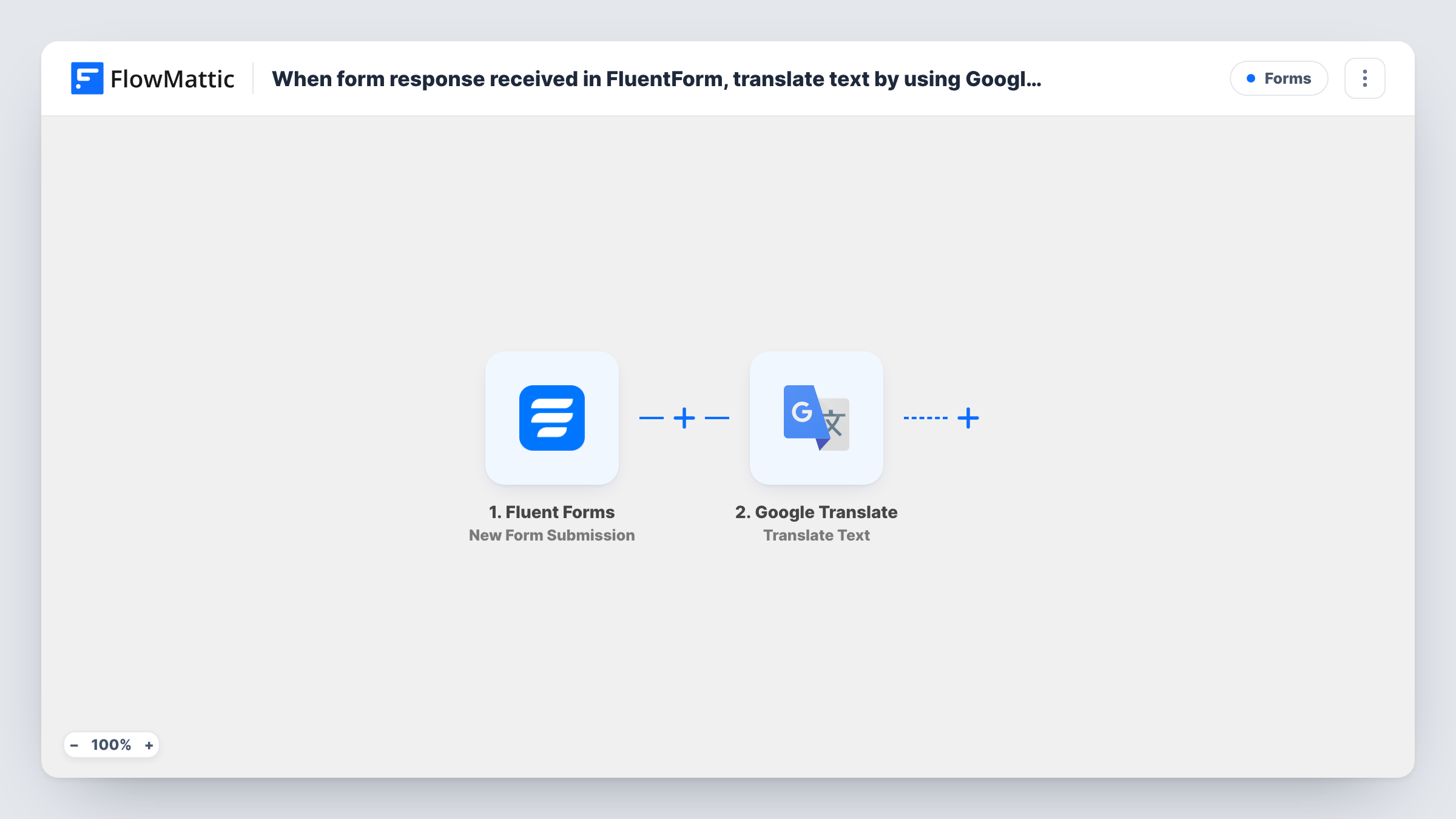
When a Fluent Forms submission comes in, FlowMattic translates text with Google Translate and sets the result as the form’s custom success message, so the visitor sees a translated response right after submitting.
 Fluent Forms
 Google Translate
3 steps Setup ~5 min Used on 3.1k sites Free to import
What this workflow does
The success message Fluent Forms shows after a submission is usually fixed text. This workflow makes it dynamic: it runs the text you choose through Google Translate and shows the translation to the visitor as the form's confirmation. You might translate your thank-you into the language of a regional landing page, or show the visitor's own message back in another language.
The Fluent Forms trigger fires when a new form submission is received and passes the submitted fields on.
Next, Google Translate turns that text into the language you set. This step ships unmapped, so after import choose the text to translate, either a form field or your own message with fields mapped in, and the target language.
The last step is the Fluent Forms Set Custom Response action, which sets a custom response as the form's success message on submission. It ships unmapped too: map the translated text from the Google Translate step into it. Submit the form yourself after setting it up to see the message a visitor gets, and check Task History if the response doesn't appear as expected.
Confirmations for a multilingual event form
A conference registration form shows each visitor a confirmation translated into French for the event's French-language landing page.
Show a translated summary of the message
A translation agency's demo form returns the visitor's own message translated into the language they picked, as a quick sample of the service.
Localized thank-you on a regional site
A company runs one Fluent Forms contact form on several regional pages and translates the thank-you into German for its Germany page.
How this workflow runs
What happens at each step once the workflow is on, and what you need before you import it.
 Fluent Forms New Form Submission
Starts a run for each entry a visitor submits on your Fluent Forms form. The submitted fields are passed to Google Translate and are available for the response.
- Google Translate Translate Text
Translates the text you choose into another language. The step ships unmapped: after import pick a form field or write your own text, and set the target language.
- Fluent Forms Set Custom Response
Sets a custom success message on the Fluent Forms submission. Map the translated text from the Google Translate step into it after import.
What you need
- FlowMatticCore
- Fluent Forms PluginPlugin
- Google Translate AccountAccount
After importing, map your own data. To keep the template universal, not every step is pre-filled. Open each step in the builder and connect your accounts and fields (channels, lists, sheets, recipients) before you switch the workflow on.
Make it yours
Changes worth making after you import it.
- To keep a record of what visitors were shown, add a Google Sheets Add New Row step after Set Custom Response and map the original and translated text into two columns.
- Map the visitor's first name into the text before translation, so the translated message greets them personally.
- Test with a long message as well as a short one, since the success message shows whatever Google Translate returns.
Questions about this workflow
What text gets translated in the Fluent Forms response?
The text you set in the Translate Text step. It can be a submitted field, your own fixed message, or a mix of both. The imported step is empty, so you decide after import.
Will the visitor see the translation on the Fluent Forms page?
The Set Custom Response action sets the form's success message on submission, using the text you map from Google Translate. Submit a test entry to check how it looks on your page.
Can the target language follow what the visitor chose in the form?
If your form has a language field, try mapping it into the Translate Text step's target language and test with each option to confirm Google Translate accepts the values.
More Forms workflows
Other ready-to-import templates from the same category.







Import this workflow into your WordPress site
Download the JSON, import it from the Workflows screen and connect your accounts. Every run stays on your server, with no per-task fees.
30-day money-back guarantee Unlimited workflows and runs Self-hosted