

When a new form is submitted in NeetoForm, add a new contact in FluentCRM
Each NeetoForm response adds the person to FluentCRM on your WordPress site, creating a contact from their email address or updating the one already there with the details they entered.
 NeetoForm
 FluentCRM
2 steps Setup ~5 min Used on 1.7k sites Free to import
What this workflow does
NeetoForm is handy for forms hosted outside WordPress, while FluentCRM lives on your site and sends your emails. Without a link between them, form responses stay in NeetoForm and your email list misses them. This workflow adds each respondent to FluentCRM.
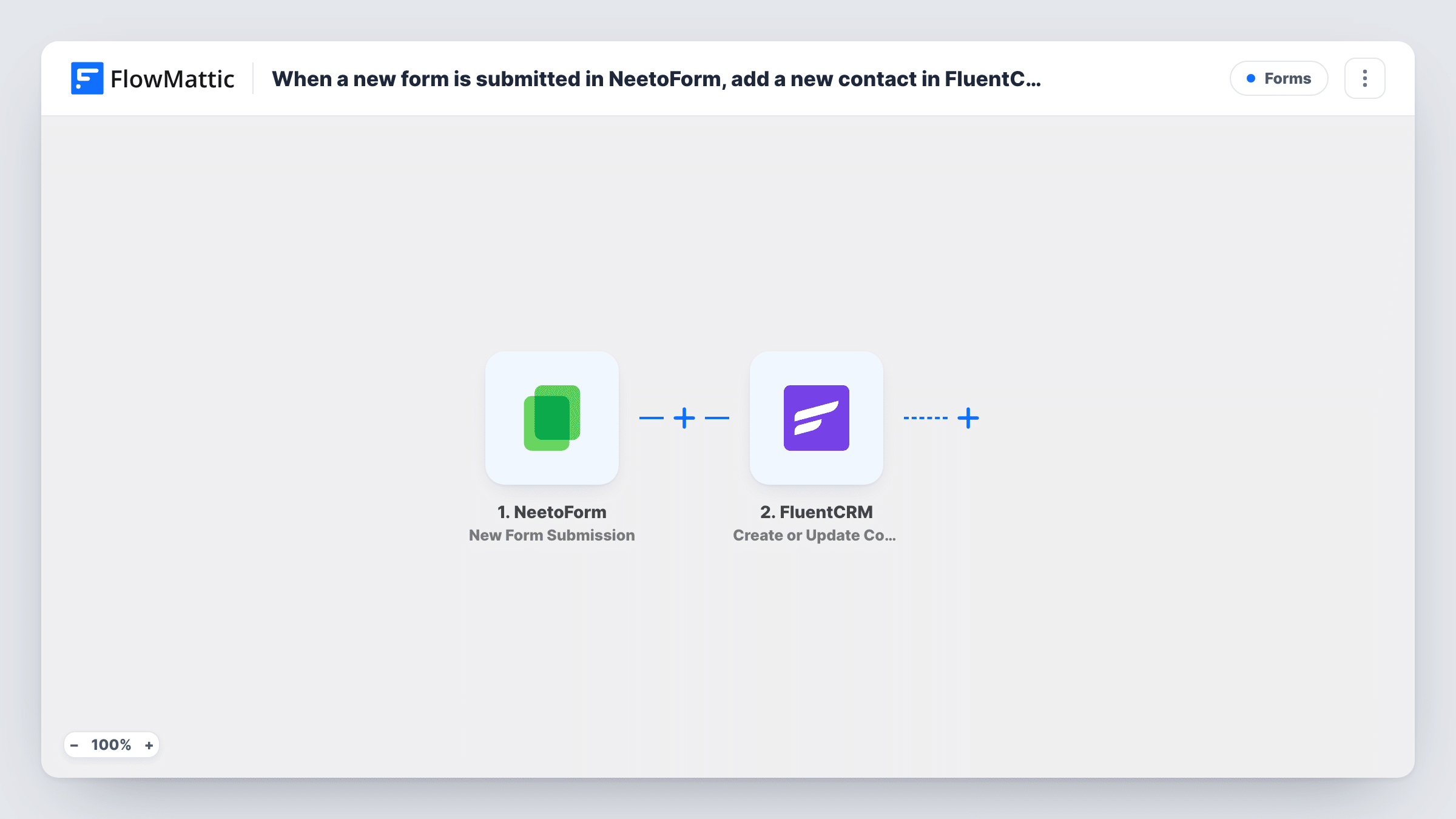
The NeetoForm trigger, New Form Submission, fires when a new form response is submitted. FlowMattic passes the answers to FluentCRM, where Create or Update Contact looks up the email address. A new address becomes a new contact; an address already in FluentCRM gets its contact updated with the mapped answers.
Every submission runs the step, with no Filter. Since the match is by email, a person who fills in the form twice stays as one contact. You choose which answers go into which contact fields when you map the step, so make sure your form collects an email.
Waitlist form on a landing page
A NeetoForm waitlist form fills FluentCRM, ready for the launch email you send from your WordPress site.
Course or workshop interest
People who ask for details about a workshop become FluentCRM contacts, so you can send them the schedule and booking link.
Feedback forms with follow-up
Customers who leave feedback through NeetoForm are added or updated in FluentCRM, so their latest details are on hand when you reply.
How this workflow runs
What happens at each step once the workflow is on, and what you need before you import it.
 NeetoForm New Form Submission
Fires when a new response is submitted to your NeetoForm form. The answers, including the email address, are handed to FluentCRM.
- FluentCRM Create or Update Contact
Creates a FluentCRM contact from the NeetoForm answers, or updates the contact that already has that email. Map the email and name fields, then submit a test response to check the contact.
What you need
- FlowMatticCore
- NeetoForm AccountAccount
- FluentCRM PluginPlugin
After importing, map your own data. To keep the template universal, not every step is pre-filled. Open each step in the builder and connect your accounts and fields (channels, lists, sheets, recipients) before you switch the workflow on.
Make it yours
Changes worth making after you import it.
- Add FluentCRM Add Tags to Contact after this step so you can tell which contacts came from NeetoForm.
- If the form has a consent question, add a Filter after the trigger that continues only when it is ticked.
- Submit a test response after import so FlowMattic captures the NeetoForm fields before you map them.
Questions about this workflow
What if the NeetoForm respondent is already in FluentCRM?
Their contact is updated with the mapped answers. Create or Update Contact matches by email, so no second contact is made.
NeetoForm is hosted elsewhere, so where does FluentCRM have to run?
On the WordPress site where FlowMattic is installed. NeetoForm can live anywhere, but FluentCRM is a WordPress plugin and the contact step works on that same site.
Can I put NeetoForm respondents on a FluentCRM list?
Yes. Add FluentCRM Add Lists to Contact after the contact step, since the contact exists by then.
Do earlier NeetoForm responses get added?
No. Responses submitted before the workflow is switched on don't start a run.
More Forms workflows
Other ready-to-import templates from the same category.






Import this workflow into your WordPress site
Download the JSON, import it from the Workflows screen and connect your accounts. Every run stays on your server, with no per-task fees.
30-day money-back guarantee Unlimited workflows and runs Self-hosted