

When Joonbot captures a new user inquiry, add the contact to MailerLite
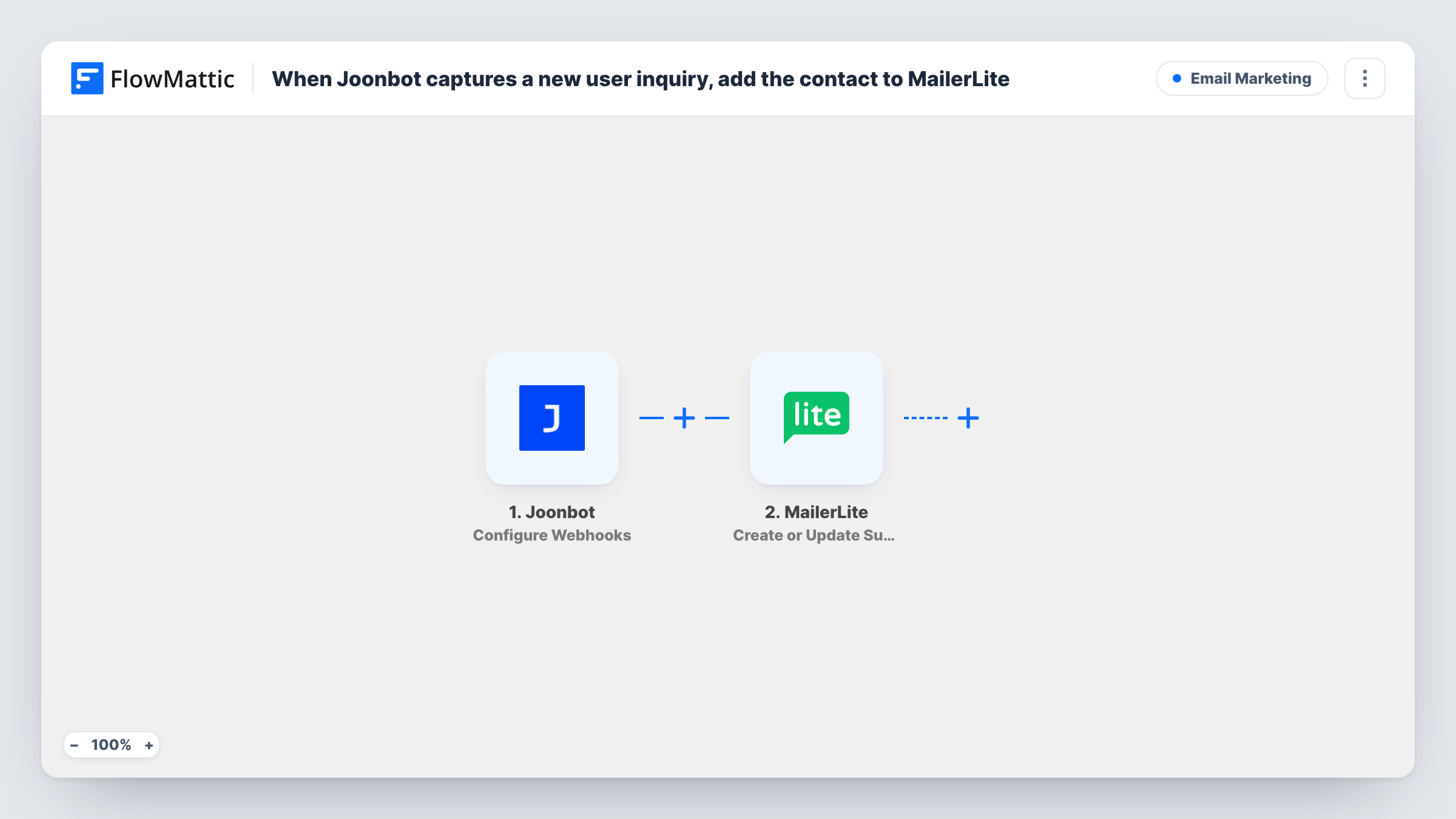
When your Joonbot chatbot sends a visitor’s answers to FlowMattic, this workflow creates or updates that person as a MailerLite subscriber, so chat leads join your email list without exports.
 Joonbot
 MailerLite
2 steps Setup ~5 min Used on 3.1k sites Free to import
What this workflow does
A chatbot on your site can collect names and emails all day, but those leads are only useful once they're in your email tool. Exporting conversations from Joonbot and importing them into MailerLite is a chore you can drop with this workflow.
The Joonbot trigger uses Joonbot's webhook system. You paste the FlowMattic webhook URL into your bot's settings, and Joonbot sends conversation data to it. Each delivery starts a run, and the answers the visitor gave become fields you can map.
The MailerLite step then creates a subscriber from those fields, or updates the subscriber if the email is already in your account. It can also fill custom fields, so a chat answer such as the visitor's interest can go into a MailerLite field you've created. The step needs an email address, so your bot has to ask for one. If a conversation ends without it, MailerLite has nothing to add.
Lead capture bot on a landing page
A Joonbot flow asks visitors what they're looking for and their email, and each finished chat adds them to MailerLite for your welcome emails.
Quote or demo enquiries
A sales bot collects the visitor's name, email and company size. The details reach MailerLite, ready for a follow-up sequence.
Content download in chat
Instead of a form, a chatbot offers a guide in exchange for an email, and the subscriber lands in MailerLite with their topic in a custom field.
How this workflow runs
What happens at each step once the workflow is on, and what you need before you import it.
 Joonbot Configure Webhooks
Receives data from Joonbot through its webhook system. Paste the FlowMattic URL into your bot, and each delivery passes the visitor's answers on for mapping.
- MailerLite Create or Update Subscriber
Creates a MailerLite subscriber from the chat answers, or updates the existing one with the same email. Map the email answer and any name or custom fields you collect.
What you need
- FlowMatticCore
- Joonbot AccountAccount
- MailerLite AccountAccount
After importing, map your own data. To keep the template universal, not every step is pre-filled. Open each step in the builder and connect your accounts and fields (channels, lists, sheets, recipients) before you switch the workflow on.
Make it yours
Changes worth making after you import it.
- Make sure your Joonbot flow asks for an email before it ends. Without one in the data, the MailerLite step has no address to create a subscriber with.
- Add a Filter after the trigger that continues only when the email answer is not empty, so chats that end early don't produce failed runs in Task History.
- Finish a test conversation with your own email after import, so FlowMattic captures Joonbot's fields. Then map them in the MailerLite step.
Questions about this workflow
What if the Joonbot visitor is already a MailerLite subscriber?
The step is Create or Update Subscriber, so the existing subscriber is updated with the new values. Mapped fields that arrive blank may overwrite what MailerLite had, so test with a known address.
Does Joonbot send every conversation to FlowMattic?
Joonbot sends data according to how you set up its webhook in your bot. Check Task History after a test chat to see which conversations arrive.
Can I add Joonbot leads to a specific MailerLite group?
Check the MailerLite step after import to see what it lets you set. If you need a group, look at MailerLite's other actions in FlowMattic for one that adds subscribers to a group.
Do chats from before I turned the workflow on get added?
No. Only data Joonbot sends to the webhook while the workflow is active reaches MailerLite.
More Email Marketing workflows
Other ready-to-import templates from the same category.







Import this workflow into your WordPress site
Download the JSON, import it from the Workflows screen and connect your accounts. Every run stays on your server, with no per-task fees.
30-day money-back guarantee Unlimited workflows and runs Self-hosted