

When an email is bounced in Instantly campaign, add the email to Google Sheet as new row
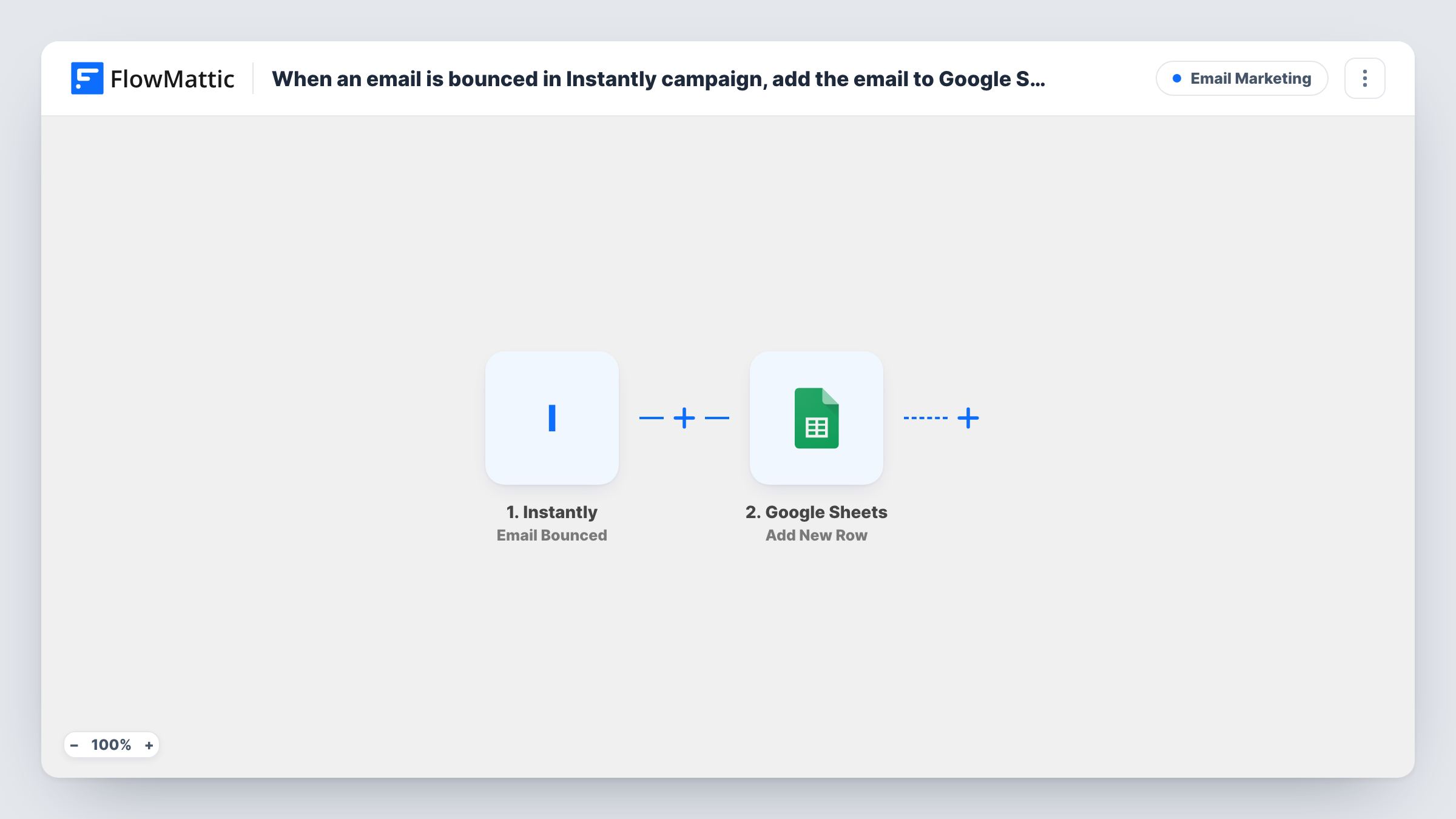
When an email in your Instantly campaign bounces, this workflow adds the address to a new row in Google Sheets, giving you one list of bounced addresses to review and clean.
 Instantly
 Google Sheets
2 steps Setup ~5 min Used on 2.9k sites Free to import
What this workflow does
Bounced addresses in a cold email campaign point to bad data in your lead lists. Finding them one by one inside Instantly makes cleanup slow, and the same bad addresses can turn up again in the next list you buy or build. This workflow keeps a running record of them in Google Sheets.
The Instantly trigger, Email Bounced, fires when an email sent in a particular campaign bounces. The bounce details, which should include the lead's email address and the campaign, become values you can map. A test run shows exactly what Instantly sends.
The Google Sheets step adds a row for each bounce to the spreadsheet you pick. Map the email address into one column, and the campaign or lead details into others. Nothing in the template changes the lead in Instantly; it only records the bounce.
A suppression list for future campaigns
Before uploading a new lead list to Instantly, you check it against the bounced-address sheet and remove any address that bounced before.
Judging a lead source
Add a column for where each list came from, and the sheet shows which supplier's data produces the most bounces.
Agency reporting for clients
An outbound agency shares the bounce sheet with each client, so they can see which of their contacts had bad addresses.
How this workflow runs
What happens at each step once the workflow is on, and what you need before you import it.
 Instantly Email Bounced
Fires when an email sent in your chosen Instantly campaign bounces. Connect Instantly on import and use a test run to see the bounce data it passes on, including the lead's address.
- Google Sheets Add New Row
Records the bounce as a new row in the Google Sheets spreadsheet you select. Map the bounced email address and any campaign details you want to keep into your columns.
What you need
- FlowMatticCore
- Instantly AccountAccount
- Google Sheets AccountAccount
After importing, map your own data. To keep the template universal, not every step is pre-filled. Open each step in the builder and connect your accounts and fields (channels, lists, sheets, recipients) before you switch the workflow on.
Make it yours
Changes worth making after you import it.
- Cover more than one campaign by duplicating the workflow and choosing a different Instantly campaign in each copy's trigger. Map the campaign name into a column so the sheet shows the source.
- Add Instantly's Update Lead Status action after the sheet step to mark the bounced lead in Instantly as well. Check a test run for the lead details that action needs.
Questions about this workflow
Which Instantly campaigns does this watch?
The trigger is tied to a particular campaign. Pick the campaign when you set up the trigger, and duplicate the workflow for any others you want to track.
Does the workflow remove bounced leads from Instantly?
No. It only adds the address to Google Sheets. Add an Instantly action after the sheet step, such as Update Lead Status or Delete Lead, if you want the lead changed there too.
Can the same bounced address appear twice in the sheet?
Yes. Each bounce event Instantly reports adds its own row, so an address that bounces again is logged again. Remove duplicates in Google Sheets when you review the list.
Are bounces from before setup included?
No. The sheet only gets bounces Instantly reports after you turn the workflow on.
More Email Marketing workflows
Other ready-to-import templates from the same category.





Import this workflow into your WordPress site
Download the JSON, import it from the Workflows screen and connect your accounts. Every run stays on your server, with no per-task fees.
30-day money-back guarantee Unlimited workflows and runs Self-hosted