

When new form submission is received in WSForms, check if a field contains a word using Filters, and add the data to Google Spreadsheet
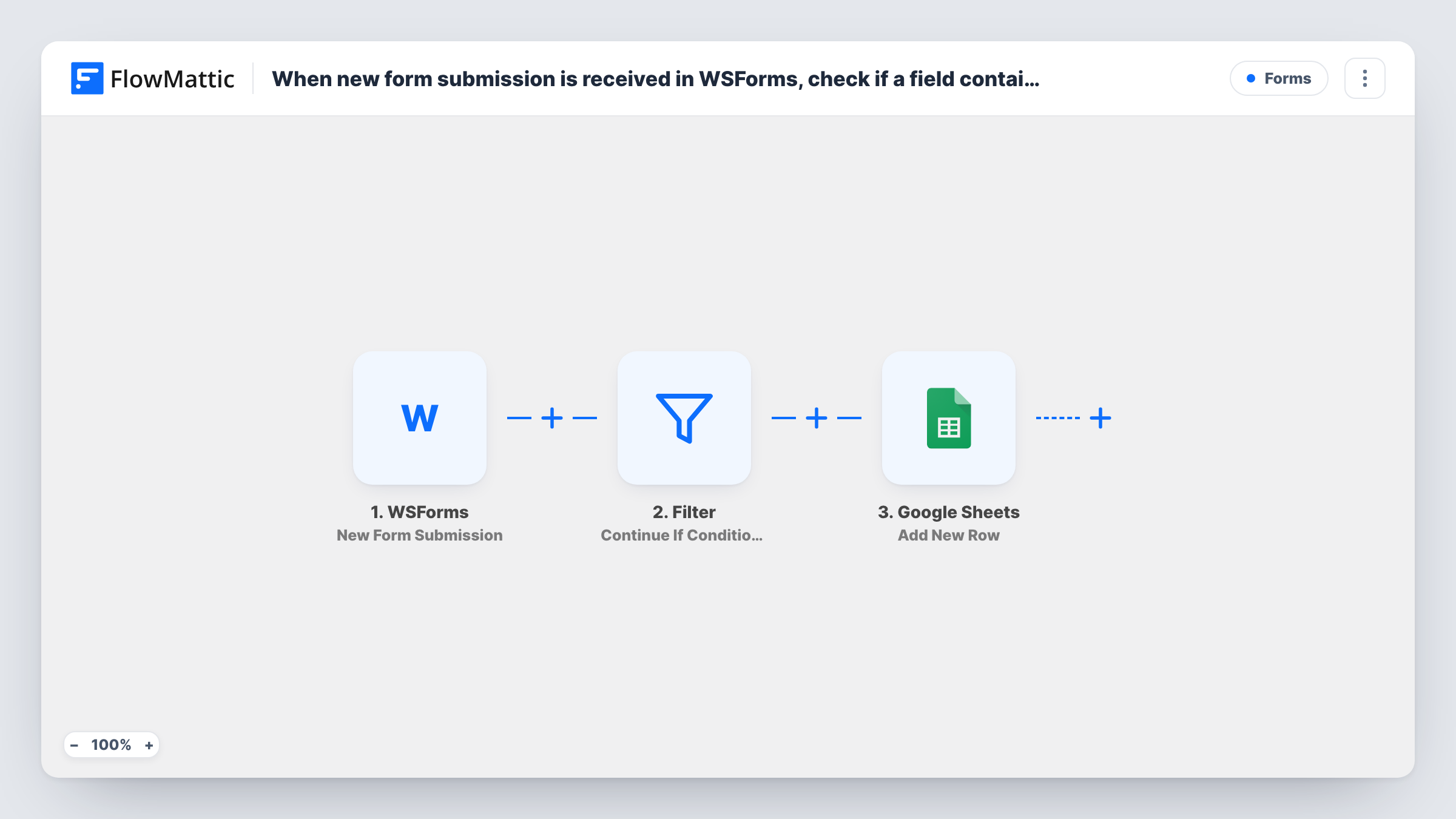
When a WS Form is submitted, a Filter checks whether the message field contains the word “urgent”, and only matching submissions are added as new rows to your Google Sheets spreadsheet.
 WSForms
 Filter
 Google Sheets
3 steps Setup ~5 min Used on 2.4k sites Free to import
What this workflow does
Not every form entry deserves a place in the same sheet. If your team only wants to see the submissions that mention a particular word, a Filter between the form and the spreadsheet keeps everything else out. This workflow ships with that check already built for an "urgent" keyword in the message.
The WSForms New Form Submission trigger starts a run each time a form is submitted, and passes the submitted fields on. The Filters step then continues only if the form's message field contains the text "urgent". The check ignores upper and lower case, so "Urgent" and "URGENT" match too. Because it looks for the text anywhere in the field, a message that says "not urgent" also passes.
Treat the field and the word as an example to edit. Your form's field may have a different name, and you may want another keyword. Change both in the Filter after import. Submissions that don't match stop at the Filter and add nothing.
Matching entries reach Google Sheets, where Add New Row writes one row each. That step ships unmapped: pick the spreadsheet and sheet and match the form fields to your columns.
Urgent support requests in one sheet
A small IT provider's contact form feeds a sheet that holds only messages mentioning "urgent", which the on-call technician checks first.
Keyword-based enquiry sorting
A venue changes the keyword to "wedding" so its events coordinator gets a sheet of only the wedding enquiries from the general WS Form.
Complaint tracking
A retailer edits the Filter to look for "refund" in the message field and logs those submissions in a sheet the customer service lead reviews.
How this workflow runs
What happens at each step once the workflow is on, and what you need before you import it.
 WSForms New Form Submission
Starts the workflow whenever a WS Form submission is received. The submitted field values are passed to the Filter and the Google Sheets step.
- Filter Continue If Condition Meet
Continues only when the form's message field contains "urgent", ignoring case. Both the field and the word are examples: point the condition at your own field and keyword after import.
- Google Sheets Add New Row
Adds one row to your Google Sheet for each submission that passed the Filter. Columns are not mapped in the template, so choose the sheet and map the form fields into it.
What you need
- FlowMatticCore
- WSForms PluginPlugin
- Google Sheets AccountAccount
After importing, map your own data. To keep the template universal, not every step is pre-filled. Open each step in the builder and connect your accounts and fields (channels, lists, sheets, recipients) before you switch the workflow on.
Make it yours
Changes worth making after you import it.
- If your form names its message field differently, reselect it in the Filter's condition. A field the form doesn't send leaves the check with nothing to match.
- To catch several keywords, add more conditions to the same Filter with OR, for example "urgent" or "asap".
- If "not urgent" passing is a problem, ask in the form with a separate priority dropdown and set the Filter to check that field with an exact match instead.
Questions about this workflow
Does the WS Form keyword check care about capital letters?
No. The Filter ignores upper and lower case, so "urgent", "Urgent" and "URGENT" all pass. It matches the text anywhere in the field, including inside longer words or phrases.
What happens to submissions without the word?
They stop at the Filter, so no row is added to Google Sheets for them. They are still stored by WS Form as usual, and Task History shows each run.
Can I log every submission and still flag the urgent ones?
Yes. Remove the Filter so every entry reaches Google Sheets, and map the message into a column you can sort or filter in the sheet itself.
More Forms workflows
Other ready-to-import templates from the same category.






Import this workflow into your WordPress site
Download the JSON, import it from the Workflows screen and connect your accounts. Every run stays on your server, with no per-task fees.
30-day money-back guarantee Unlimited workflows and runs Self-hosted