

When new form submission is received in WSForms, send the data to external app using Outgoing Webhooks
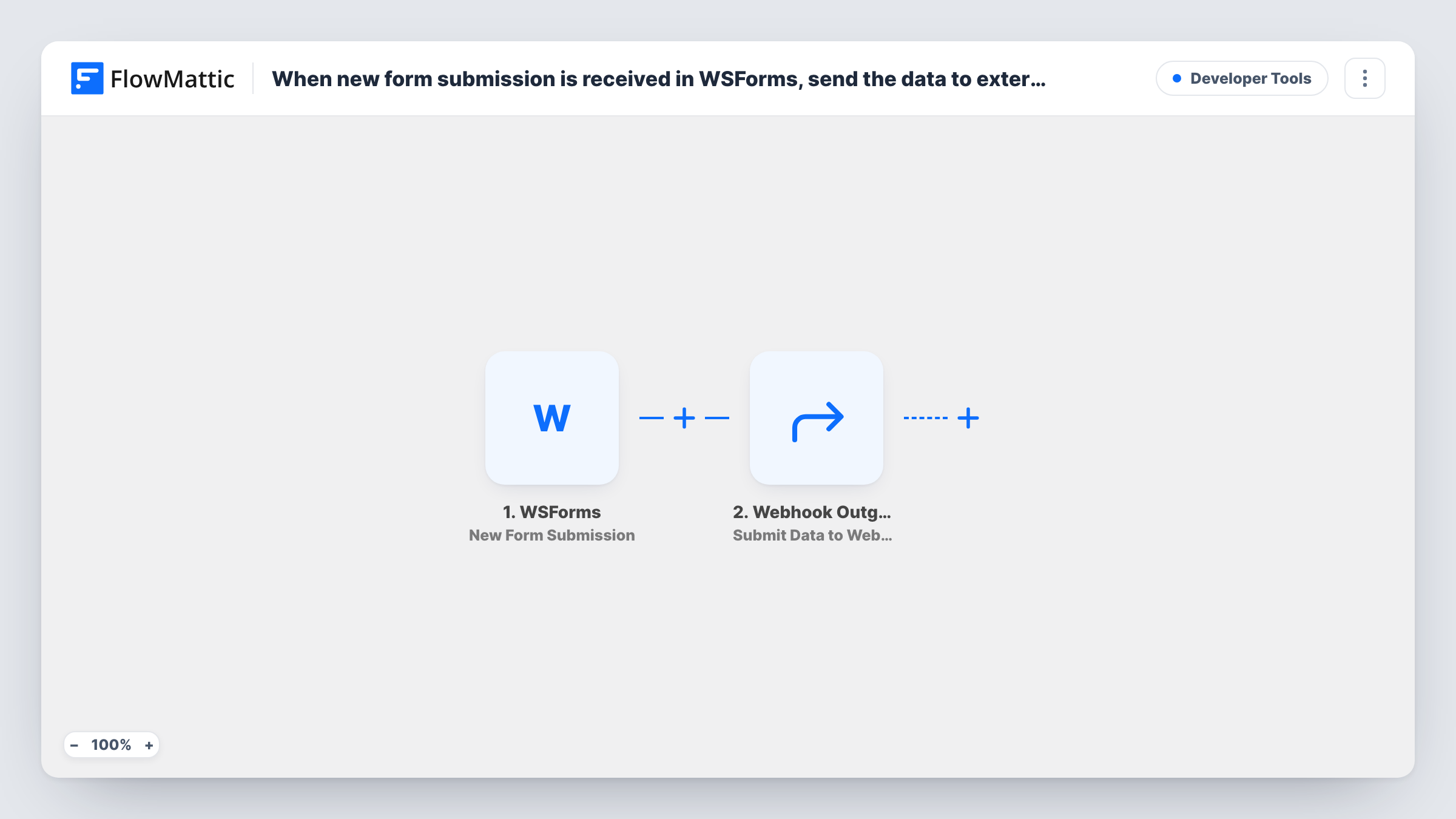
Each new WS Form submission on your WordPress site is posted as JSON to a webhook URL you choose, so an external app or your own service receives the form data as soon as it’s sent.
 WSForms
 Webhook Outgoing
2 steps Setup ~5 min Used on 1.8k sites Free to import
What this workflow does
Some tools don't have a ready-made connection to your WordPress forms, but almost any of them can accept a webhook. If you run a custom app, an internal system or a service with an incoming webhook URL, this workflow hands it every WS Form entry without a plugin of its own.
The WSForms trigger fires when a new submission is received. Each answer from the entry becomes a value you can map.
The second step is Webhook Outgoing, which sends data to a webhook URL using the POST method in JSON format. The step ships unmapped: after import you paste the receiving app's webhook URL and choose which form fields go into the request, under the names the receiving app expects. Nothing about the request is set in the template, so check the other app's documentation for what it needs.
Send a test entry and open Task History to see the request FlowMattic sent and the response the other app returned. That's the quickest way to spot a missing field or a wrong URL.
Feeding a custom CRM
A company with an in-house CRM gives it an endpoint for leads, and each enquiry from the website's WS Form lands there as JSON.
Sending entries to another automation tool
A team that runs most automations in another platform posts WS Form entries to that tool's webhook trigger and continues the process there.
Triggering a developer's script
A developer exposes a small serverless function that receives registration form data and creates accounts in a separate application.
How this workflow runs
What happens at each step once the workflow is on, and what you need before you import it.
 WSForms New Form Submission
Fires when a new submission is received in WS Form. Every answer in the entry becomes available to map into the outgoing request.
- Webhook Outgoing Submit Data to Webhook
Posts the form data as JSON to the webhook URL you enter. Add the receiving app's URL and map the WS Form fields under the key names it expects after import.
What you need
- FlowMatticCore
- WSForms PluginPlugin
After importing, map your own data. To keep the template universal, not every step is pre-filled. Open each step in the builder and connect your accounts and fields (channels, lists, sheets, recipients) before you switch the workflow on.
Make it yours
Changes worth making after you import it.
- Point the step at a request-inspection URL first and send a test entry, so you can see the exact JSON before connecting the real app.
- Name each JSON key exactly as the receiving app's documentation lists it, since it decides which keys it reads.
- Add a Filter between the WS Form trigger and the outgoing webhook if only some entries should be sent, for example when a chosen dropdown equals a value. The field and value are examples to edit.
Questions about this workflow
What format does the outgoing webhook send the WS Form data in?
JSON, sent with the POST method to the URL you enter. You choose the keys and map form answers to them.
Can I send WS Form entries to more than one webhook URL?
Yes. Add another Submit Data to Webhook step after the first one and give it the second URL and its own mapping.
How do I know the external app received the WS Form entry?
Look at that entry's run in Task History, which lists the request FlowMattic sent and the response the receiving app gave back.
More Developer Tools workflows
Other ready-to-import templates from the same category.





Import this workflow into your WordPress site
Download the JSON, import it from the Workflows screen and connect your accounts. Every run stays on your server, with no per-task fees.
30-day money-back guarantee Unlimited workflows and runs Self-hosted