

When new post is published in WordPress, add the post details as Google Spreadsheet row
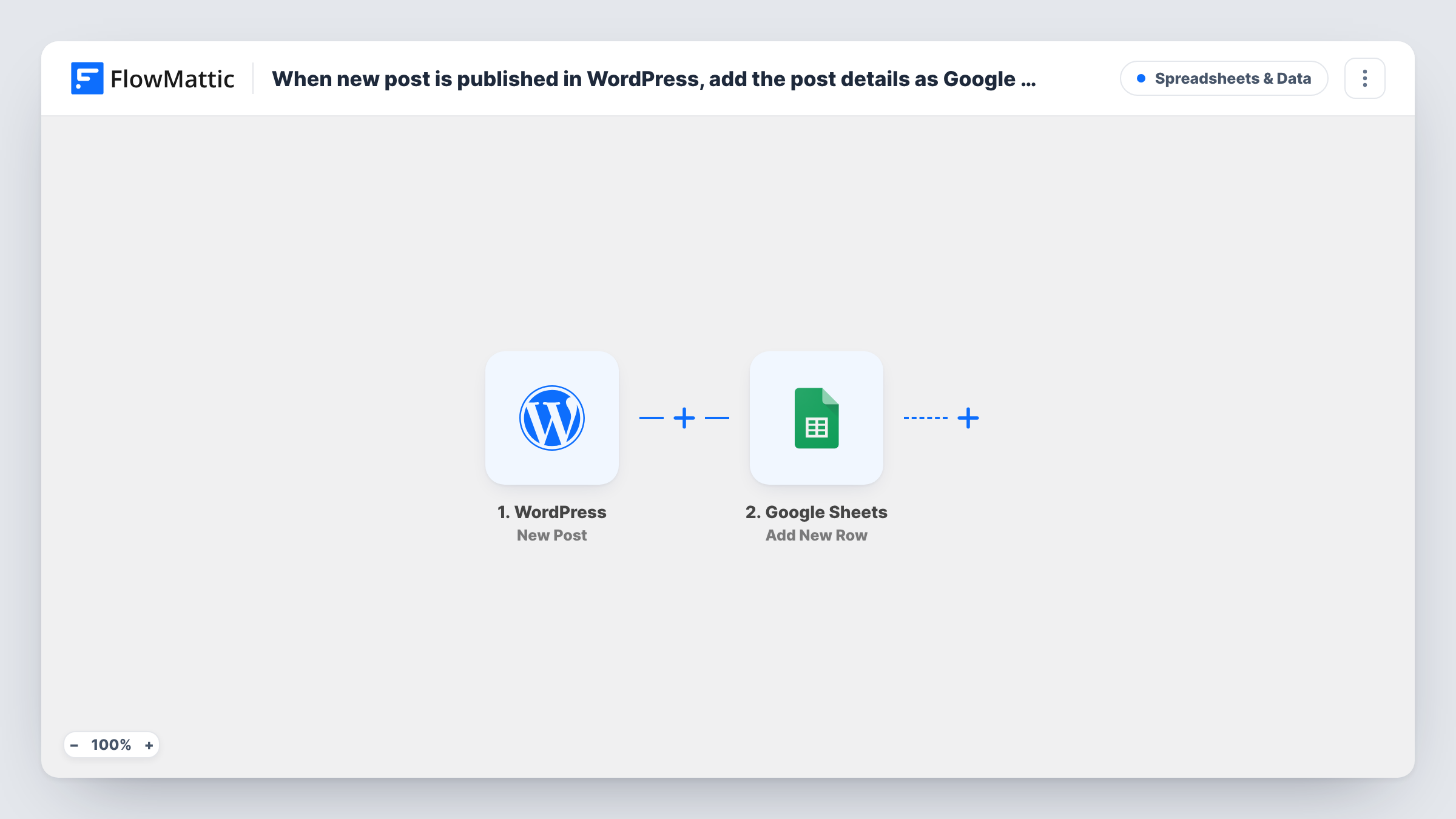
Each time you publish a post on your WordPress site, FlowMattic adds a row to Google Sheets with the post details you map, such as title, link, author and date, so you build a running log of published content.
 WordPress
 Google Sheets
2 steps Setup ~5 min Used on 2.9k sites Free to import
What this workflow does
Content teams often track what went live in a spreadsheet: for reporting, for planning updates, or to share with people who never log into WordPress. Keeping that sheet current by hand is easy to forget. This workflow writes each newly published post into Google Sheets for you.
The WordPress trigger fires when a new post is published on the site where FlowMattic runs, and passes on that post's details. FlowMattic then runs Add New Row in Google Sheets, which adds a row to the spreadsheet you choose with the data you map, one column per detail.
The flow only adds rows. A row stays as it was written even if you revise the post afterwards, and nothing published before import is added. If you want past content in the sheet too, export it once and paste it above the rows the workflow adds.
Monthly content report
Your sheet fills with every post published, so counting output per month or per author is a quick sort or pivot table.
Sharing new posts with a social media team
A social media manager without WordPress access works from the sheet, picking up each new title and link to schedule posts.
Planning content refreshes
Keep the publish date of every post in one place, then sort by date to find older articles that are due an update.
How this workflow runs
What happens at each step once the workflow is on, and what you need before you import it.
 WordPress New Post
Fires when a new post is published on your WordPress site. The post's details are passed on so you can map them into the sheet.
- Google Sheets Add New Row
Adds a row to the Google Sheets spreadsheet you pick. Connect your Google account, choose the sheet, and map post details such as title, link and author to its columns.
What you need
- FlowMatticCore
- Google Sheets AccountAccount
After importing, map your own data. To keep the template universal, not every step is pre-filled. Open each step in the builder and connect your accounts and fields (channels, lists, sheets, recipients) before you switch the workflow on.
Make it yours
Changes worth making after you import it.
- Add a Filter after the trigger to log only posts from one category or by one author, if the sheet is meant for part of your content.
- Put a header row in the sheet before you map, so each column is easy to pick in the Google Sheets step.
- Publish a test post after import, then check Task History to see which post fields WordPress sends before you finish the mapping.
Questions about this workflow
Will updating a published WordPress post change its row in the sheet?
No. The trigger fires when a post is published, and the step only adds rows. Later edits leave the sheet as it is.
Do pages or custom post types get logged too?
The trigger is New Post. Publish a test page or custom post type item and check Task History to see whether it starts a run on your site.
Are posts published before import added to the Google Sheet?
No. Only posts published after the workflow is turned on are added. Export older posts separately if you need them in the sheet.
Do I need anything besides a Google account for this WordPress to Sheets log?
No other account. The trigger runs on the WordPress site where FlowMattic is installed, and the Google account must be able to edit the spreadsheet.
More Spreadsheets & Data workflows
Other ready-to-import templates from the same category.




Import this workflow into your WordPress site
Download the JSON, import it from the Workflows screen and connect your accounts. Every run stays on your server, with no per-task fees.
30-day money-back guarantee Unlimited workflows and runs Self-hosted