

When Popupsmart receives a submission, create a Zoho CRM lead and email the visitor via Gmail
When a visitor submits a Popupsmart campaign, FlowMattic creates a lead in Zoho CRM from their details and then sends them an email from your Gmail account, so each sign-up is recorded and contacted.
 Popupsmart
 Zoho CRM
 Gmail
3 steps Setup ~5 min Used on 3.0k sites Free to import
What this workflow does
A popup sign-up starts two jobs: logging the person as a lead and getting back to them. Doing both by hand means people wait, and some never hear from you. This workflow handles both for each Popupsmart submission.
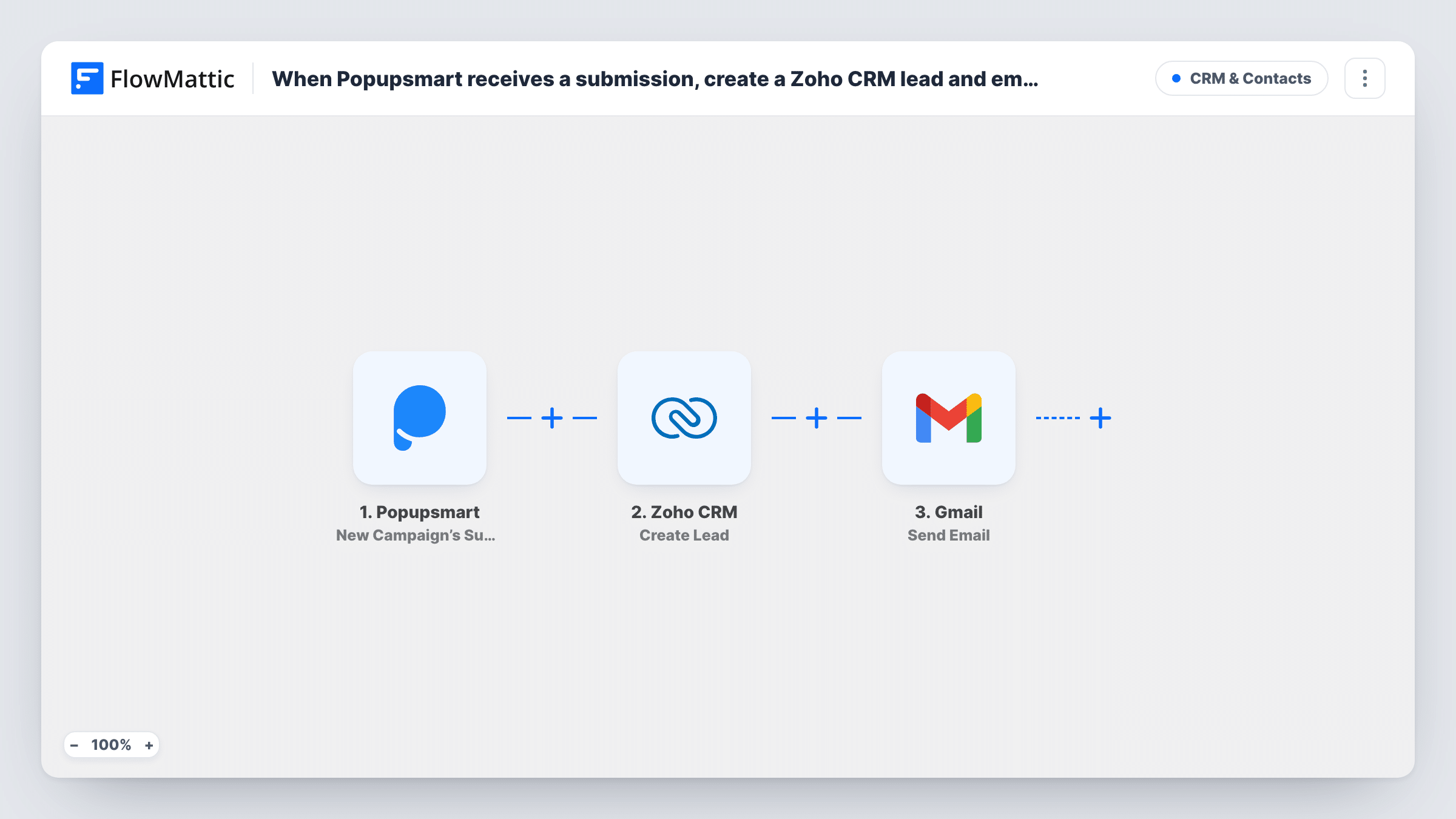
The Popupsmart trigger picks up each form a visitor completes inside your popup. FlowMattic first sends the details to Zoho CRM, where Create Lead adds a new lead. Then the Gmail step sends an email to the address the visitor entered, using the subject and message you write.
Create Lead always makes a new lead, so a visitor who signs up twice can appear twice in Zoho CRM. Swap in Find or Create Lead if you want to avoid that. Task History shows what Zoho CRM and Gmail returned for each submission.
Free consultation popup
A popup offers a free consultation. Each request becomes a Zoho CRM lead for the sales team, and the visitor gets an email with a link to pick a time.
Gated pricing sheet
Visitors leave their details to get a pricing sheet. They are logged in Zoho CRM and receive the download link by Gmail.
Trade show follow-up page
A landing page for an event shows a Popupsmart form. Each visitor is added as a lead and gets a thank-you email from the rep's Gmail account.
How this workflow runs
What happens at each step once the workflow is on, and what you need before you import it.
 Popupsmart New Campaign’s Submitted Data
Fires when a visitor submits one of your Popupsmart campaigns. The submitted fields are passed on to the Zoho CRM and Gmail steps.
- Zoho CRM Create Lead
Creates a new lead in Zoho CRM. Connect your Zoho account and map the Popupsmart details, such as the email address, into the lead.
- Gmail Send Email
Sends an email from the Gmail account you connect. Map the visitor's email from Popupsmart as the recipient and write the subject and message.
What you need
- FlowMatticCore
- Popupsmart AccountAccount
- Zoho CRM AccountAccount
- Gmail AccountAccount
After importing, map your own data. To keep the template universal, not every step is pre-filled. Open each step in the builder and connect your accounts and fields (channels, lists, sheets, recipients) before you switch the workflow on.
Make it yours
Changes worth making after you import it.
- Replace Create Lead with Zoho CRM's Find or Create Lead action so repeat sign-ups reuse the existing lead instead of making a new one.
- Add a Delay before the Gmail step if you want the email to arrive a little after the sign-up instead of straight away.
- Add a Zoho CRM Add Tag to Lead step after Create Lead to mark which popup campaign each lead came from.
Questions about this workflow
Will a repeat Popupsmart visitor become a duplicate Zoho CRM lead?
They can, because Create Lead always adds a new lead. Use Find or Create Lead instead if you want existing leads reused.
Which Gmail address sends the Popupsmart follow-up?
The account you connect in the Gmail step. Visitors see that address as the sender, and their replies land in that inbox, so use one your sales team reads.
Can I add the visitor's name to the Gmail message?
Yes, if your popup collects it. Place the Popupsmart name field in the email text when you set up the Gmail step.
More CRM & Contacts workflows
Other ready-to-import templates from the same category.





Import this workflow into your WordPress site
Download the JSON, import it from the Workflows screen and connect your accounts. Every run stays on your server, with no per-task fees.
30-day money-back guarantee Unlimited workflows and runs Self-hosted