

When a survey response is submitted in Zoho Survey, create a contact in HubSpot CRM
Every response submitted to your Zoho Survey creates a contact in HubSpot CRM, so people who give you feedback or answer a research survey are in your CRM with the details they shared.
 Zoho Survey
 HubSpot CRM
2 steps Setup ~5 min Used on 2.9k sites Free to import
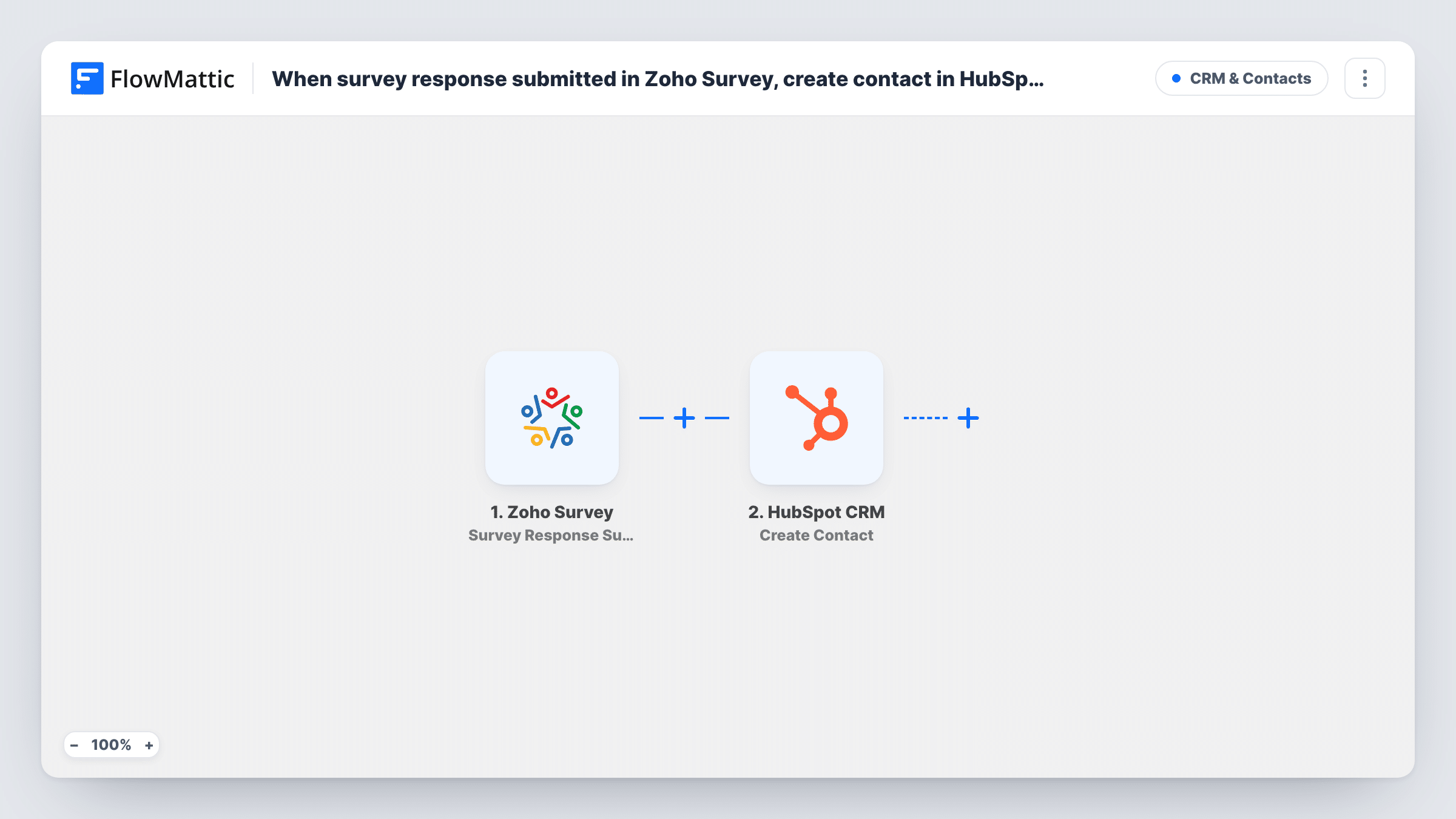
What this workflow does
Surveys collect names, emails and opinions from people you may want to talk to again: event attendees, trial users, prospects answering a market survey. If those answers stay in Zoho Survey, your sales and success teams never see them. This workflow creates a HubSpot contact for each response, so the person is in your CRM from the moment they submit.
A run begins as soon as someone completes and submits your Zoho Survey. Their answers are passed on, which can include contact questions such as name, email and company if your survey asks them. Anonymous surveys won't give you an email to work with, so add an email question if you want contacts.
In the HubSpot CRM Create Contact step, no properties are mapped as imported. You connect HubSpot and map the survey answers into contact properties, starting with the email. You can also map a rating or a key answer into a custom property you have created in HubSpot.
The step is create-only and won't edit an existing record. HubSpot may refuse an email that already belongs to a contact; Task History shows the response for each run, so test with someone already in your CRM.
Event feedback from attendees
After a conference, a marketing team sends a Zoho Survey to attendees, and each person who answers becomes a HubSpot contact for the follow-up campaign.
Market research leads
A startup runs a survey about a planned product and adds respondents who leave their email to HubSpot, so sales can invite them to a demo.
Trial user check-in
A software company asks trial users how the first week went and keeps their answers on the new HubSpot contact for the customer success team.
How this workflow runs
What happens at each step once the workflow is on, and what you need before you import it.
 Zoho Survey Survey Response Submitted
Fires when a respondent submits a response to your Zoho Survey. The answers, including any name, email or company questions, are passed to HubSpot.
- HubSpot CRM Create Contact
Creates a contact in HubSpot CRM from the survey answers. Nothing is mapped yet: connect HubSpot and map the respondent's email, name and any answers you want as contact properties.
What you need
- FlowMatticCore
- Zoho Survey AccountAccount
- HubSpot CRM AccountAccount
After importing, map your own data. To keep the template universal, not every step is pre-filled. Open each step in the builder and connect your accounts and fields (channels, lists, sheets, recipients) before you switch the workflow on.
Make it yours
Changes worth making after you import it.
- Make the email question required in Zoho Survey, so every response carries an address HubSpot can use for the contact.
- Put a Filter between the Zoho Survey trigger and the HubSpot step that continues only when the respondent's email answer is not empty. Pick the question that holds the email.
- Create a custom HubSpot property such as Survey source and map a fixed value into it, so you can build a list of contacts who came from this survey.
Questions about this workflow
Does every Zoho Survey response create a HubSpot contact?
Every submitted response starts a run. A contact can only be created when the response includes an email you map, so anonymous answers or skipped email questions won't produce one.
What if the respondent is already a HubSpot contact?
Create Contact doesn't update existing records, and HubSpot may refuse a duplicate email. Check the response in Task History for that run.
Can the survey answers be stored on the HubSpot contact?
Yes, if you create contact properties for them in HubSpot first. Then map each answer into its property in the Create Contact step.
More CRM & Contacts workflows
Other ready-to-import templates from the same category.





Import this workflow into your WordPress site
Download the JSON, import it from the Workflows screen and connect your accounts. Every run stays on your server, with no per-task fees.
30-day money-back guarantee Unlimited workflows and runs Self-hosted