

When Typeform submission is received, add a new member to Mailchimp list
Each time someone completes your Typeform, this workflow adds them as a member of your Mailchimp audience, or updates their details if Mailchimp already has that address.
 Typeform
 Mailchimp
2 steps Setup ~5 min Used on 630 sites Free to import
What this workflow does
Typeform is good at collecting answers, but the people who fill it in stay inside Typeform until you export them. If you want to email those respondents, you end up downloading a file and uploading it to Mailchimp every so often. This workflow moves each respondent across as their response comes in.
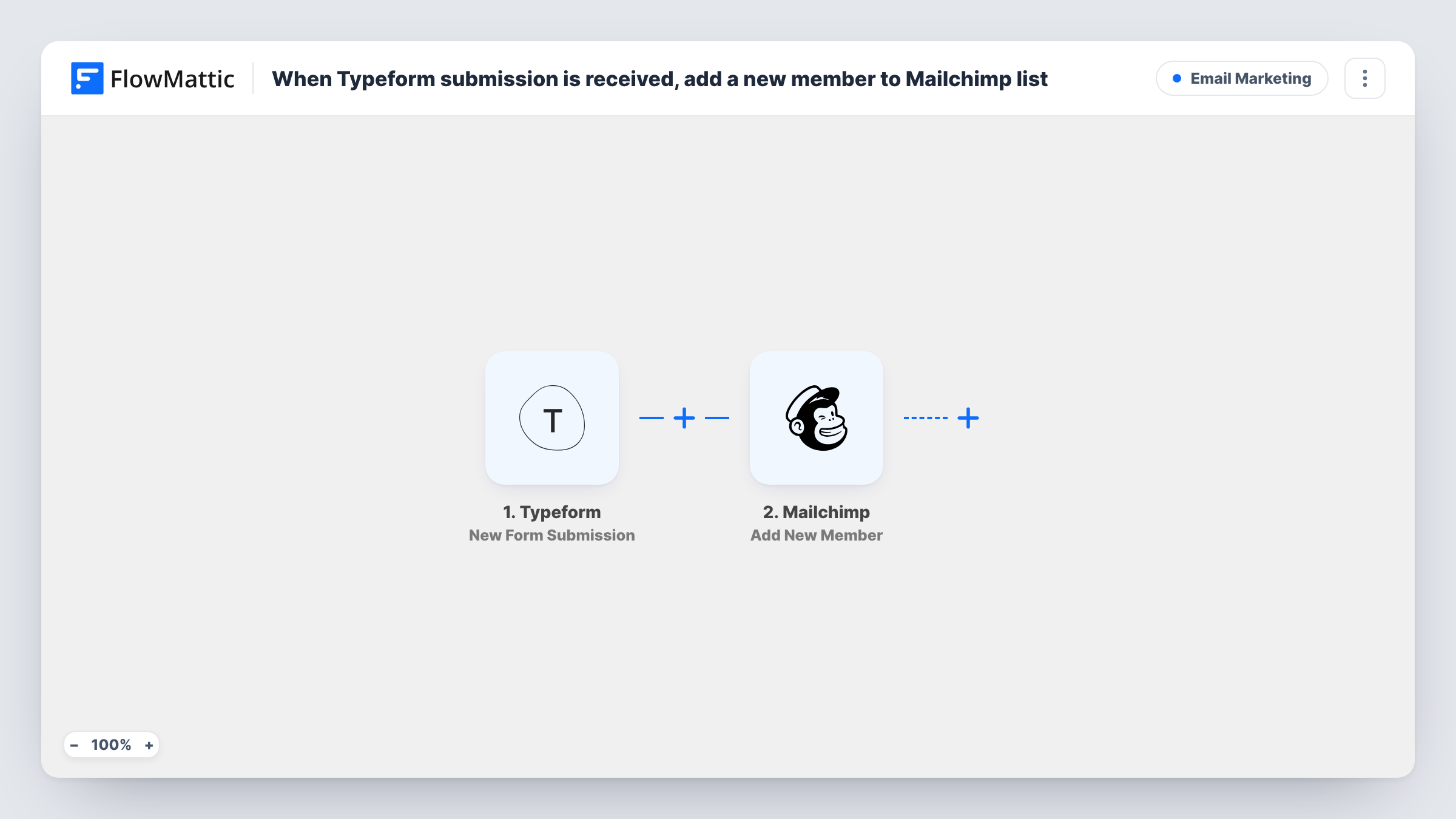
The Typeform trigger fires on every new form submission. FlowMattic receives the answers and passes the ones you map to Mailchimp. Mailchimp's Add New Member action places each respondent in whichever audience you select. If that address is already a member, Mailchimp updates the existing record instead of creating a second one.
Nothing else happens to the response. Typeform keeps it as usual, and no other app is involved. Every run is listed in Task History, so you can see which answers reached Mailchimp and read the response Mailchimp sent back.
Quiz funnels that end in an email series
A Typeform quiz asks for an email on the last screen. Each person who finishes it joins your Mailchimp audience, ready for the follow-up emails you set up there.
Event interest forms
People register interest in a workshop through Typeform. They land in Mailchimp so you can email the date, venue and reminders to everyone who replied.
Customer surveys with an opt-in question
Respondents to a feedback survey join your Mailchimp list as they submit, and you can add a Filter so only those who ticked the opt-in question are added.
How this workflow runs
What happens at each step once the workflow is on, and what you need before you import it.
 Typeform New Form Submission
Fires when a respondent submits your Typeform. Their answers, including the email question, are handed to the Mailchimp step for mapping.
- Mailchimp Add New Member
Adds the respondent to the Mailchimp audience you choose, or updates the member if the address is already there. Map the Typeform email answer here, plus any name answers you collect.
What you need
- FlowMatticCore
- Typeform AccountAccount
- Mailchimp AccountAccount
After importing, map your own data. To keep the template universal, not every step is pre-filled. Open each step in the builder and connect your accounts and fields (channels, lists, sheets, recipients) before you switch the workflow on.
Make it yours
Changes worth making after you import it.
- Put a Filter between Typeform and Mailchimp that continues only when your consent question is answered yes, so people who did not opt in are never added.
- Mark your Typeform email question as required. When a response arrives with no address, Mailchimp has nothing to add, and Task History will show the error on that step.
- Submit one test response after import so FlowMattic captures your form's answers, then map them in the Mailchimp step and check the new member in your audience.
Questions about this workflow
What if the Typeform respondent is already in my Mailchimp audience?
Add New Member adds a person or updates them if they already exist, so an existing member gets the new details rather than a duplicate entry.
Does this send past Typeform responses to Mailchimp?
No. The trigger reacts to new submissions, so only responses made after the workflow is switched on reach Mailchimp.
Can I add Typeform respondents to a tag or group in Mailchimp?
The template only adds the member to an audience. After import, open the Mailchimp step and run a test to see which options it offers, or add another Mailchimp step if you need more.
Do I need a paid Typeform account for this workflow?
You need a Typeform account that FlowMattic can connect to and a Mailchimp account with an audience. Check each service for what your plan includes.
More Email Marketing workflows
Other ready-to-import templates from the same category.





Import this workflow into your WordPress site
Download the JSON, import it from the Workflows screen and connect your accounts. Every run stays on your server, with no per-task fees.
30-day money-back guarantee Unlimited workflows and runs Self-hosted