

When user attempts and fails a quiz in Tutor LMS, add the user details to Google Sheets
Each time a Tutor LMS student submits a quiz, a Filter lets only failed attempts through, and Google Sheets gets a new row with that student’s details so you can reach out.
 Tutor LMS
 Filter
 Google Sheets
3 steps Setup ~5 min Used on 1.6k sites Free to import
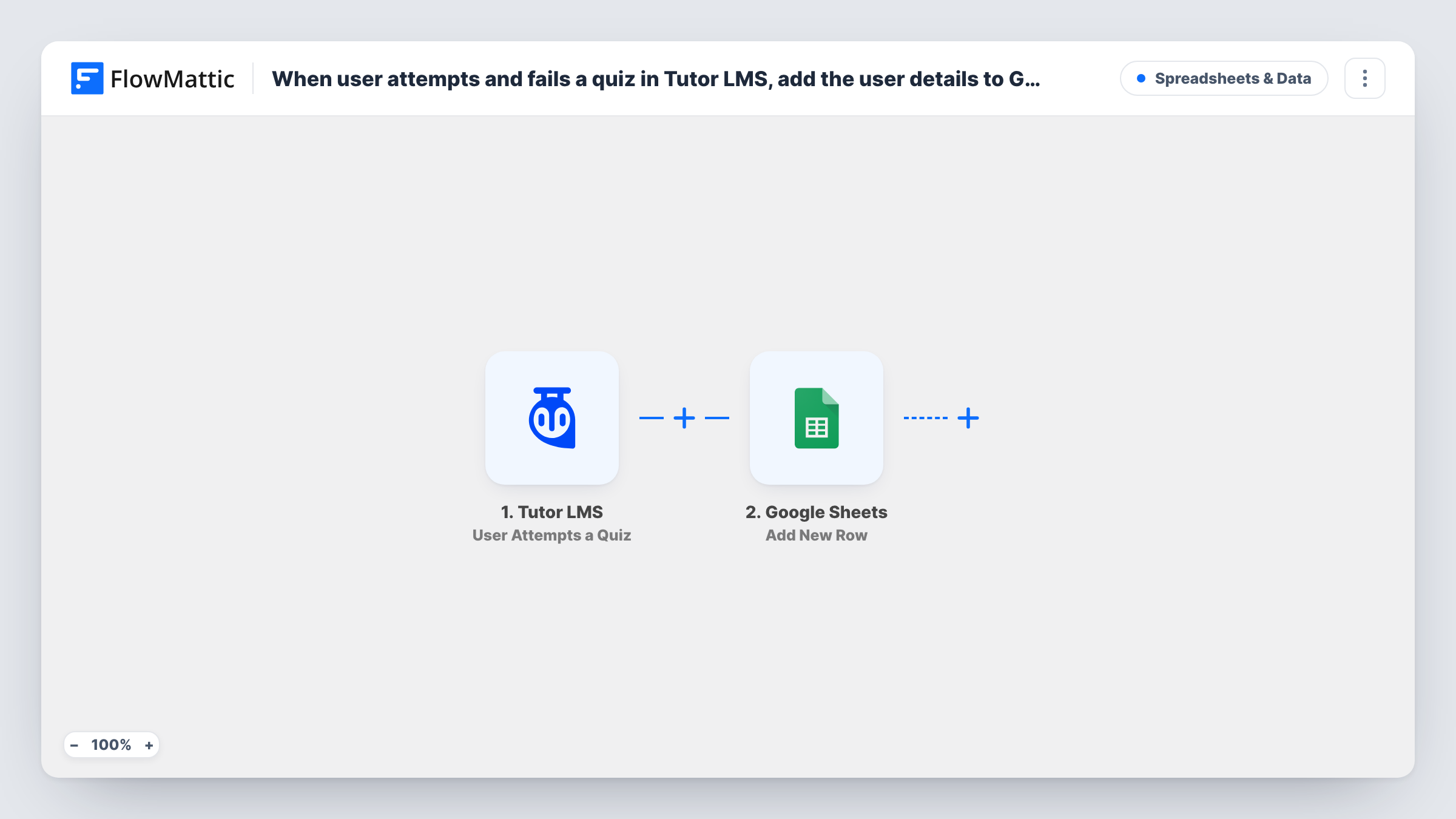
What this workflow does
A failed quiz is often the first sign that a student is stuck. Tutor LMS records the attempt, but spotting the pattern means opening each quiz report. This workflow builds a running list of failed attempts in a spreadsheet, so an instructor or support person can work through it and contact the students who need help.
The Tutor LMS trigger fires whenever a user attempts a quiz, whether they pass or fail. Every attempt starts a run. The next step is a Filter that continues only when the attempt's quiz result exactly matches fail. The comparison ignores upper and lower case. Passed attempts stop at the Filter and nothing is written for them.
Failed attempts reach the Google Sheets step, which adds one new row. That step ships unmapped: after import you connect your Google account, pick the spreadsheet and sheet, and map the attempt data into your columns, for example the student's name and email, the quiz title and the score.
Before you rely on it, run a test quiz and fail it on purpose. Task History shows what Tutor LMS sent, so you can confirm the result field holds the word fail and see which other values you can map into the sheet.
Follow-up list for course instructors
An instructor opens the sheet each morning, sees who failed the module quiz yesterday and sends each of them a short note with extra study material.
Spotting quizzes that are too hard
A course team sorts the rows by quiz title and finds that one quiz collects far more failed attempts than the rest, a hint that its questions need another look.
Support queue for struggling students
A training company shares the sheet with its student success staff, who add a status column and mark each failed attempt once they have called the student.
How this workflow runs
What happens at each step once the workflow is on, and what you need before you import it.
 Tutor LMS User Attempts a Quiz
Fires each time a user attempts a quiz in Tutor LMS, for passed and failed attempts alike. The attempt and user details, including the quiz result, are handed to the next step.
- Filter Continue If Condition Meet
Lets the run continue only when the Tutor LMS quiz result exactly matches fail, ignoring case. Passed attempts stop here, so no row is added for them. Confirm the value in a test run.
- Google Sheets Add New Row
Adds a new row to your Google Sheets spreadsheet for each failed attempt. No columns are mapped in the template, so choose the sheet and map the student and quiz fields you want to keep.
What you need
- FlowMatticCore
- Tutor LMS PluginPlugin
- Google Sheets AccountAccount
After importing, map your own data. To keep the template universal, not every step is pre-filled. Open each step in the builder and connect your accounts and fields (channels, lists, sheets, recipients) before you switch the workflow on.
Make it yours
Changes worth making after you import it.
- Add a date column and map the attempt time into it, so you can sort the sheet and see the most recent failed attempts first.
- To log passed attempts as well, delete the Filter step; every quiz attempt then adds a row, and a result column tells the two apart.
- If you only care about one course, add a second condition to the existing Filter that checks the course or quiz title, so other courses stop before the Google Sheets step.
- Keep a status column next to the mapped fields for your team to fill in by hand, so everyone can see which students have already been contacted.
Questions about this workflow
Does a passed Tutor LMS quiz add a row to the sheet?
No. The trigger fires for every attempt, but the Filter only continues when the quiz result is fail. A passed attempt stops at the Filter before the Google Sheets step.
What if a student fails the same quiz twice?
Each attempt is its own run, so two failed attempts give two rows. That lets you see repeated failures, which you can count per student in the sheet.
Which student details reach Google Sheets?
Only the ones you map. The Add New Row step is empty as imported, so pick the columns and match them to the Tutor LMS fields shown in a test run, such as name, email, quiz and score.
Do I need to change the Filter after importing?
Usually not, since it already checks for fail. Still run a failed test attempt and look in Task History at the value Tutor LMS sends for the quiz result. If it uses a different word, edit the Filter value to match.
More Spreadsheets & Data workflows
Other ready-to-import templates from the same category.





Import this workflow into your WordPress site
Download the JSON, import it from the Workflows screen and connect your accounts. Every run stays on your server, with no per-task fees.
30-day money-back guarantee Unlimited workflows and runs Self-hosted