

When User Badge Updated in Acadle, New Row in Google Sheets
Whenever a learner’s badge is updated in Acadle, FlowMattic adds a row to Google Sheets with the details, so you build a dated record of badge changes you can sort, chart or share.
 Acadle
 Google Sheets
2 steps Setup ~5 min Used on 658 sites Free to import
What this workflow does
Badges are a quick way to see who is progressing in your Acadle academy. Acadle shows them to the learner, but reporting across many learners, or sharing progress with a client or manager, is easier from a spreadsheet. This workflow writes every badge change into one.
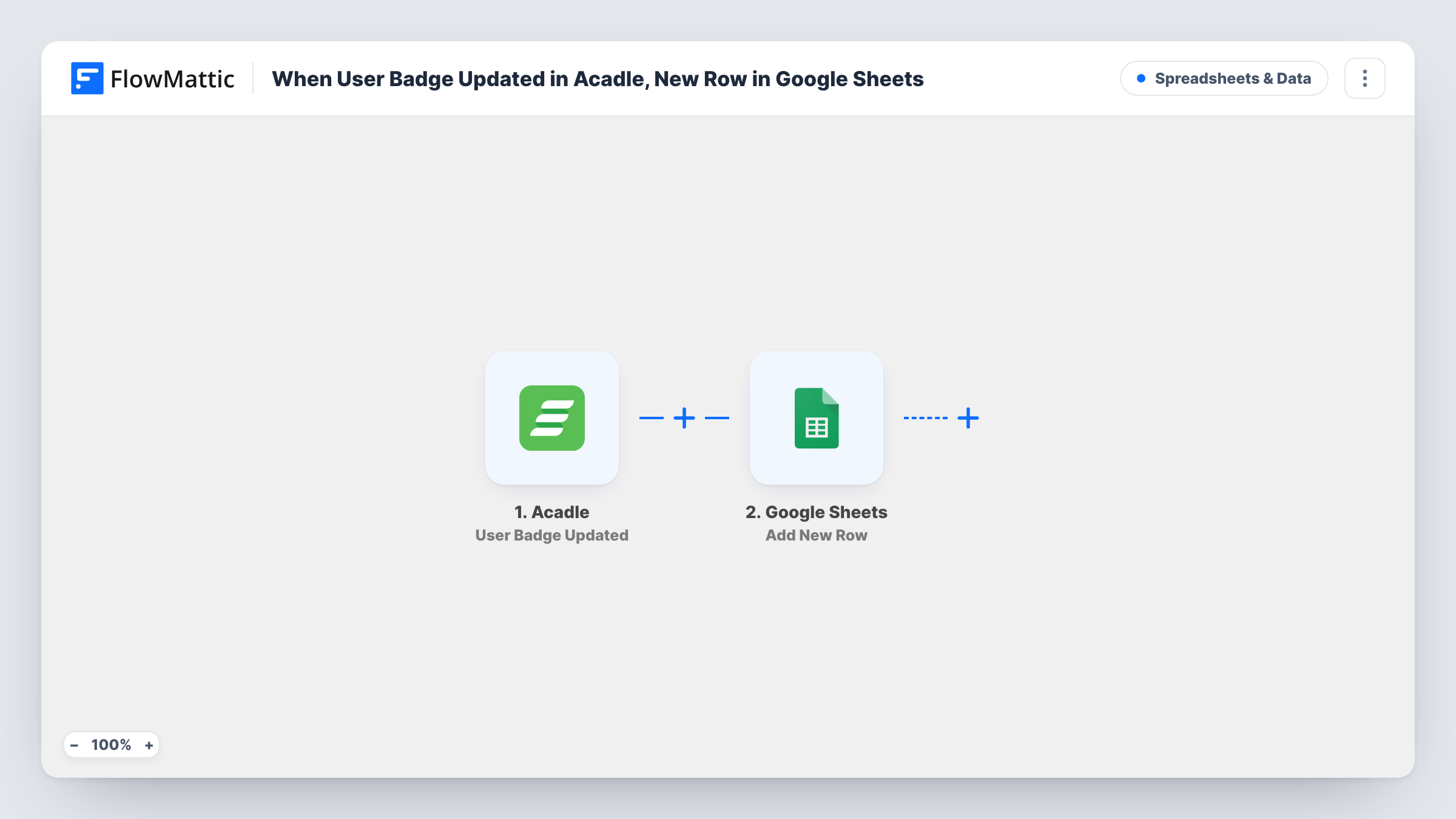
The Acadle trigger User Badge Updated fires when a user badge is updated. FlowMattic takes the data Acadle sends about that learner and badge and hands it to Google Sheets. The Add New Row action then appends a row to the spreadsheet you pick, with each column filled from the Acadle field you mapped to it.
The sheet works as a log, not a live table. A learner whose badge changes three times gets three rows, which lets you see the order of changes. Nothing is written back to Acadle. Task History records each run so you can trace a row back to the event that created it.
Progress reports for corporate clients
You run an academy for a client's staff. Filter the badge log by the client's learners and send them a monthly view of who earned what.
Recognition shout-outs
A community manager checks the sheet each Friday and names learners who picked up a badge that week in the newsletter.
Spotting popular milestones
Count rows per badge in the spreadsheet to see which achievements learners reach most often and which are rarely earned.
How this workflow runs
What happens at each step once the workflow is on, and what you need before you import it.
 Acadle User Badge Updated
Fires when a badge is updated for a user in your Acadle academy. The learner and badge data from Acadle are passed on for the spreadsheet.
- Google Sheets Add New Row
Appends a row to the Google Sheets spreadsheet you select for every badge update. Connect your Google account and map each column to an Acadle field.
What you need
- FlowMatticCore
- Acadle AccountAccount
- Google Sheets AccountAccount
After importing, map your own data. To keep the template universal, not every step is pre-filled. Open each step in the builder and connect your accounts and fields (channels, lists, sheets, recipients) before you switch the workflow on.
Make it yours
Changes worth making after you import it.
- After import, update a badge for a test learner in Acadle. FlowMattic captures the event, so you can map columns from real data.
- If only some badges matter for reporting, add a Filter after the trigger that continues when the badge name matches the ones you track.
- Acadle also has a User Certificate Issued trigger. Copy this workflow with that trigger and point it at a second tab to log certificates next to badges.
Questions about this workflow
Does a learner get one row per Acadle badge update?
Yes. Each update fires the trigger once and the Add New Row step appends a new row. Earlier rows are left as they are.
Can I see the learner's email in the Google Sheet?
If Acadle includes it with the badge event, yes. Run a test after import and check the captured data to see which learner details are there to map.
Are badges earned before the workflow was switched on included?
No. Only badge updates that happen after you turn the workflow on are logged in the sheet.
Does this change anything in my Acadle academy?
No. The workflow only reads the badge event from Acadle and writes to Google Sheets.
More Spreadsheets & Data workflows
Other ready-to-import templates from the same category.



Import this workflow into your WordPress site
Download the JSON, import it from the Workflows screen and connect your accounts. Every run stays on your server, with no per-task fees.
30-day money-back guarantee Unlimited workflows and runs Self-hosted