

Create an Airtable record when an iDenfy facial authentication finishes
Whenever an iDenfy facial authentication session ends, whether it succeeded, failed or expired, FlowMattic creates a record in Airtable, so your team has a log of every face check in one base.
 iDenfy
 Airtable
2 steps Setup ~5 min Used on 1.7k sites Free to import
What this workflow does
Facial authentication in iDenfy confirms that a returning customer is the same person who passed identity verification earlier. Compliance and support teams often need a record of each check outside the iDenfy dashboard, with the outcome, the client and the time. This workflow writes that record to Airtable as each session closes.
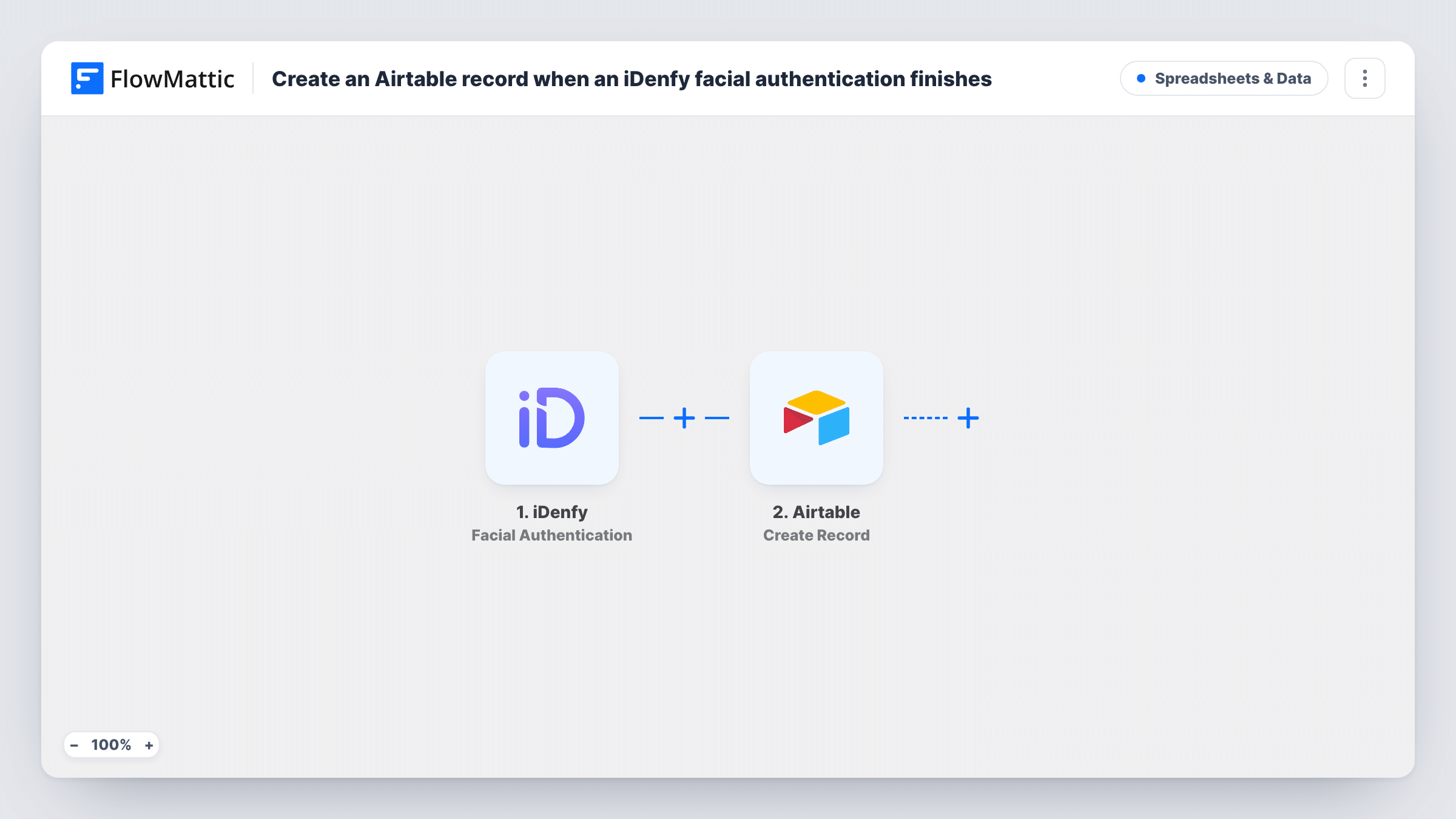
The iDenfy trigger, Facial Authentication, fires when a client's facial authentication session ends: success, failure or expiration. FlowMattic receives the session data iDenfy sends. The Airtable step then runs Create Record and adds a new record to the base and table you pick, with the fields you map.
All three outcomes start a run, so the table holds failed and expired sessions too, not only passed ones. Map the session's status into its own field so you can sort or filter by outcome in Airtable. Keep in mind that this data relates to identity checks; limit who can see the base to the people who need it.
Audit trail for a fintech app
Each time a customer re-authenticates with their face before a large transfer, the outcome is logged in Airtable for your compliance team to review.
Spotting repeated failures
Group the Airtable table by client and status to see who has several failed or expired face checks and may need help from support.
Access checks for a rental platform
Hosts or renters confirm their identity with a face check before a booking. Your operations team sees every result in an Airtable view.
How this workflow runs
What happens at each step once the workflow is on, and what you need before you import it.
 iDenfy Facial Authentication
Fires when a client's iDenfy facial authentication session ends, whether it passed, failed or expired. The session details iDenfy sends are passed on for mapping.
- Airtable Create Record
Adds one Airtable record per finished session to the table you choose. Map the iDenfy client reference, the session status and the time into your fields, then connect your Airtable account.
What you need
- FlowMatticCore
- iDenfy AccountAccount
- Airtable AccountAccount
After importing, map your own data. To keep the template universal, not every step is pre-filled. Open each step in the builder and connect your accounts and fields (channels, lists, sheets, recipients) before you switch the workflow on.
Make it yours
Changes worth making after you import it.
- Add a Filter after the trigger that checks the status from iDenfy if you only want one outcome logged, such as failed sessions for a review queue.
- Create a single-select status field in Airtable before mapping, so each outcome from iDenfy lands as a consistent value you can group by.
- Want a heads-up on failures? Add a Router after the Airtable step with one route for failed or expired statuses, and put a Slack message on that route.
Questions about this workflow
Are failed or expired iDenfy face checks logged in Airtable too?
Yes. The trigger fires when the session ends for any of the three reasons, so every outcome creates a record unless you add a Filter on the status.
Does this start a facial authentication in iDenfy?
No. It only reacts when a session ends. Starting the session still happens in your own app or flow with iDenfy.
Which iDenfy fields can I store in the Airtable record?
Whatever iDenfy includes for that session. Let one session finish, then open the run in Task History to see the fields before mapping them to Airtable.
Will a second face check by the same client update the earlier Airtable record?
No. Create Record adds a new record every time, so each session gets its own row in the table.
More Spreadsheets & Data workflows
Other ready-to-import templates from the same category.





Import this workflow into your WordPress site
Download the JSON, import it from the Workflows screen and connect your accounts. Every run stays on your server, with no per-task fees.
30-day money-back guarantee Unlimited workflows and runs Self-hosted