

When an email is sent in We-Connect, log event in Google Sheets
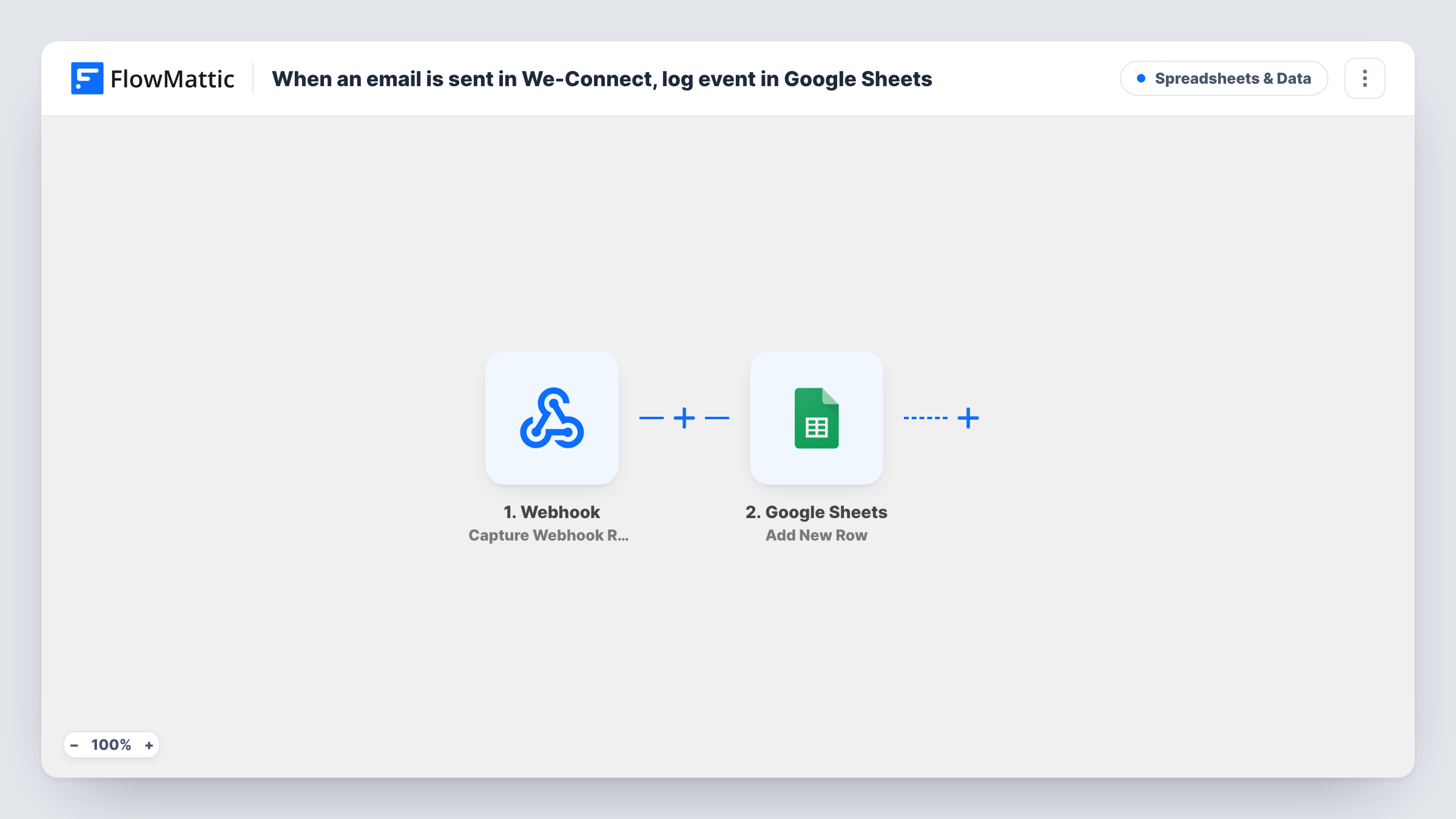
Each email We-Connect sends from your outreach adds a row to a Google Sheets spreadsheet, giving you a running log of who was emailed and when, outside We-Connect.
 We-Connect
 Google Sheets
2 steps Setup ~5 min Used on 321 sites Free to import
What this workflow does
We-Connect shows campaign numbers inside its own dashboard, but sometimes you want the raw activity where you can sort it, share it with a client or join it with other data. This workflow writes one spreadsheet row per email sent, so the log builds up on its own as your campaigns run.
The We-Connect trigger fires whenever an email is sent and passes that event's data on. The Google Sheets step then adds a new row to the sheet you pick. It ships without column mapping. After import you connect your Google account, choose the spreadsheet and sheet, and decide which details go into which columns, such as the contact's name, the campaign and the time the email went out.
Because the template maps nothing, the exact details on offer are whatever We-Connect includes with the event. Send a test email from a campaign, then look at the trigger's output in FlowMattic before you set up the columns.
Every sent email becomes its own row, so a busy campaign fills the sheet quickly. Each run, and what Google Sheets returned for it, is listed in Task History.
Client reporting for an outreach agency
An agency running We-Connect campaigns for several clients shares a sheet per client showing every email sent, without giving them a We-Connect login.
Daily send counts by campaign
A sales lead adds a pivot table on the log to see how many emails each campaign sent per day.
Matching sends to replies in a CRM
A team keeps the sheet next to their CRM export and checks which emailed contacts later became deals.
How this workflow runs
What happens at each step once the workflow is on, and what you need before you import it.
 We-Connect Email Sent
Fires each time We-Connect sends an email. The event's details, such as the contact and campaign data, are passed on; check a test run to see exactly which values arrive.
- Google Sheets Add New Row
Adds one row to the spreadsheet you choose for each sent email. No columns are mapped in the template, so connect Google Sheets, pick the sheet and map the We-Connect values you want to keep.
What you need
- FlowMatticCore
- We-Connect AccountAccount
- Google Sheets AccountAccount
After importing, map your own data. To keep the template universal, not every step is pre-filled. Open each step in the builder and connect your accounts and fields (channels, lists, sheets, recipients) before you switch the workflow on.
Make it yours
Changes worth making after you import it.
- Create the header row in your sheet before you set up the step, so the columns are ready to match with We-Connect values.
- Map a date and time value into its own column, so you can filter the log by week or month later.
- If you only want one campaign logged, add a Filter between the We-Connect trigger and the Google Sheets step on the campaign name. The value to check is yours to set.
Questions about this workflow
Does each We-Connect email get its own spreadsheet row?
Yes. Every Email Sent event starts one run, and each run adds one row. There is no grouping or daily summary in this template.
Are emails sent before I turn the workflow on logged too?
No. Only emails We-Connect sends after the workflow is active trigger a run. Export older activity from We-Connect separately if you need it in the sheet.
Can I also log opens and replies from We-Connect?
Yes, with more workflows. FlowMattic's We-Connect integration has separate Email Opened, Email Clicked and Email Replied triggers. Copy this workflow, swap the trigger, and point it at another tab.
Which We-Connect details can go into the sheet?
Whatever the Email Sent event includes. The template maps none of them, so run a test send and pick from the trigger's output when you map the Google Sheets columns.
More Spreadsheets & Data workflows
Other ready-to-import templates from the same category.




Import this workflow into your WordPress site
Download the JSON, import it from the Workflows screen and connect your accounts. Every run stays on your server, with no per-task fees.
30-day money-back guarantee Unlimited workflows and runs Self-hosted