

Log new Runrun.it tasks in a Google Sheets spreadsheet
Every task created in Runrun.it is added as a new row in a Google Sheets spreadsheet, giving you a running log of new work that people without a Runrun.it login can read, sort and share.
 Runrun.it
 Google Sheets
2 steps Setup ~5 min Used on 3.4k sites Free to import
What this workflow does
Runrun.it holds your team's tasks, but not everyone who needs to see them works inside it. A client, a finance contact or a manager may only want a list of what was opened and when. Exporting that list by hand each week is easy to forget. This workflow writes each new task to a spreadsheet the moment it is created.
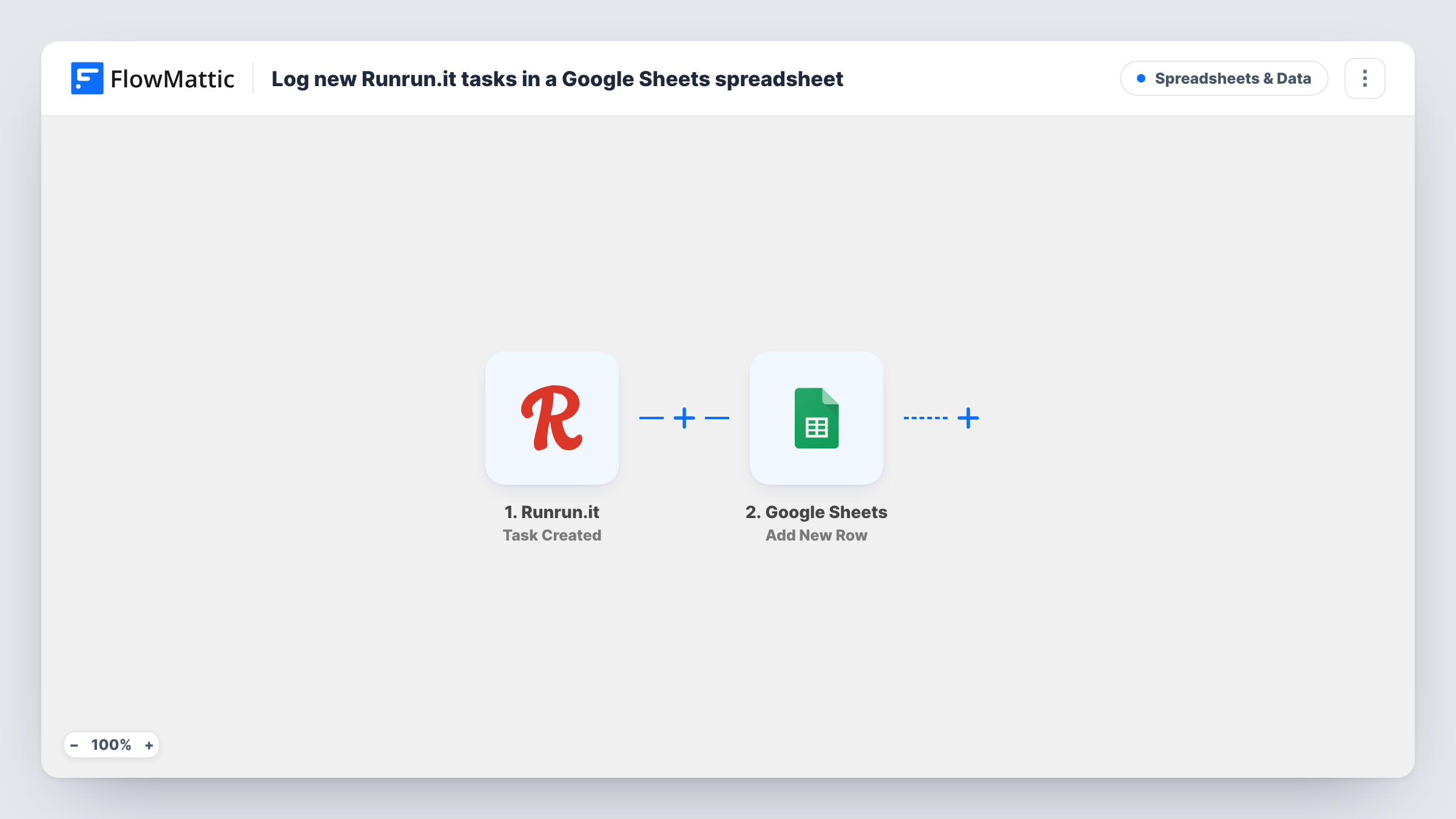
The Runrun.it trigger fires when a task is created in your account. The task data it returns is passed to the Google Sheets step, which adds a new row with whatever you map into each column, for example the task title, the person it is assigned to and the project.
The sheet is a log of creation, not a live mirror. When a task is later edited, reassigned or closed in Runrun.it, its row stays as it was written, because the trigger only fires once per new task. Task History in FlowMattic lists each run, so you can see which tasks were sent and spot a row that was not added.
Client-facing task log
An agency shares a Google Sheet with a client that lists every task opened in Runrun.it for their account, without giving the client access to Runrun.it.
Weekly workload review
A team lead sorts the sheet by date and assignee every Friday to see how many tasks each person was handed that week.
Billing reference for new work
Finance uses the sheet of new Runrun.it tasks as a starting point when checking which pieces of work to invoice.
How this workflow runs
What happens at each step once the workflow is on, and what you need before you import it.
 Runrun.it Task Created
Runs each time a task is created in your Runrun.it account. The new task's details are captured and offered for mapping in the Google Sheets step.
- Google Sheets Add New Row
Adds one row to the spreadsheet and sheet you select. Map the Runrun.it task fields you want to keep into the matching columns, and connect your Google account.
What you need
- FlowMatticCore
- Runrun.it AccountAccount
- Google Sheets AccountAccount
After importing, map your own data. To keep the template universal, not every step is pre-filled. Open each step in the builder and connect your accounts and fields (channels, lists, sheets, recipients) before you switch the workflow on.
Make it yours
Changes worth making after you import it.
- Add a header row to the sheet before you map the step, so each column shows up by name and you can match task fields to it easily.
- Add a Filter after the trigger that continues only for tasks in one project or for one client, if the sheet should cover just that work.
- Create one test task in Runrun.it after import so FlowMattic captures real task data, then check which fields are available before you map the columns.
Questions about this workflow
Do Runrun.it task updates change the Google Sheets row?
No. The trigger fires only when a task is created, and the step adds a new row. Edits, reassignments and completions in Runrun.it do not touch the row afterwards.
Are Runrun.it tasks created before import added to the sheet?
No. Only tasks created after the workflow is turned on are logged. Export older tasks from Runrun.it and paste them in if you want a full history.
Can several people view the Runrun.it task log?
Yes. It is an ordinary Google Sheets file, so you share it from Google Drive like any other sheet. FlowMattic only needs your Google account to add the rows.
More Spreadsheets & Data workflows
Other ready-to-import templates from the same category.




Import this workflow into your WordPress site
Download the JSON, import it from the Workflows screen and connect your accounts. Every run stays on your server, with no per-task fees.
30-day money-back guarantee Unlimited workflows and runs Self-hosted