

When a Contact Form 7 venue form is submitted, create a hall in Eventee
Each submission of your Contact Form 7 venue form creates a new hall in your Eventee event, named from the form, so confirmed rooms show up in the event app without manual entry.
 Contact Form 7
 Eventee
2 steps Setup ~5 min Used on 1.1k sites Free to import
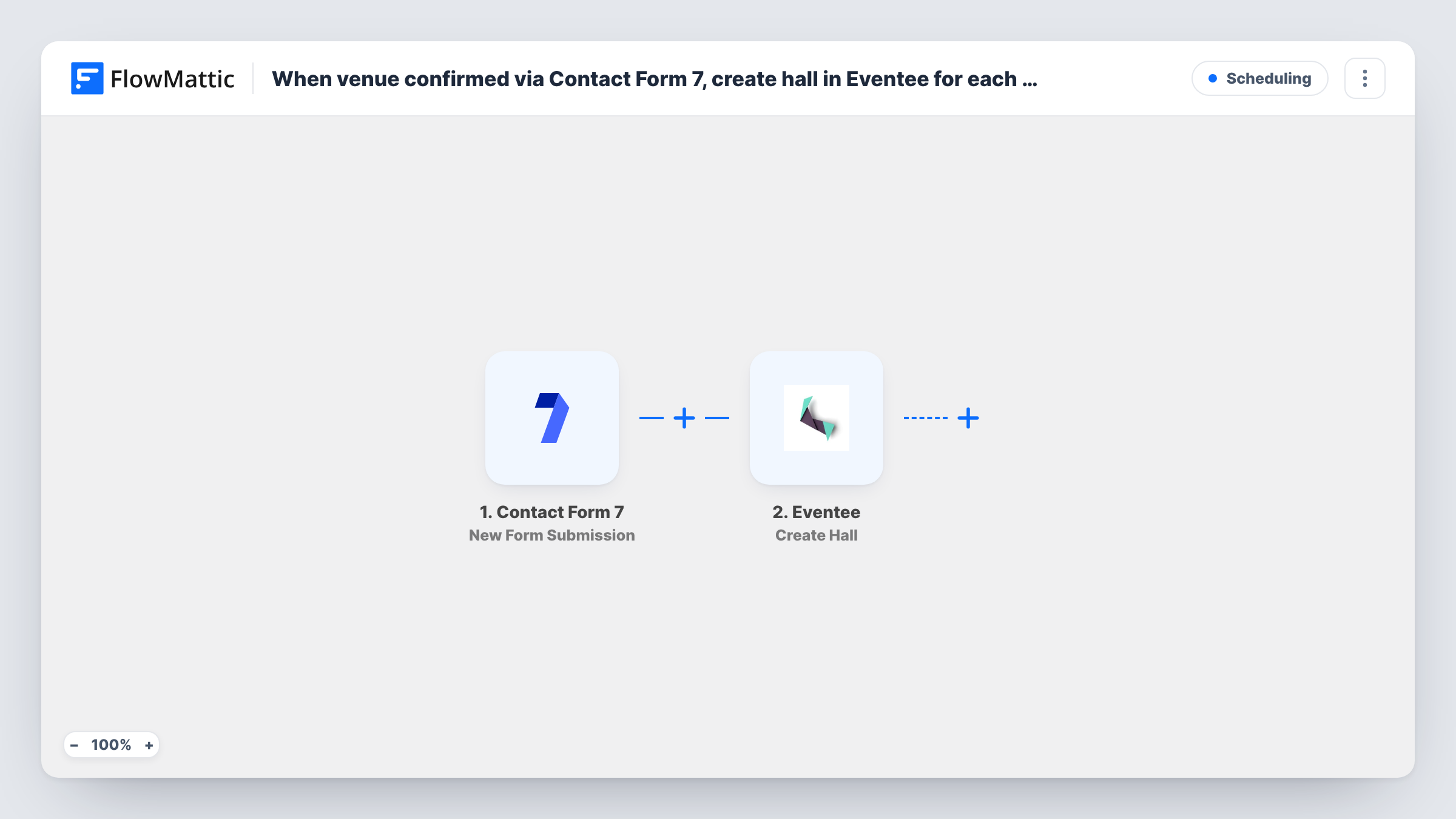
What this workflow does
Event planners collect venue and room details from several people: the venue coordinator, a sponsor hosting a side stage, a team lead booking a breakout room. If each of them fills in a short form on your WordPress site, this workflow adds the room to Eventee as a hall straight away, ready for sessions to be placed in it.
The Contact Form 7 trigger starts a run when the form you choose is submitted. The form's fields, such as the hall or room name, are passed to the next step.
The Eventee step then creates a new hall in your event. It ships unmapped: after import, connect the Eventee account for your event and map the form field that holds the hall name, plus any other details the step offers.
Every submission creates one hall, and the template has no check for rooms that already exist. If the same room is submitted twice, Eventee gets two halls. Keep the form for confirmed venues only, or review new halls in Eventee before you build the schedule. Submit a test entry and check Task History to see what Eventee returned.
Venue coordinator confirms the rooms
A conference team sends the venue's coordinator a link to a Contact Form 7 form. Each room they confirm, from the main hall to breakout rooms, appears in Eventee.
Sponsors adding their own stage
A trade fair lets sponsors who host a stage submit its name through the website, and the stage shows in the Eventee event as a hall.
Multi-site training days
A company running training across several offices has each site lead submit the room they booked, so every room is listed in the event app.
How this workflow runs
What happens at each step once the workflow is on, and what you need before you import it.
 Contact Form 7 New Form Submission
Starts the workflow when your chosen Contact Form 7 form is submitted. Pick the venue form after import; its field values become available to the Eventee step.
- Eventee Create Hall
Creates a new hall in your Eventee event. The step ships unmapped: connect Eventee and map the form field holding the hall name, along with any other fields you want filled. Each submission makes one hall.
What you need
- FlowMatticCore
- Contact Form 7 PluginPlugin
- Eventee AccountAccount
After importing, map your own data. To keep the template universal, not every step is pre-filled. Open each step in the builder and connect your accounts and fields (channels, lists, sheets, recipients) before you switch the workflow on.
Make it yours
Changes worth making after you import it.
- Mark the hall name field required in Contact Form 7 by using the asterisk form of the tag, such as text*, so no submission reaches Eventee without a name.
- Running more than one Eventee event? Use a separate copy of this workflow and a separate venue form for each, each connected to its own event.
- Put the venue form on a page that isn't in your public menu and send the link only to the people who confirm rooms, which keeps stray submissions out of Eventee.
Questions about this workflow
What happens if a hall with the same name already exists in Eventee?
Nothing in this template looks for it. It asks Eventee to create a new hall on every submission, so a repeated room can appear twice. Remove duplicates in Eventee, or keep the form to one submission per room.
Can I update an existing Eventee hall from the form instead?
FlowMattic's Eventee integration also has an Update Hall action, but it needs the hall's Eventee ID. A venue form doesn't carry that, so this template only creates halls.
Do I need an Eventee event before importing?
Yes. Halls are created inside an existing Eventee event, so set up the event first and connect it in FlowMattic before you test the Contact Form 7 form.
More Scheduling workflows
Other ready-to-import templates from the same category.







Import this workflow into your WordPress site
Download the JSON, import it from the Workflows screen and connect your accounts. Every run stays on your server, with no per-task fees.
30-day money-back guarantee Unlimited workflows and runs Self-hosted