

When workflow step is triggered in your Typebot flow, send a template message to WhatsApp using WA.Team
When a Typebot chat reaches its webhook block, FlowMattic sends a WhatsApp template message through WA.Team to the number the visitor gave, so the conversation can carry on in WhatsApp.
 Typebot
 WhatsApp by WA.Team
2 steps Setup ~5 min Used on 1.6k sites Free to import
What this workflow does
A chatbot on your site collects a visitor's details, then the chat closes and the lead goes cold. Moving that person to WhatsApp gives you a channel they are likely to read later. This workflow sends them a WhatsApp message at the point in the chat you choose.
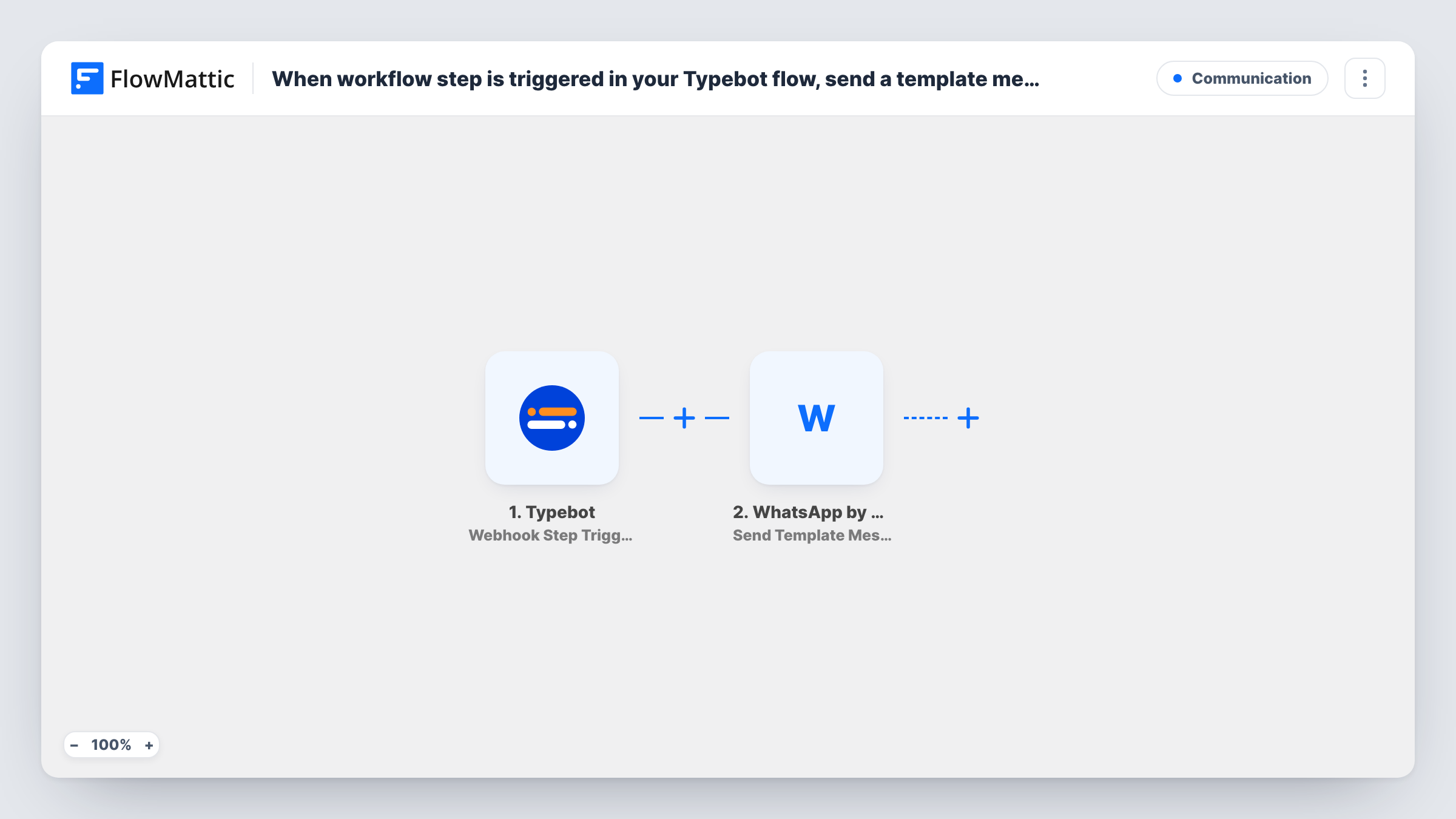
The Typebot trigger fires when a visitor's conversation reaches a webhook block in your bot. Typebot sends the variables you include, such as the name and phone number the visitor typed. FlowMattic passes them to WhatsApp by WA.Team, whose Send Template Message action sends an approved template to that number, with chat values in its placeholders.
A template is required here because WhatsApp lets a business start a conversation only with an approved template. The message goes out each time any chat reaches the webhook block, so place that block after the step where the visitor gives a phone number. If they skip that question, the WhatsApp step has no number to send to.
Hand chatbot leads to WhatsApp sales
A qualifying Typebot on a landing page ends with a webhook block, and each visitor who finishes it gets a WhatsApp template from your business number with the next step.
Booking confirmations from a bot
A salon's Typebot collects the service and preferred time, then sends a WhatsApp template confirming the request was received.
Course enquiry follow-up
Prospective students who ask about a course in Typebot receive a WhatsApp template with the course name filled in from their chat.
How this workflow runs
What happens at each step once the workflow is on, and what you need before you import it.
 Typebot Webhook Step Triggered
Fires when a conversation in your Typebot flow reaches a webhook block. The variables you send from that block, such as the visitor's phone number and answers, become values to map in the next step.
- WhatsApp by WA.Team Send Template Message
Uses your WA.Team account to deliver an approved WhatsApp template. Map the phone number from the Typebot data, pick the template, and fill its placeholders with chat values. Run a test to confirm delivery.
What you need
- FlowMatticCore
- Typebot AccountAccount
- WhatsApp by WA.Team AccountAccount
After importing, map your own data. To keep the template universal, not every step is pre-filled. Open each step in the builder and connect your accounts and fields (channels, lists, sheets, recipients) before you switch the workflow on.
Make it yours
Changes worth making after you import it.
- Make the phone question required in Typebot and ask for the country code, so the webhook block always sends a full international number the WhatsApp step can use.
- Add a Filter after the trigger if only some visitors should get the message, for example those who chose a particular option or answered yes to being contacted.
- Use a second webhook block later in the bot with its own workflow if you want a different template for visitors who reach another branch of the chat.
Questions about this workflow
Why does this Typebot workflow send a WhatsApp template instead of plain text?
WhatsApp lets a business open a conversation only with an approved template. A visitor who has not messaged your number can receive the template, but not free-form text.
Where does WA.Team get the visitor's phone number from?
From the Typebot conversation. The visitor types it in the bot, and you include that variable in the data the webhook block sends. Without it the WhatsApp step has no recipient.
Does every Typebot chat trigger a WhatsApp message?
Only chats that reach the webhook block. Visitors who leave the bot before that point send nothing to FlowMattic, so no message goes out for them.
Do I need a WA.Team account for this?
Yes. The message is sent through WhatsApp by WA.Team, which you connect on import, and you need a template there that is approved for sending.
More Communication workflows
Other ready-to-import templates from the same category.





Import this workflow into your WordPress site
Download the JSON, import it from the Workflows screen and connect your accounts. Every run stays on your server, with no per-task fees.
30-day money-back guarantee Unlimited workflows and runs Self-hosted