

When your plugin fires an action hook, add the details to Google Sheets
When a WordPress action hook you name fires, from your own plugin, a third-party plugin or WordPress core, FlowMattic writes the data it carries to a new row in Google Sheets.
 Plugin Actions
 Google Sheets
2 steps Setup ~5 min Used on 2.3k sites Free to import
What this workflow does
Plenty of WordPress plugins fire action hooks for events that no ready-made integration covers: a custom checkout step, a status change in a booking plugin, a function in your own code. This workflow listens for one of those hooks and keeps a log of each time it runs, in a spreadsheet anyone on the team can open.
The Plugin Actions trigger fires when the action you provide is triggered by your plugin or by WordPress. You enter the hook's name after import, then cause the event once so FlowMattic can capture the values passed to the hook. What arrives depends entirely on the hook: some send an ID, others send whole objects.
The Google Sheets step then writes the captured hook values into a new row. It is not set up in the template, so connect your Google account, choose the spreadsheet and sheet, and match the captured hook values to your column headers.
Every time the hook fires, one row is added. Some hooks fire very often, for example on every page load or every save, so pick one tied to the event you care about. On a busy hook, the sheet grows with every call.
Log a custom plugin's events
A developer's in-house plugin fires a hook when a client approves a design. Each approval is written to a Google Sheet the account manager reviews each week.
Track an event with no native trigger
A booking plugin fires a hook when a booking is marked as no-show, and the hook's booking ID and time go into a sheet for monthly reporting.
Debug what a hook passes
While building an integration, a developer logs every call to a hook in Sheets to see what values it carries before wiring up the real workflow.
How this workflow runs
What happens at each step once the workflow is on, and what you need before you import it.
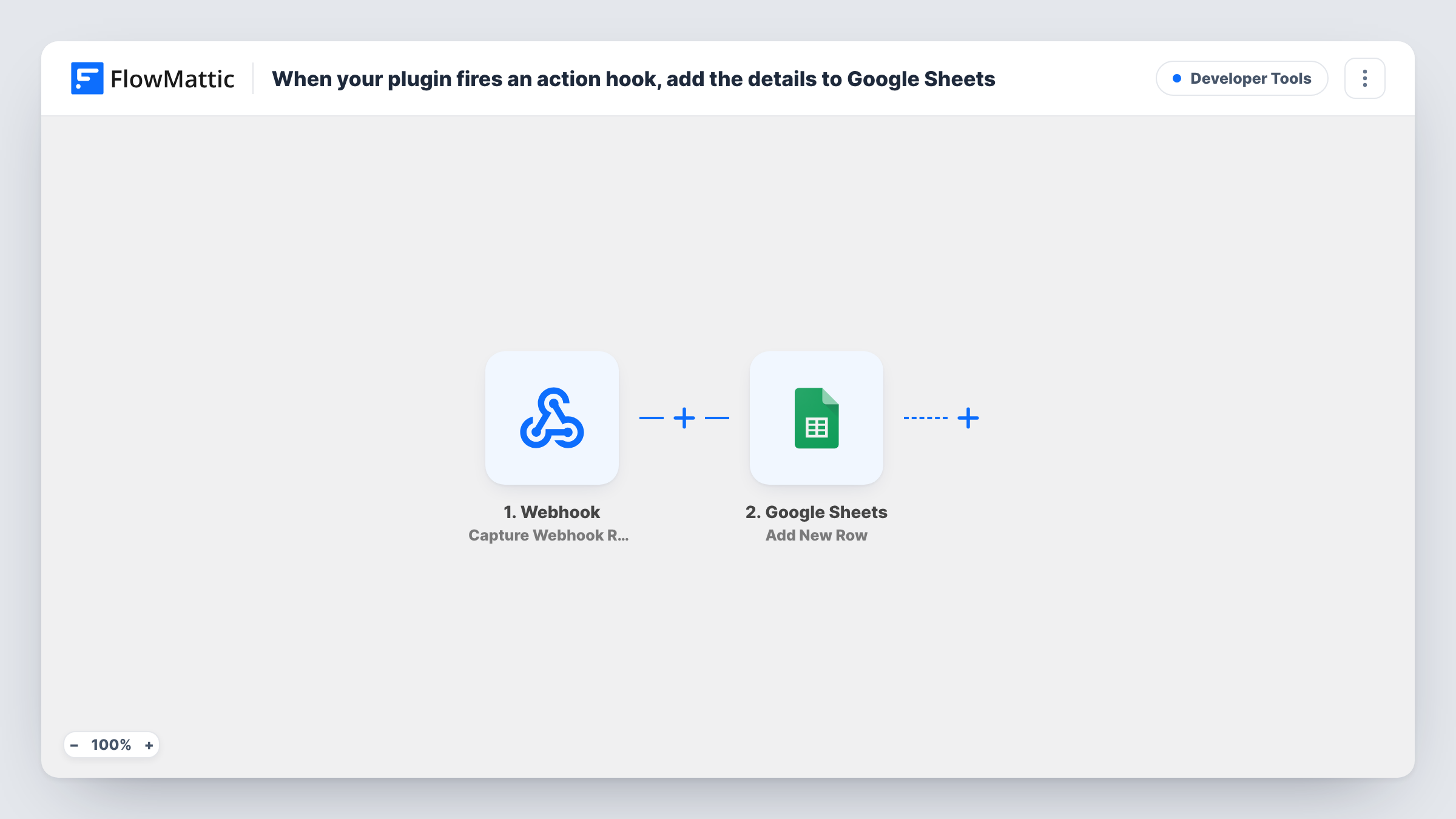
 Plugin Actions Plugin or WP action triggered
Fires when the WordPress action hook you enter is triggered by a plugin, a theme or WordPress itself. The values passed to the hook become the data you can map into the sheet.
- Google Sheets Add New Row
Adds a row to your Google Sheet each time the hook fires. No hook values are matched to columns yet, so connect Google, pick the spreadsheet and sheet, and map the hook values to the headers.
What you need
- FlowMatticCore
- Google Sheets AccountAccount
After importing, map your own data. To keep the template universal, not every step is pre-filled. Open each step in the builder and connect your accounts and fields (channels, lists, sheets, recipients) before you switch the workflow on.
Make it yours
Changes worth making after you import it.
- Many hooks pass no date. For a timestamp column, put the Date/Time Formatter's Modify Current Date action between the trigger and the Google Sheets step and map its result.
- If the hook fires for more cases than you want logged, put a Filter between the Plugin Actions trigger and the Google Sheets step that checks one of the hook's values.
- Check the plugin's documentation or source for its do_action calls to find the exact hook name and the arguments it passes.
Questions about this workflow
Which action hook should I use with Plugin Actions?
Any hook your site fires with do_action, as long as it matches the event you want to log. Plugin documentation usually lists its hooks, or you can search the plugin's code for do_action.
What data reaches Google Sheets from the hook?
Only what the hook passes as arguments. Fire the event once after setting up the trigger, look at the captured data, and map the values you need into your sheet columns.
Can a hook that fires often flood my spreadsheet?
Yes. Every call adds a row. Avoid general hooks such as init or save_post when you only want one kind of event, or narrow them with a Filter placed between the trigger and the Google Sheets step.
More Developer Tools workflows
Other ready-to-import templates from the same category.






Import this workflow into your WordPress site
Download the JSON, import it from the Workflows screen and connect your accounts. Every run stays on your server, with no per-task fees.
30-day money-back guarantee Unlimited workflows and runs Self-hosted