

Log new Sentry.io issues in a Google Sheets spreadsheet for tracking
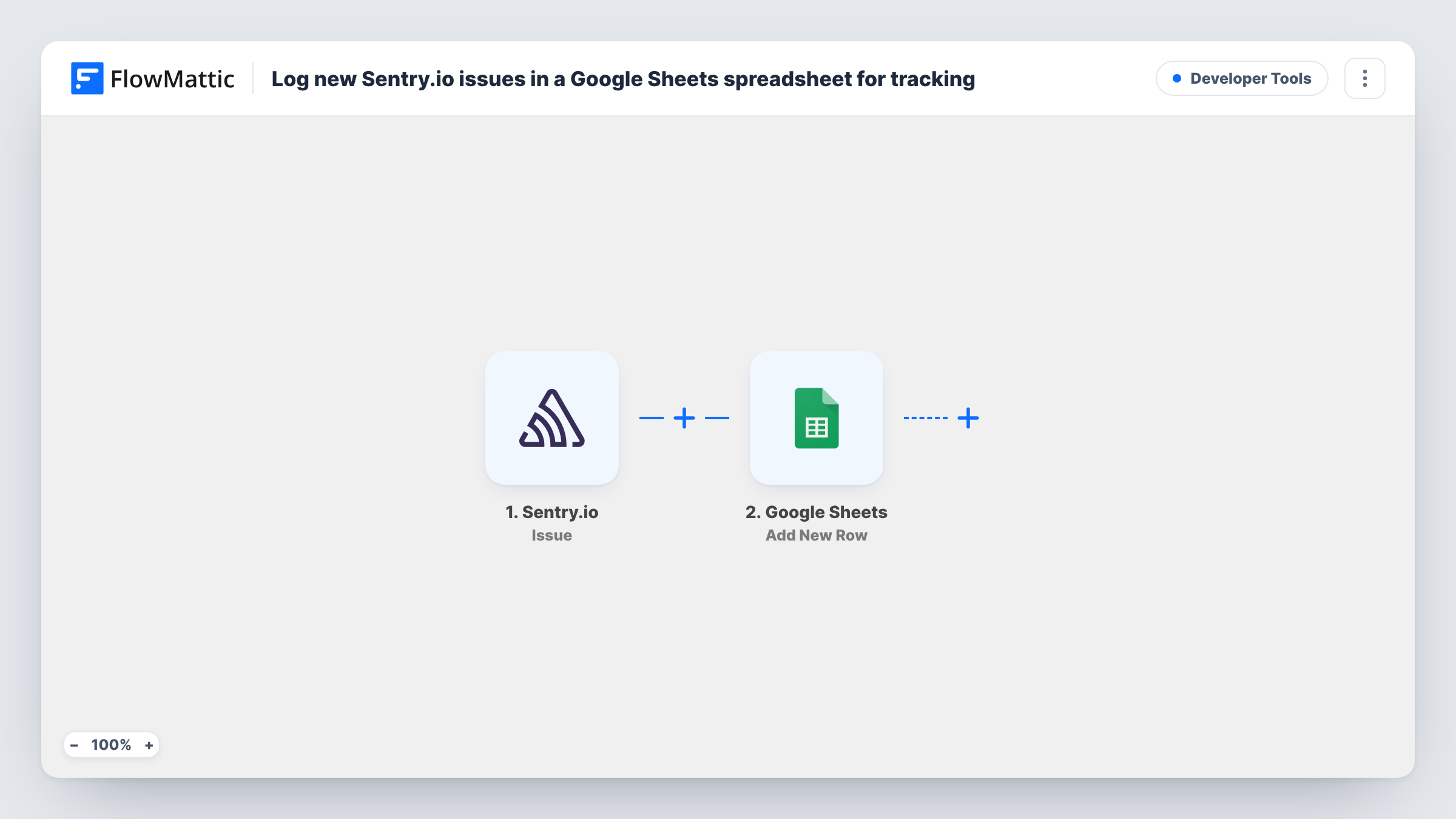
When Sentry.io reports a newly created issue, FlowMattic adds it as a row in your Google Sheets spreadsheet. A Filter keeps resolved, assigned and ignored issue events out of the sheet.
 Sentry.io
 Filter
 Google Sheets
3 steps Setup ~5 min Used on 812 sites Free to import
What this workflow does
Sentry is good at grouping errors, but a spreadsheet is easier to share with product managers, clients or anyone who doesn't log in to Sentry. A sheet of new issues also gives you a simple history to count, sort and annotate during a weekly bug review.
The Sentry.io Issue trigger fires when an issue is created, resolved, assigned or ignored, so one trigger covers four kinds of event. That's why the template adds a Filter next. It continues only when the event's action exactly matches created, ignoring upper and lower case. Resolved, assigned and ignored events stop at the Filter and add nothing.
New issues then reach Google Sheets, where the Add New Row step writes one row per issue. That step ships unmapped: after import you choose the spreadsheet and map issue details, such as the title, project and link, into your columns.
Trigger a test error in a Sentry project you've connected and check Task History. You'll see the data Sentry sent, whether the Filter let it through, and the row Google Sheets added.
Weekly bug review from one sheet
A product team opens the sheet every Monday, sorts the week's new Sentry issues by project, and adds an owner column before planning.
Error reporting for agency clients
An agency shares a Google Sheet with a client so they can see new issues on their app without a seat in the agency's Sentry organisation.
Release quality tracking
Developers add a release column and chart how many new issues each deploy introduced, using only rows for newly created issues.
How this workflow runs
What happens at each step once the workflow is on, and what you need before you import it.
 Sentry.io Issue
Fires when a Sentry.io issue is created, resolved, assigned or ignored. The event's action and the issue's details are passed to the Filter.
- Filter Continue If Condition Meet
Continues only when the Sentry event's action exactly matches "created" (case is ignored). Resolved, assigned and ignored events stop here, so the sheet only gets new issues.
- Google Sheets Add New Row
Adds one row per new Sentry issue to your spreadsheet. The step ships unmapped: pick the sheet and map the issue details a test run shows, such as its title and link, into your columns.
What you need
- FlowMatticCore
- Sentry.io AccountAccount
- Google Sheets AccountAccount
After importing, map your own data. To keep the template universal, not every step is pre-filled. Open each step in the builder and connect your accounts and fields (channels, lists, sheets, recipients) before you switch the workflow on.
Make it yours
Changes worth making after you import it.
- To log resolutions as well, make a copy of the workflow with the Filter set to "resolved" and point it at a second tab, so you can compare opened and closed issues.
- Add a second condition to the same Filter on the issue's project or level, taken from a test run, if only one app or only errors should reach the sheet.
- If a test run shows a link to the issue, map it into a column so anyone reading the sheet can open the issue in Sentry from there.
Questions about this workflow
Why does this Sentry.io workflow need a Filter?
Sentry's Issue trigger fires for created, resolved, assigned and ignored events. Without the Filter, each of those would add a row, so the sheet would repeat the same issue several times.
Which Sentry issue details can I put in Google Sheets?
Any value the trigger sends. Create a test issue after import, look at the trigger data in Task History, and map the fields you want into Add New Row.
Does an issue that comes back after being resolved add a new row?
Only events whose action is "created" pass the Filter. Check how Sentry reports a returning issue in your own Task History before relying on it.
More Developer Tools workflows
Other ready-to-import templates from the same category.







Import this workflow into your WordPress site
Download the JSON, import it from the Workflows screen and connect your accounts. Every run stays on your server, with no per-task fees.
30-day money-back guarantee Unlimited workflows and runs Self-hosted