

Welcome new MemberPress members and alert your team in Slack
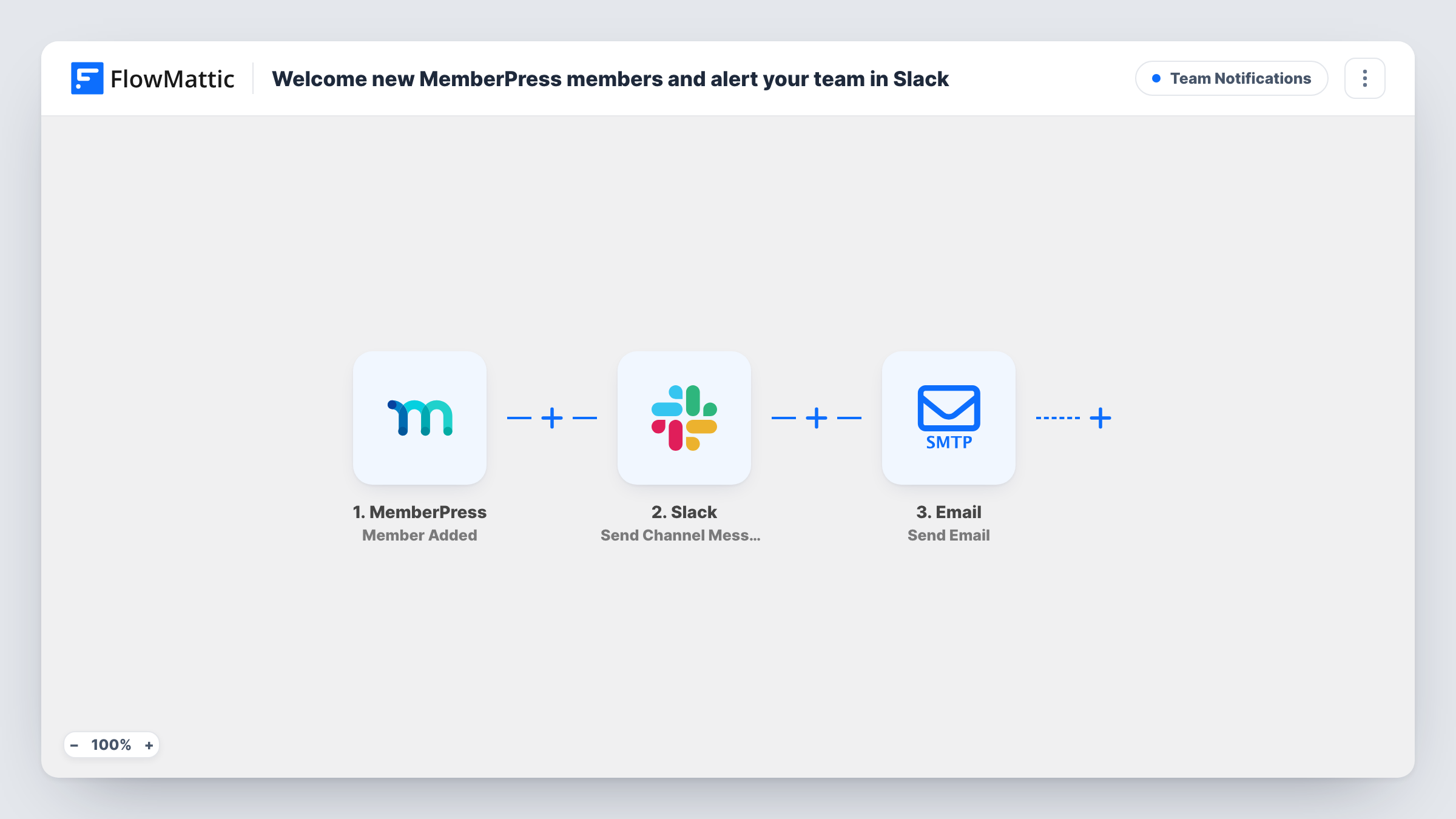
When MemberPress adds a new member, your team sees a Slack post with their name and membership, and the member receives a welcome email that names the membership they joined.
 MemberPress
 Slack
 Email
3 steps Setup ~5 min Used on 1.5k sites Ops Free to import
What this workflow does
A membership site has two audiences for every sign-up: the new member, who wants to know their access is ready, and your team, who may want to say hello in the community or watch which plans are selling. This workflow covers both as soon as MemberPress records the member.
The MemberPress trigger runs on Member Added. FlowMattic first posts a message to a Slack channel that names the membership and the member's first and last name. The Email step then writes to the member's account email with the subject Welcome to, followed by the membership name. The body greets them by first name and says the membership is active.
The welcome text in the template ends with a placeholder line, Here's how to dive in, followed by dots. Replace it with your own first steps, such as where to log in or which course to start with, before you turn the workflow on. The Email step sends through the SMTP connection you set up in FlowMattic, separate from any emails MemberPress sends itself.
Online course with a community
Moderators see each new member in Slack and can greet them in the forum, while the member's welcome email points them to the first lesson.
Several membership tiers
The Slack post names the membership, so the team can see which tier each new member chose without opening the MemberPress dashboard.
Paid newsletter or content site
A writer who sells memberships gets a Slack ping per new member, and each member gets a personal note naming the membership they joined.
How this workflow runs
What happens at each step once the workflow is on, and what you need before you import it.
 MemberPress Member Added
Runs when MemberPress adds a member. The membership name, first and last name, and account email are passed to the Slack and Email steps.
- Slack Send Channel Message
Posts to your Slack channel with the membership name and the new member's full name. Connect your Slack workspace on import and choose the channel your team reads.
 Email Send Email
Emails the new member a welcome message. The subject names the membership and the body greets them by first name. Replace the placeholder last line with your own instructions and set up your SMTP connection on import.
What you need
- FlowMatticCore
- MemberPress PluginPlugin
- Slack AccountAccount
After importing, map your own data. To keep the template universal, not every step is pre-filled. Open each step in the builder and connect your accounts and fields (channels, lists, sheets, recipients) before you switch the workflow on.
Make it yours
Changes worth making after you import it.
- Write the real welcome steps into the email body before activating. The imported text ends with a placeholder line that would reach members unchanged.
- Use a Router to send a different welcome email per membership, giving each route a condition where the membership name equals one of your plan names.
- Join with a test account after import, then check Task History to confirm both the Slack post and the email ran with the right names.
Questions about this workflow
Will MemberPress send its own welcome email as well?
This workflow does not change MemberPress settings. If MemberPress is set to email new members, they get that message and this one, so review your MemberPress emails to avoid two welcomes.
Does the welcome email check that the member's MemberPress payment went through?
No. It goes out whenever the Member Added trigger fires, and the text says the membership is active. Test with your payment setup to see when the trigger fires for your site.
Can the Slack message include the member's email address?
Yes. The trigger passes the account email, so you can add it to the Slack message text. As imported, the post shows only the membership and the name.
Do I need an email service for the welcome message?
The Email step connects to an SMTP provider, so you need SMTP details for the address you want to send from.
More Team Notifications workflows
Other ready-to-import templates from the same category.





Import this workflow into your WordPress site
Download the JSON, import it from the Workflows screen and connect your accounts. Every run stays on your server, with no per-task fees.
30-day money-back guarantee Unlimited workflows and runs Self-hosted