

Append updated Supabase rows to a Google Sheet for easy reporting
Whenever a row in your chosen Supabase table is updated, this workflow appends its values as a new row in Google Sheets, building a change log your team can read and report on without database access.
 Supabase
 Google Sheets
2 steps Setup ~5 min Used on 2.5k sites Databases & Sync Free to import
What this workflow does
Your app's data lives in Supabase, but the people who report on it often work in spreadsheets and don't have database access. Giving them a sheet that fills itself is simpler than running queries for them. This workflow adds the latest values of a Supabase row to Google Sheets each time that row changes.
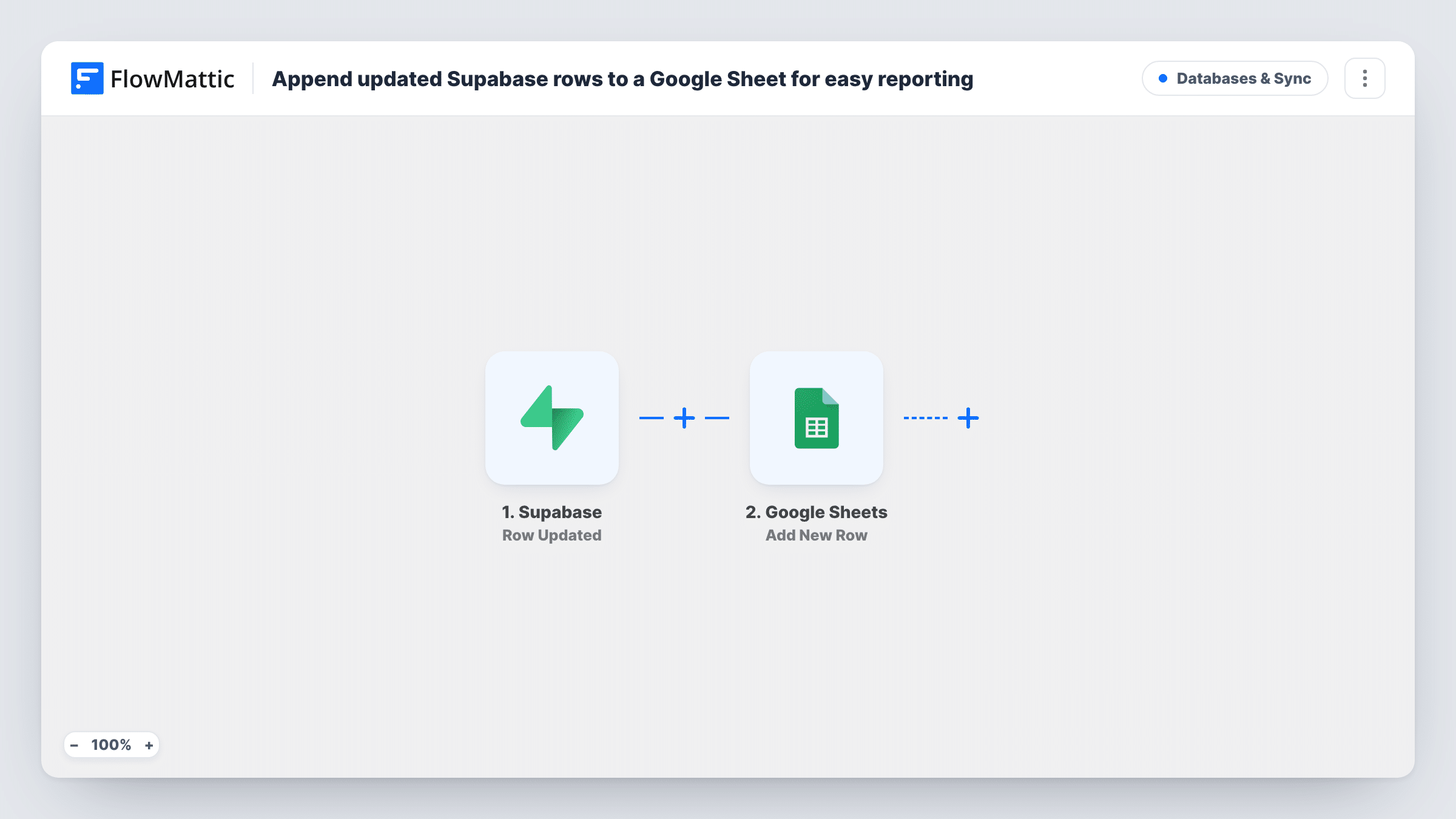
The Supabase trigger, Row Updated, fires when any column in the selected table is updated. FlowMattic receives the row's data and passes it to the Google Sheets step, Add New Row, which appends a row to the spreadsheet you choose with the columns you map.
The sheet is a log, not a mirror. Every update appends another row, so a record edited five times appears five times, and nothing in the sheet is overwritten. New inserts and deletions don't trigger this flow, because Supabase has separate Row Inserted and Row Deleted triggers. Task History lists each update that was written.
Order status history
An orders table changes status from pending to paid to shipped. Each change adds a row, so operations can see when every order moved along.
Support ticket audit for managers
A tickets table in Supabase is edited by agents. Managers read the Google Sheet to see each update and spot tickets that change hands often.
Pricing changes for finance
When someone edits a product's price in Supabase, the new value is appended to the sheet, giving finance a dated record of price changes.
How this workflow runs
What happens at each step once the workflow is on, and what you need before you import it.
 Supabase Row Updated
Fires when any column in the selected Supabase table is updated. The row's values from that update are passed on for mapping.
- Google Sheets Add New Row
Appends the updated row's values to the Google Sheets file you pick. Map the Supabase columns you need, and add a date column to show when each change was logged.
What you need
- FlowMatticCore
- Supabase AccountAccount
- Google Sheets AccountAccount
After importing, map your own data. To keep the template universal, not every step is pre-filled. Open each step in the builder and connect your accounts and fields (channels, lists, sheets, recipients) before you switch the workflow on.
Make it yours
Changes worth making after you import it.
- Include the row's ID column in the sheet so you can group all the updates for one record when you build reports.
- Add a Filter after the trigger on a column such as status if only certain changes matter, so routine edits don't fill the sheet.
- Want a sheet that shows each record once with its latest values? That needs a lookup and update step on the sheet rather than Add New Row, so plan it as a separate change.
Questions about this workflow
Does the Google Sheet show the Supabase row before and after the update?
It shows whatever the Row Updated event returns that you map. Run a test update and look at the captured data in FlowMattic to see which values are included.
Will new Supabase rows be added to the sheet?
No. This template uses Row Updated only. Add a second workflow with the Supabase Row Inserted trigger if you also want inserts logged.
Why does the same Supabase record appear in several rows?
Each update appends a new row. That's how the template works: it records every change rather than keeping one row per record.
Which Supabase table does the trigger watch?
The table you select when you set up the trigger after import. To log a second table, import the template again and pick that table.
More Databases & Sync workflows
Other ready-to-import templates from the same category.





Import this workflow into your WordPress site
Download the JSON, import it from the Workflows screen and connect your accounts. Every run stays on your server, with no per-task fees.
30-day money-back guarantee Unlimited workflows and runs Self-hosted