

Welcome new Tutor LMS students and log enrollments to Google Sheets
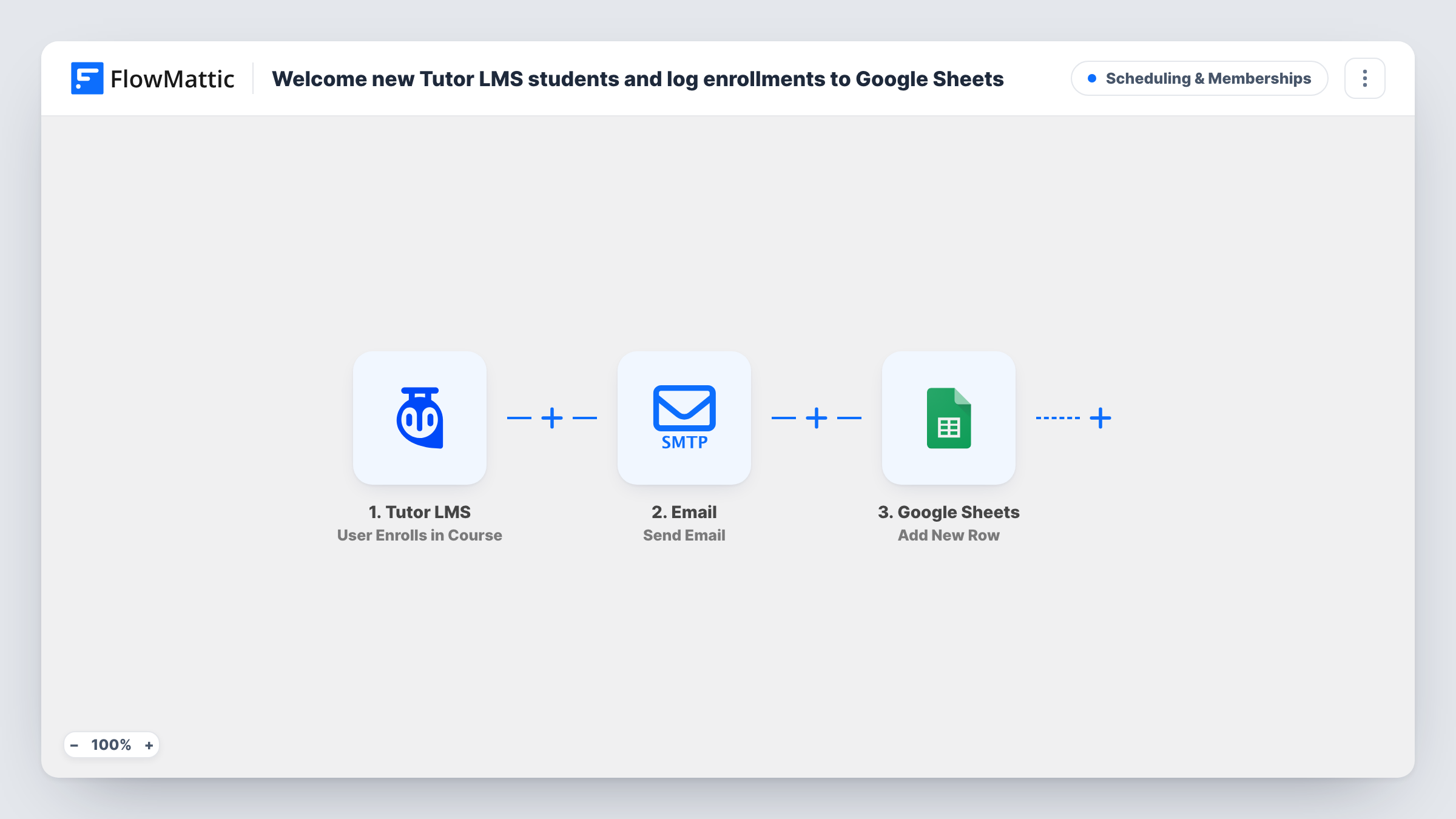
Each time a student enrolls in a Tutor LMS course, they get a welcome email naming the course, and the enrollment is added as a new row in Google Sheets for your records.
 Tutor LMS
 Email
Email
 Google Sheets
3 steps Setup ~5 min Used on 1.2k sites Community Free to import
What this workflow does
New students want to know their enrollment went through, and you want a list of who joined which course without digging through the WordPress admin. This workflow handles both the moment someone enrolls.
The Tutor LMS trigger fires when a user enrolls in a course on your site. FlowMattic then sends a welcome email to the student's address, with the course title in the subject and their display name in the greeting. The last step adds a row to Google Sheets. The template leaves that step's columns for you to set, so you choose which enrollment details to record, such as the student's email and the course title.
The welcome email goes through the Email step's SMTP connection, so it comes from an address you control. Its body is a single line in the template. Replace it with something useful before you go live: where to log in, how to start the first lesson, or who to contact for help.
Free course used as a lead magnet
Every enrollment in your free course gets a welcome email, and the sheet becomes a running list of sign-ups you can share with your marketing person.
Paid course reporting for an instructor
A co-instructor without WordPress access opens the Google Sheet to see who enrolled and in which course, without asking you for an export.
Corporate training on a Tutor LMS site
Staff enroll in compliance courses. The sheet gives HR a dated list of enrollments, and each employee gets a welcome note with the course name.
How this workflow runs
What happens at each step once the workflow is on, and what you need before you import it.
 Tutor LMS User Enrolls in Course
Fires when a user enrolls in any Tutor LMS course on your site. The student's email, display name and the course title are among the details passed on.
 Email Send Email
Emails the student with Welcome to and the course title as the subject, greeting them by display name. Rewrite the short body to include login or getting-started steps.
- Google Sheets Add New Row
Adds a new row to your Google Sheets spreadsheet for the enrollment. The template doesn't set the columns, so map the enrollment details you want and check the row with a test enrollment.
What you need
- FlowMatticCore
- Tutor LMS PluginPlugin
- Google Sheets AccountAccount
After importing, map your own data. To keep the template universal, not every step is pre-filled. Open each step in the builder and connect your accounts and fields (channels, lists, sheets, recipients) before you switch the workflow on.
Make it yours
Changes worth making after you import it.
- Map the course title and the student's email into their own columns so you can sort or filter the sheet by course later.
- Use a Filter after the trigger on the course title if only certain courses should send this welcome email.
- Enroll a test user in a course after import so FlowMattic captures the Tutor LMS data, then map the Google Sheets columns from it.
Questions about this workflow
Does Tutor LMS still send its own enrollment emails?
This workflow doesn't change Tutor LMS settings. If Tutor LMS already emails students on enrollment, they will get both messages, so adjust one of them.
Does the welcome email fire for every Tutor LMS course?
Yes, as imported. Any enrollment in any course runs the workflow. Add a Filter on the course title to limit it.
Will past enrollments be added to the Google Sheet?
No. Only enrollments that happen after you turn the workflow on reach the sheet.
Can I send the welcome from my own domain?
Yes. The email uses the SMTP connection you set up in FlowMattic, so it is sent from the address and server you configure there.
More Scheduling & Memberships workflows
Other ready-to-import templates from the same category.




Import this workflow into your WordPress site
Download the JSON, import it from the Workflows screen and connect your accounts. Every run stays on your server, with no per-task fees.
30-day money-back guarantee Unlimited workflows and runs Self-hosted