

Add Typeform leads to ActiveCampaign and alert sales in Slack
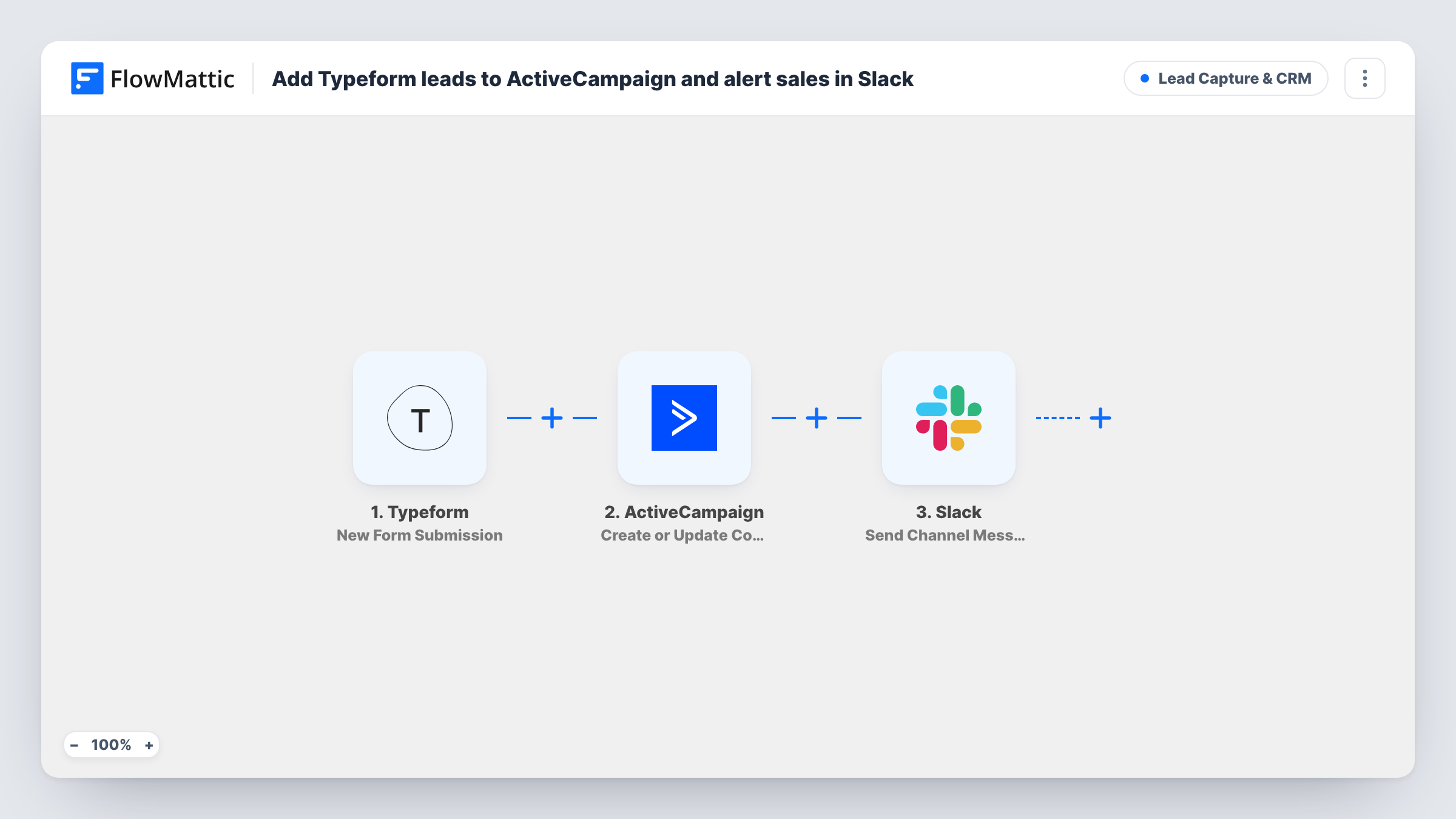
Each new Typeform response creates or updates a contact in ActiveCampaign from the submitted email and name, then posts the lead’s name, email and company in a Slack channel for sales.
 Typeform
 ActiveCampaign
 Slack
3 steps Setup ~5 min Used on 515 sites Growth Free to import
What this workflow does
Typeform is good at collecting answers, but the people who fill it in need to reach your email marketing and your sales team. Exporting responses by hand delays both. This workflow sends each new Typeform lead to ActiveCampaign and tells sales in Slack.
When someone completes your Typeform, FlowMattic picks up the response. The ActiveCampaign step then creates a contact from the submitted email, with the name answer as first name, or updates the contact if that email is already there. Last name is left blank. The Slack step finishes the run with a channel message, starting with a memo emoji, that shows "New Typeform lead", the name, the email in brackets and the company.
The template expects answers mapped as email, name and company. Your Typeform questions will have their own labels, so after import send a test response and remap each value in both action steps.
Demo request Typeform
Prospects request a demo through a Typeform. They join ActiveCampaign for nurture emails, and sales sees the name and company in Slack.
Webinar lead capture
Registrants who complete a Typeform are added to ActiveCampaign, where your reminder automations can pick them up, and the team sees each sign-up in Slack.
Partnership enquiries
Companies interested in partnering fill in a Typeform, and the partnerships channel in Slack shows who they are and which company they represent.
How this workflow runs
What happens at each step once the workflow is on, and what you need before you import it.
 Typeform New Form Submission
Runs when a new response is submitted to your Typeform. The answers mapped as name, email and company are passed to the next steps.
- ActiveCampaign Create or Update Contact
Creates or updates an ActiveCampaign contact using the Typeform email. The name answer fills the first name and last name stays empty. Connect your ActiveCampaign account on import.
- Slack Send Channel Message
Posts a Slack channel message with the lead's name, email and company. Connect Slack and send a test response to confirm the channel.
What you need
- FlowMatticCore
- Typeform AccountAccount
- ActiveCampaign AccountAccount
- Slack AccountAccount
After importing, map your own data. To keep the template universal, not every step is pre-filled. Open each step in the builder and connect your accounts and fields (channels, lists, sheets, recipients) before you switch the workflow on.
Make it yours
Changes worth making after you import it.
- Add a Filter after the trigger so only responses with a company name reach Slack and ActiveCampaign, if you only want business leads.
- If your Typeform asks for first and last name separately, map both into the ActiveCampaign step instead of sending one name to first name.
- Add a tag or list in ActiveCampaign, if the step shows those options in a test run, so these contacts enter the right automation.
Questions about this workflow
What if the Typeform lead is already in ActiveCampaign?
The step uses Create or Update Contact, so the contact with that email is updated rather than added twice.
My Typeform questions aren't called name, email and company. Will this work?
Yes, after you remap. Send a test response, then choose the matching Typeform answers in the ActiveCampaign and Slack steps.
Are older Typeform responses sent to ActiveCampaign?
No. Only responses submitted after the workflow is turned on are processed.
Can sales get a direct message in Slack instead of a channel post?
The template uses Send Channel Message. Replace it with a different Slack action if you want a direct message, and map the same lead details into it.
More Lead Capture & CRM workflows
Other ready-to-import templates from the same category.






Import this workflow into your WordPress site
Download the JSON, import it from the Workflows screen and connect your accounts. Every run stays on your server, with no per-task fees.
30-day money-back guarantee Unlimited workflows and runs Self-hosted