

Back up WooCommerce orders to both Airtable and Google Sheets
Every new WooCommerce order is copied to an Airtable record and to a Google Sheets row, giving you two separate records of your sales outside your WordPress database.
 WooCommerce
 Airtable
 Google Sheets
3 steps Setup ~5 min Used on 506 sites Data Ops Free to import
What this workflow does
Your order history lives in the WooCommerce database on your site. If you want a copy elsewhere, for reporting or as a safeguard, exporting by hand is easy to forget. This workflow writes each new order to two places as it comes in: an Airtable base and a Google Sheets spreadsheet.
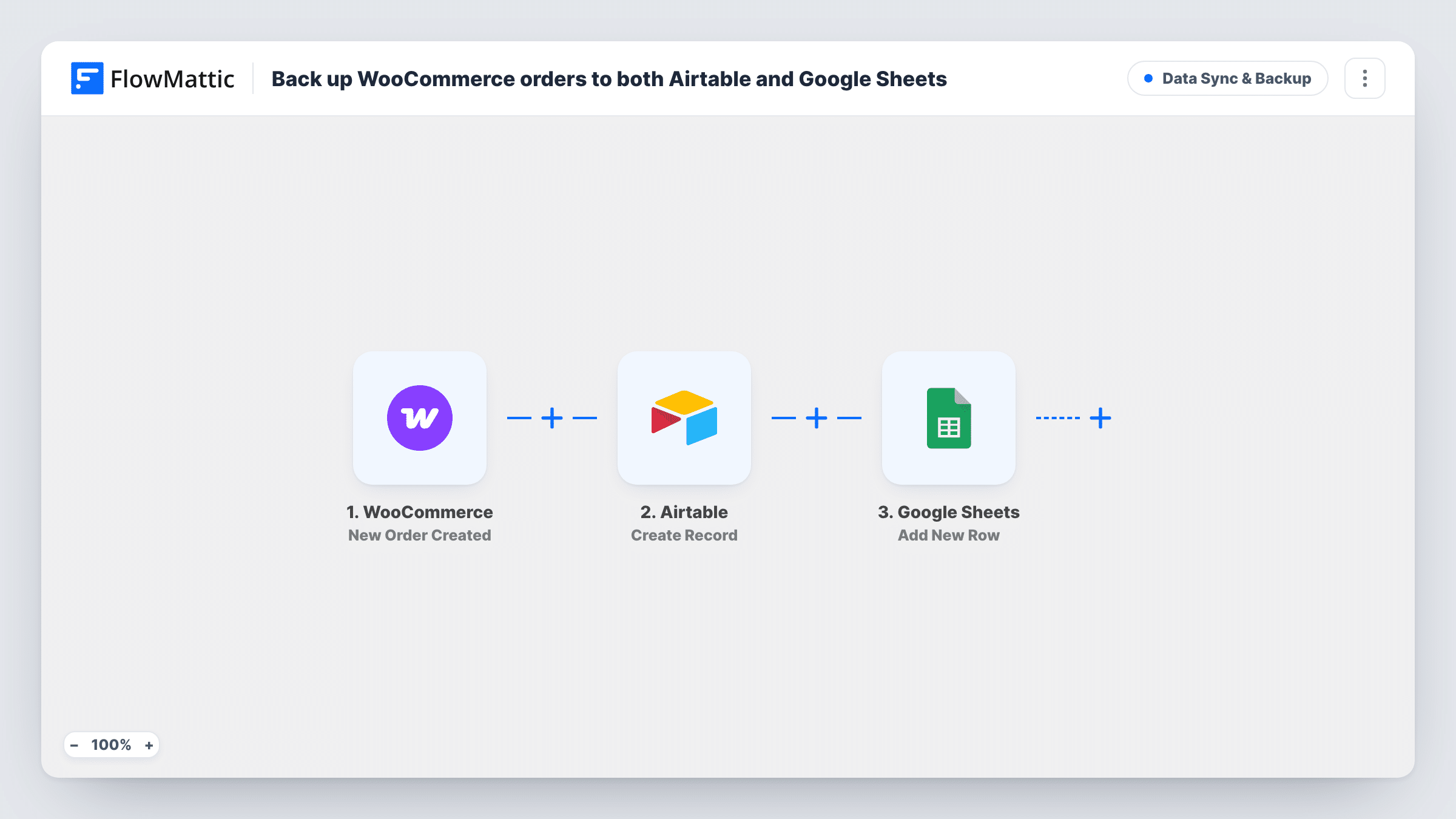
The WooCommerce trigger runs when a new order is created in your store. FlowMattic passes the order data to Airtable, where the Create Record step adds a record with the fields you map, such as order number, customer and total. The same order data then goes to Google Sheets as a new row.
The two copies are independent. You choose what each one holds, so Airtable could keep the customer details your team works with while the sheet keeps a plain ledger of order numbers and totals. Neither step changes the order in WooCommerce. Each run appears in Task History, so you can confirm both copies were written.
An off-site sales ledger
A Google Sheet of every order number, date and total gives your accountant a record they can open without a WordPress login.
Order tracking in Airtable
Your fulfilment team works from an Airtable base, adding their own columns for packing and shipping, while the sheet stays an untouched copy of the original order.
A second copy before a site migration
Running the workflow while you move hosts means orders placed during the move are recorded in two places outside the site.
How this workflow runs
What happens at each step once the workflow is on, and what you need before you import it.
 WooCommerce New Order Created
Runs when a new order is created in your WooCommerce store. The order's details, such as the customer, items and totals, become available to map in both later steps.
- Airtable Create Record
Creates a record in Airtable from the order. Connect your Airtable account, pick the destination, and map the order details you want to keep to the record's fields.
- Google Sheets Add New Row
Adds a row to the Google Sheets spreadsheet you select with the same order data. Map each column to an order detail and connect your Google account on import.
What you need
- FlowMatticCore
- WooCommerce PluginPlugin
- Airtable AccountAccount
- Google Sheets AccountAccount
After importing, map your own data. To keep the template universal, not every step is pre-filled. Open each step in the builder and connect your accounts and fields (channels, lists, sheets, recipients) before you switch the workflow on.
Make it yours
Changes worth making after you import it.
- Place a test order after import so FlowMattic captures real order data, then map it in the Airtable and Google Sheets steps before switching the workflow on.
- Add a Filter after the trigger if you only want some orders copied, for example orders above a certain total or orders paid with a chosen payment method.
- Use the same column order in the sheet and the same field names in Airtable, so the two copies are easy to compare when you check one against the other.
Questions about this workflow
Are WooCommerce orders placed before import copied to Airtable and Sheets?
No. The trigger runs on new orders, so only orders created after you turn the workflow on are copied.
Does a status change in WooCommerce update the Airtable record or sheet row?
No. Both steps add new entries when an order is created. Later changes, such as an order being completed or refunded, are not sent by this workflow.
Do I need both an Airtable and a Google account?
Yes, as imported. If you only want one copy, delete the step you don't need and the workflow keeps working with the other.
Does the workflow change the order in my WooCommerce store?
No. It reads the new order's data and writes copies to Airtable and Google Sheets. The order, its status and the customer's emails from WooCommerce are left as they are.
More Data Sync & Backup workflows
Other ready-to-import templates from the same category.





Import this workflow into your WordPress site
Download the JSON, import it from the Workflows screen and connect your accounts. Every run stays on your server, with no per-task fees.
30-day money-back guarantee Unlimited workflows and runs Self-hosted