

Issue completion certificates to everyone on the finishers sheet
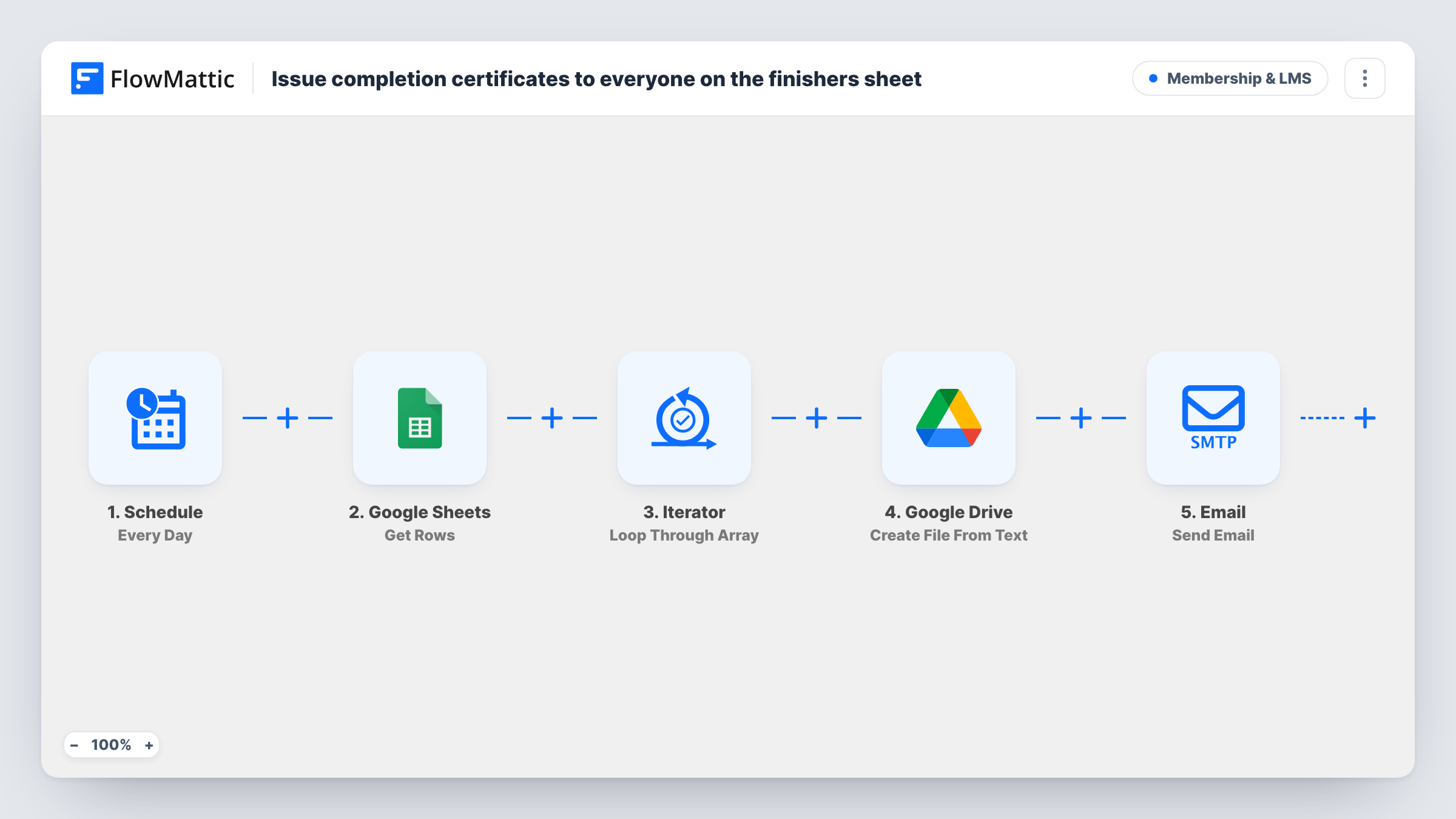
Each finisher row added to your Google Sheet gets a certificate file in Google Drive, shared with their email address and sent to them by email with a link to open it.
 Google Sheets
 Google Drive
 Email
Email4 steps Setup ~8 min Used on 1.3k sites Community Free to import
What this workflow does
If you track who completed a course or workshop in a spreadsheet, sending certificates is usually a slow copy-and-paste job. This workflow does it per row: add a finisher to the sheet, and they receive a named certificate they can open in Google Drive.
The Google Sheets New Spreadsheet Row trigger fires when a row is added. The template reads three columns, named name, email and course. Only rows added after you turn the workflow on are processed, so people already on the sheet need to be re-added or handled another way.
Next, Google Drive creates a file called "Certificate - name" from plain text. Its content is one line: "Certificate of Completion awarded to name for finishing course." It is a text file, not a designed PDF, so edit the wording to suit your programme. A second Drive step shares that file with the finisher's email as a viewer, with Google's own share notification turned off.
Finally, the Email step sends the finisher a congratulations message with a link to the file in Drive. It goes out through WordPress mail or the SMTP account you set in FlowMattic. Test with your own address first and check Task History to see what each step returned.
Workshop attendance certificates
A trainer adds each attendee who stayed to the end of a live workshop to the sheet, and each one gets a certificate link the same day.
Course completions exported from another tool
A school whose course platform appends finishers to a Google Sheet issues certificates without logging in to Drive for each learner.
Volunteer or CPD hours records
An association logs members who completed a training module and gives each a simple completion record they can keep in their Drive.
How this workflow runs
What happens at each step once the workflow is on, and what you need before you import it.
 Google Sheets New Spreadsheet Row
Starts a run for each finisher row added to your connected sheet. The name, email and course columns from that row feed the Drive and Email steps.
- Google Drive Create File From Text
Creates a plain-text file in Google Drive named "Certificate - name", containing one line that awards the certificate to that person for the course on the row.
- Google Drive Share File
Shares the new file with the finisher's email address as a reader. Google's own share notification is turned off, so the next step does the announcing.
 Email Send Email
Emails the finisher with the subject "Your certificate is ready", congratulating them by name and course and linking to the file in Google Drive.
What you need
- FlowMatticCore
- Google Sheets AccountAccount
- Google Drive AccountAccount
After importing, map your own data. To keep the template universal, not every step is pre-filled. Open each step in the builder and connect your accounts and fields (channels, lists, sheets, recipients) before you switch the workflow on.
Make it yours
Changes worth making after you import it.
- Keep the sheet headers as name, email and course, or remap the fields in the three action steps to your own column names.
- Rewrite the certificate text in the Create File From Text step to include your organisation's name and the completion date column.
- Put a Filter between the Google Sheets trigger and the Create File From Text step that continues only when the email column is not empty, so rows without an address don't create files.
- Add a Delay between the Share File step and the Email step if you want the certificate email to arrive later than the file is created.
Questions about this workflow
Will people already on my finishers sheet get a certificate?
No. The Google Sheets trigger only fires for rows added after the workflow is on. To issue certificates for existing finishers, add their rows again after turning it on.
What does the Google Drive certificate look like?
It is a plain-text file with a single sentence naming the person and the course. There is no layout, logo or signature unless you change the steps to produce one.
Can the finisher open the certificate without a Google account?
The file is shared with their email address only, as a viewer. Ask a test recipient to open the link from the email; Google decides what that person must sign in with.
Will the finisher get two emails, one from Google and one from me?
No. The Share File step has Google's notification turned off, so only the FlowMattic Email step writes to them.
More Membership & LMS workflows
Other ready-to-import templates from the same category.





Import this workflow into your WordPress site
Download the JSON, import it from the Workflows screen and connect your accounts. Every run stays on your server, with no per-task fees.
30-day money-back guarantee Unlimited workflows and runs Self-hosted