

Create a ClickUp task for every new item in your backlog sheet
Each row you add to your backlog spreadsheet in Google Sheets becomes a new ClickUp task, built from the columns you map, so the sheet stays the place where ideas land and ClickUp holds the work.
 Google Sheets
 ClickUp
2 steps Setup ~5 min Used on 1.8k sites Productivity Free to import
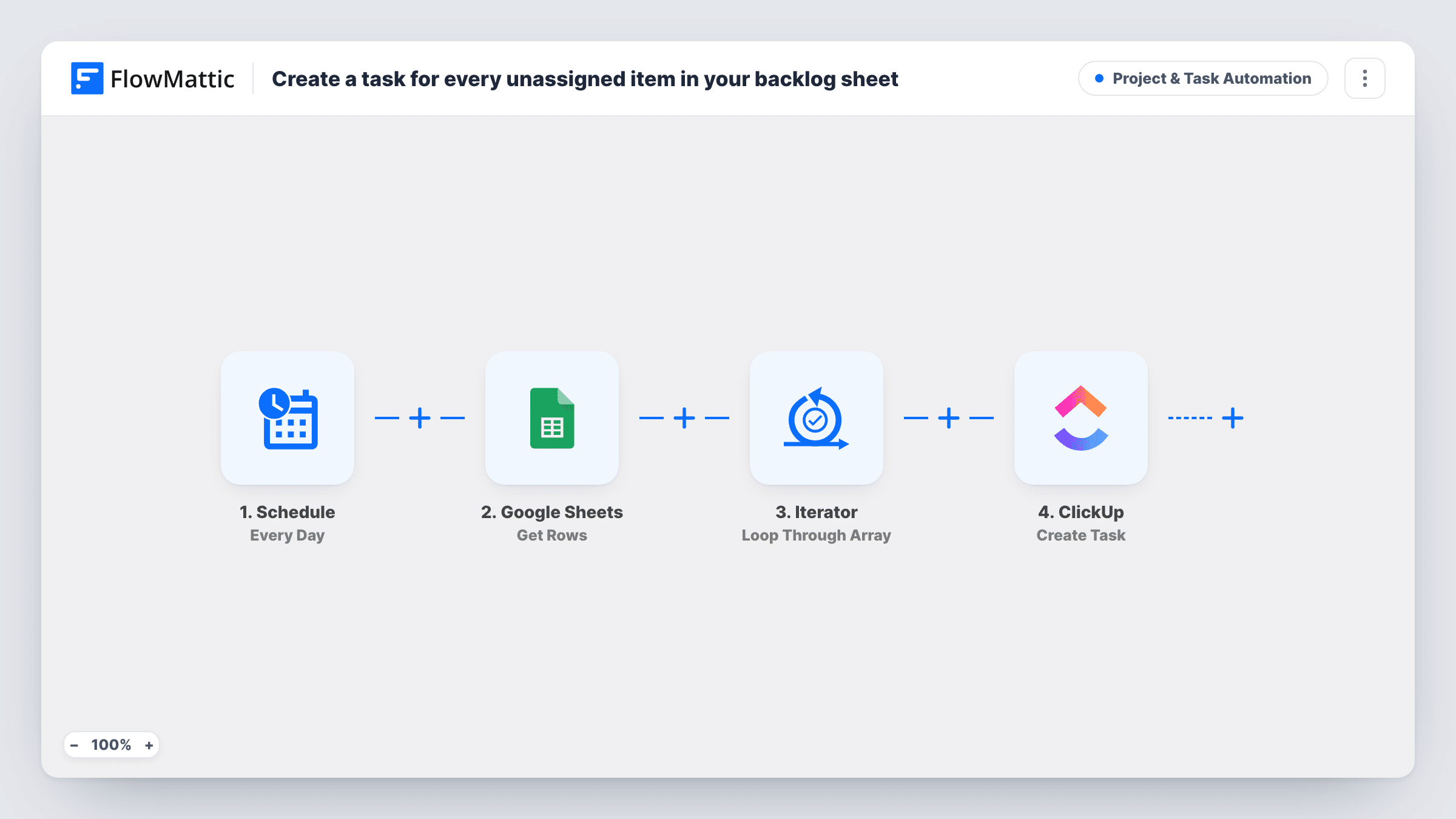
What this workflow does
Plenty of teams collect work in a spreadsheet first: requests from a client, bugs reported in a meeting, ideas typed in by people who never open ClickUp. Copying each line across by hand is the step that gets forgotten. This workflow turns every new line in that backlog sheet into a task without anyone retyping it.
The Google Sheets trigger watches the spreadsheet you connect and starts a run when a new row is added. The values in that row, one per column, are handed to the next step.
The ClickUp Create Task step then makes one task for that row. Both steps ship without settings, so after import you pick the spreadsheet and sheet in the trigger, then choose where the task should be created in ClickUp and map columns such as the item title and notes into the task name and description.
One row means one task. Nothing checks whether a similar task already exists, and the template doesn't write anything back to the sheet. Add a test row once you are set up and open Task History to see the row data FlowMattic received and what ClickUp returned.
Client requests logged in a shared sheet
An agency lets clients add requests to a Google Sheet they already use. Each new line shows up as a ClickUp task for the account team to pick up.
Bug list from a testing session
Testers fill a sheet with issues during a review call. Every row they add becomes a ClickUp task, so developers work from ClickUp instead of the spreadsheet.
Content ideas into the editorial list
Writers drop article ideas into a backlog sheet, and each idea is created as a task in the ClickUp list the editor plans from.
How this workflow runs
What happens at each step once the workflow is on, and what you need before you import it.
 Google Sheets New Spreadsheet Row
Starts a run whenever a new row is added to the Google Sheets spreadsheet you connect. The template has no sheet chosen, so pick your backlog spreadsheet and the sheet tab after import. Each column's value is passed on.
- ClickUp Create Task
Creates one ClickUp task from the new row. This step ships unmapped: after import, choose where in ClickUp the task goes and map the row's columns into the task name and description. A test row shows what ClickUp creates.
What you need
- FlowMatticCore
- Google Sheets AccountAccount
- ClickUp AccountAccount
After importing, map your own data. To keep the template universal, not every step is pre-filled. Open each step in the builder and connect your accounts and fields (channels, lists, sheets, recipients) before you switch the workflow on.
Make it yours
Changes worth making after you import it.
- If people sometimes leave half-filled lines, put a Filter between the Google Sheets trigger and the ClickUp step that continues only when your title column is not empty. Pick the column that holds the item name in your own sheet.
- Add a Slack Send Channel Message step after the Create Task step to tell the team a new item came in from the backlog sheet, with the row's title mapped into the message.
- Keep a column for extra context, such as who asked or a link to the source, and map it into the task description so the person picking it up doesn't need the sheet.
Questions about this workflow
Will rows already in my backlog sheet become ClickUp tasks?
No. FlowMattic describes this trigger as firing when a new row is added, so only rows added after the workflow is on start a run. Move older items into ClickUp another way.
Which columns go into the ClickUp task?
The ones you map. Neither step has mapping in the template, so you decide which column becomes the task name and which go into the description when you set up the Create Task step.
Can rows go to different ClickUp lists?
Yes, with a Router between the Google Sheets trigger and the ClickUp step. Give each route its own condition on a column such as team, plus its own Create Task step pointed at that list, and make sure no row can match two routes.
Does ClickUp check for an existing task with the same name?
Not in this workflow. Every new row creates a new task, so adding the same item to the sheet twice gives you two ClickUp tasks.
More Project & Task Automation workflows
Other ready-to-import templates from the same category.




Import this workflow into your WordPress site
Download the JSON, import it from the Workflows screen and connect your accounts. Every run stays on your server, with no per-task fees.
30-day money-back guarantee Unlimited workflows and runs Self-hosted