

AI coach that drips personalised next-lesson tips after each lesson
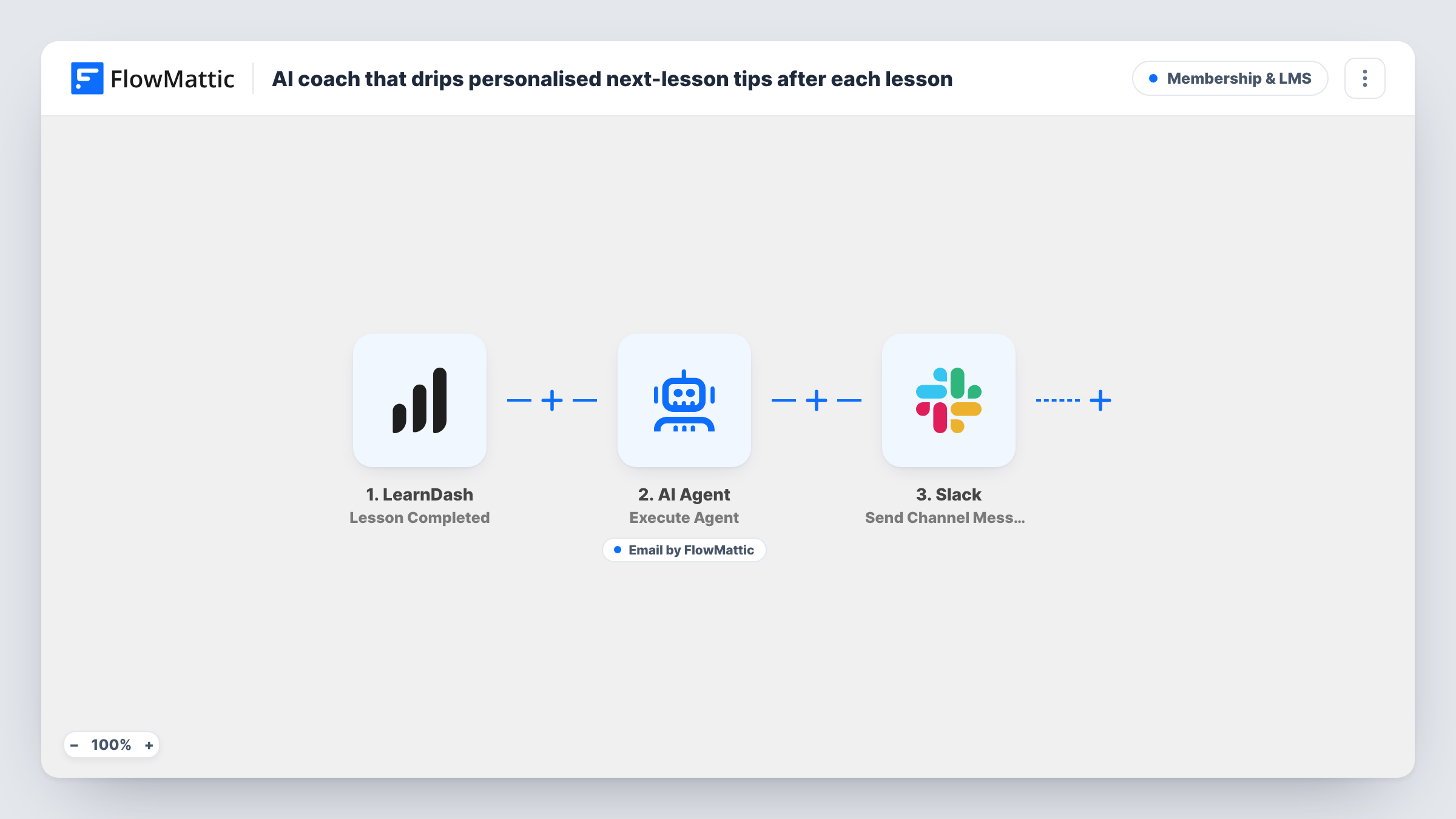
Each time a learner completes a LearnDash lesson, an AI Agent writes a short recap and one tip for the next lesson, emails it to the learner with its Send Email tool, and then logs the send in Slack.
 LearnDash
 AI Agent
 Email
Email
 Slack
Slack4 steps Setup ~8 min Used on 2.9k sites Community Free to import
What this workflow does
Learners drift off between lessons. A short, personal note after each one, recalling what they just finished and how to get ready for the next, keeps them moving without you writing hundreds of emails. This workflow has an AI Agent write and send that note every time a lesson is completed.
The LearnDash Lesson Completed trigger passes the learner's first name, email, the lesson title and the course title. The AI Agent receives those details with a system prompt asking for a two-sentence recap of the lesson and one specific tip to prepare for the next one. The agent has one tool, Send Email, addressed to the learner's email, and it writes the subject and body itself. After the agent finishes, a Slack channel message notes that a recap went to that learner.
Keep in mind what the agent actually sees. It gets the lesson and course titles, not the lesson content, so the recap and tip are only as specific as those titles allow. Out of the box the agent runs on GPT-4o from OpenAI, using an AI provider account you connect on import.
Self-paced courses with high drop-off
A course creator selling a self-paced programme sends every learner a short note after each lesson, nudging them towards the next one while the last is still fresh.
Staff training on a company LMS
An HR team running onboarding lessons in LearnDash gives each new hire a brief recap after every module, and the Slack channel shows the training lead who is progressing.
Coaching programmes with weekly lessons
A coach adds a personal touch between sessions: each finished lesson brings a recap and a preparation tip, without the coach writing them one by one.
How this workflow runs
What happens at each step once the workflow is on, and what you need before you import it.
 LearnDash Lesson Completed
Runs when a learner completes a lesson in LearnDash. The learner's first name and email, the lesson title and the course title are passed to the AI Agent.
- AI Agent Execute Agent
Runs the AI Agent with a prompt asking for a two-sentence recap of the finished lesson and one tip for the next. The template uses GPT-4o; connect your AI provider account.
 Email Send Email
The agent's Send Email tool emails the learner at their LearnDash address. The agent writes the subject and body, and the email goes out through FlowMattic's SMTP settings.
- Slack Send Channel Message
Posts a Slack channel message saying an AI lesson recap was sent, with the learner's email, so your team can see the workflow at work.
What you need
- FlowMatticCore
- LearnDash PluginPlugin
- AI ProviderAccount
- Slack AccountAccount
After importing, map your own data. To keep the template universal, not every step is pre-filled. Open each step in the builder and connect your accounts and fields (channels, lists, sheets, recipients) before you switch the workflow on.
Make it yours
Changes worth making after you import it.
- Add a line to the system prompt describing your course and lesson order, or a short outline, so the agent's tip points at what really comes next.
- Tell the agent in the system prompt how to sign off and what tone to use, so every email sounds like it came from you rather than a generic assistant.
- Use a Filter after the trigger to run the coach only for one course, if you want to try it with a single group of learners first.
Questions about this workflow
Does the AI read my lesson content?
No. As imported, the agent receives the lesson title, course title and the learner's first name and email. Add lesson summaries to the system prompt if you want recaps that reflect what was taught.
Can I swap GPT-4o for another model?
Yes. GPT-4o from OpenAI is only the starting choice in the agent step. Connect your own AI provider account on import and pick a different model there if you prefer.
Does the Slack message confirm the email was delivered?
Not exactly. It runs after the AI Agent step and says a recap was sent. Check Task History for a run if you need to see what the agent did and what the email tool returned.
Will a learner get an email for every lesson?
Yes. Each completed lesson starts a run, so learners who finish several lessons in one sitting get several emails. Add a Filter after the trigger if you only want recaps for certain lessons.
More Membership & LMS workflows
Other ready-to-import templates from the same category.





Import this workflow into your WordPress site
Download the JSON, import it from the Workflows screen and connect your accounts. Every run stays on your server, with no per-task fees.
30-day money-back guarantee Unlimited workflows and runs Self-hosted