

Send a win-back offer to every churn-risk contact each week
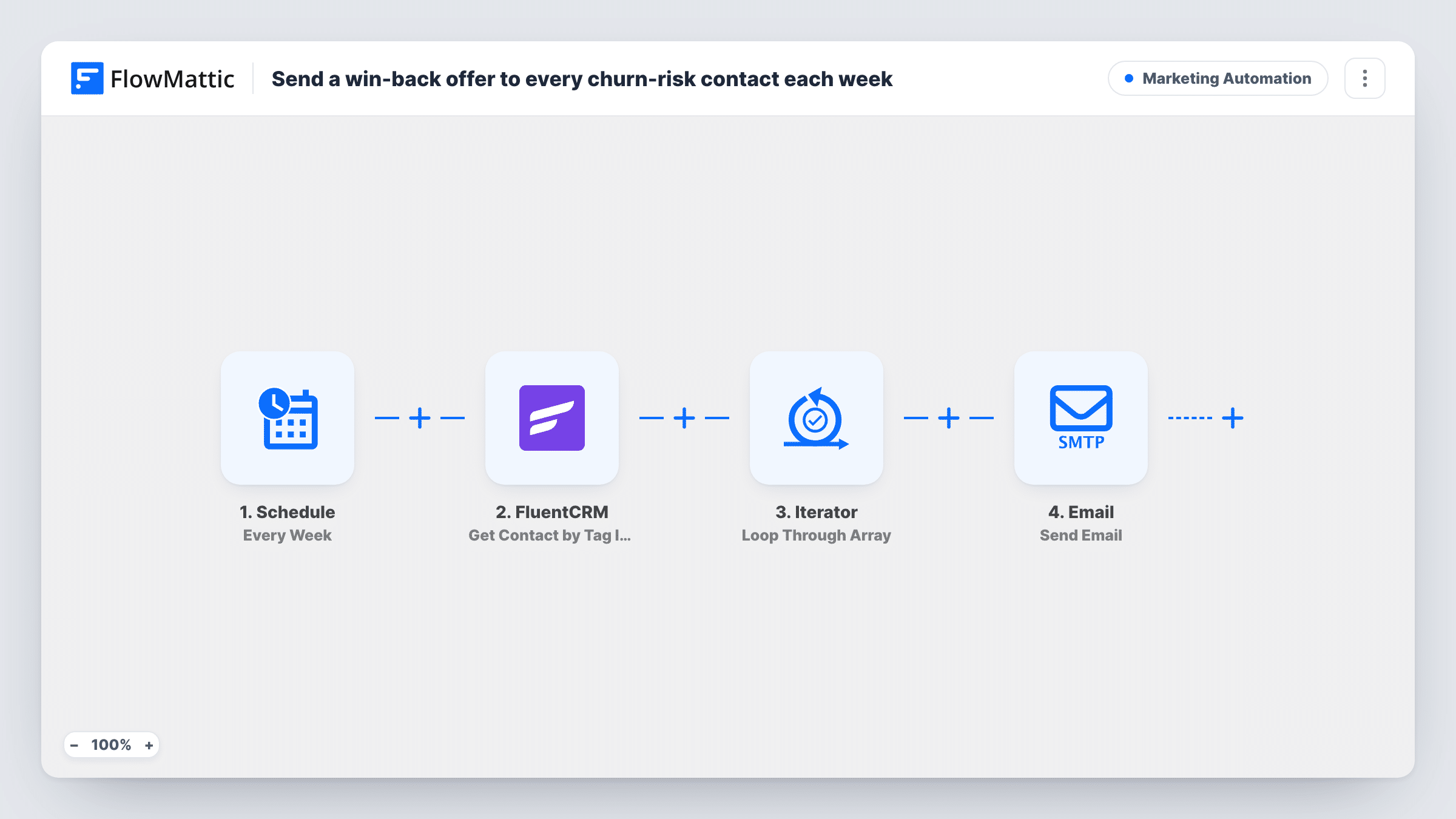
Every week, this workflow fetches the FluentCRM contacts that carry your churn-risk tag and sends each one a personal win-back email with an offer, addressed by first name.
 Schedule
 FluentCRM
 Iterator
 Email
Email4 steps Setup ~8 min Used on 1.7k sites Marketing Free to import
What this workflow does
Customers who are drifting away rarely say so. If you already tag them as a churn risk in FluentCRM, the next step is to reach out before they leave for good. This workflow sends that outreach on a weekly rhythm, so tagged contacts hear from you without anyone remembering to do it.
A Schedule trigger begins each weekly run. The FluentCRM step then gets the contacts with tag ID 9, which stands in for your churn-risk tag. An Iterator goes through that list one contact at a time. For each one, the Email module sends a message with the subject We saved a spot for you, followed by their first name, and a body offering 20% off the next month.
Two things to settle before you switch it on. The offer text has no code or link, so add how the customer claims it. And because the same tag is read every week, a contact keeps getting the email until the tag comes off. Remove the tag once someone returns, or the offer repeats.
Membership site with lapsing members
Members who stop logging in get a churn-risk tag from your own rules. Each week they receive a friendly offer to come back for a month at a lower price.
Subscription box with skipped orders
Customers who skipped recent boxes are tagged in FluentCRM. The weekly email gives them a reason to stay before they cancel.
Course platform with inactive students
Students tagged as at risk get a weekly nudge with a discount on their next month of access.
How this workflow runs
What happens at each step once the workflow is on, and what you need before you import it.
 Schedule Every Week
Kicks off once a week. Check the schedule after import so the email arrives on a day and time that suits your customers.
- FluentCRM Get Contact by Tag IDs
Gets the FluentCRM contacts that carry tag ID 9. Replace 9 with the ID of your own churn-risk tag, or the workflow fetches whatever tag uses that ID on your site.
- Iterator Loop Through Array
Loops through the contacts from FluentCRM, so the next step runs once per contact with that person's email and first name.
 Email Send Email
Emails each contact with a subject that greets them by first name and a short body offering 20% off the next month. Add your claim link or code to the body before going live.
What you need
- FlowMatticCore
- FluentCRM PluginPlugin
After importing, map your own data. To keep the template universal, not every step is pre-filled. Open each step in the builder and connect your accounts and fields (channels, lists, sheets, recipients) before you switch the workflow on.
Make it yours
Changes worth making after you import it.
- Add the details the customer needs to claim the offer, such as a coupon code or a link, to the email body. As imported it names the discount but gives no way to use it.
- If one offer per contact is enough, take the churn-risk tag off in FluentCRM after the email goes out, or the same people are fetched again next week.
- Place a Delay after the Email step inside the loop to space the messages out, if your email provider is strict about many sends at once.
Questions about this workflow
Why does the step use a number instead of a tag name?
Get Contact by Tag IDs expects the tag's ID. Find the ID of your churn-risk tag in FluentCRM and put it in place of 9, then run a test to confirm the right contacts come back.
Will the same contact be emailed every week?
Yes, as long as they still carry the tag. The workflow does not remember who it emailed, so remove the tag when you no longer want to send the offer.
Which email service sends the message?
The Email module in FlowMattic, using the SMTP settings you set up there. Send a test run to yourself first to check how it looks.
Does this create the churn-risk tag for me?
No. It only reads contacts that already have the tag. Tag them in FluentCRM by hand or with another automation.
More Marketing Automation workflows
Other ready-to-import templates from the same category.








Import this workflow into your WordPress site
Download the JSON, import it from the Workflows screen and connect your accounts. Every run stays on your server, with no per-task fees.
30-day money-back guarantee Unlimited workflows and runs Self-hosted