

Only add subscribers to marketing when they opted in
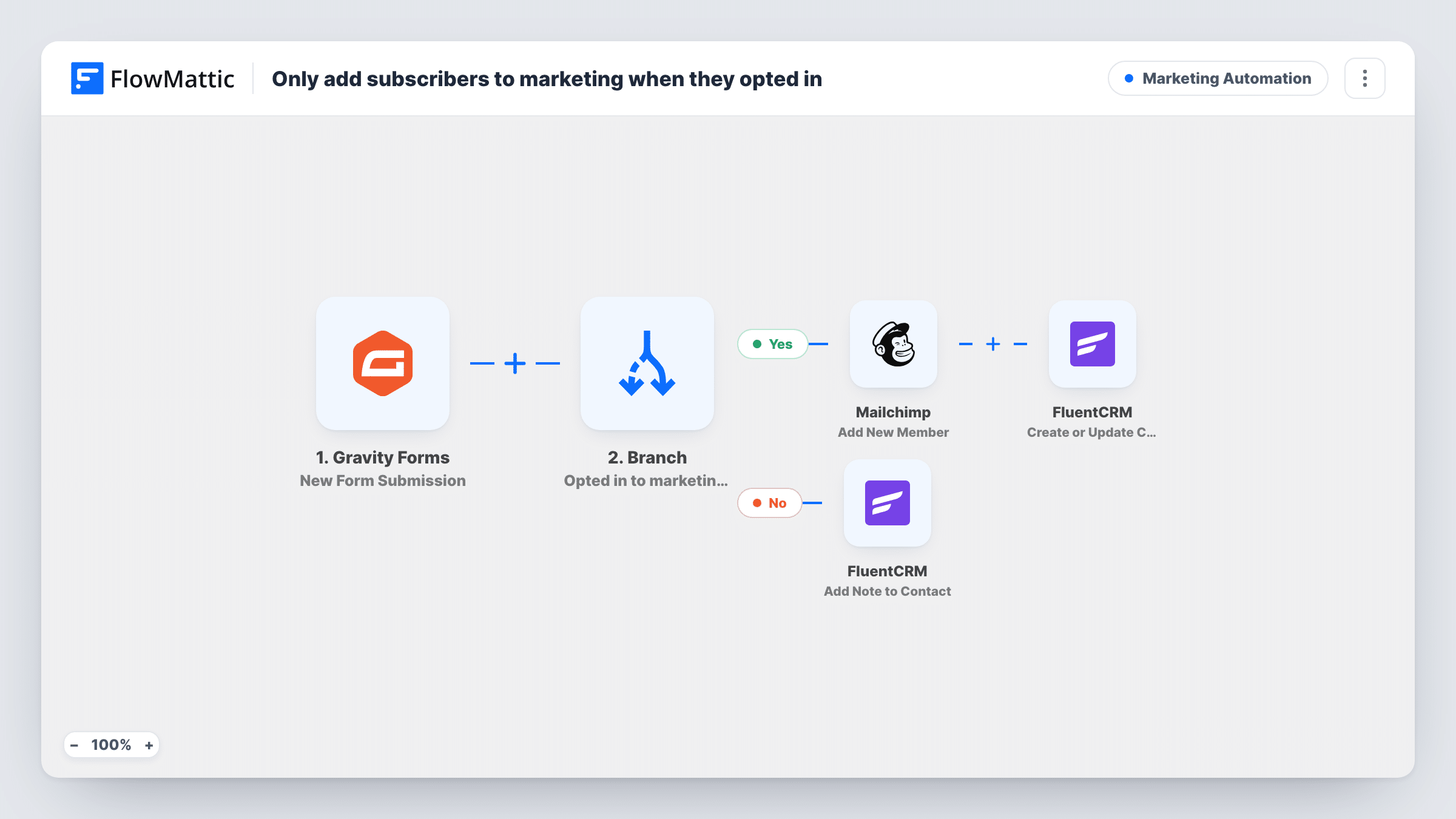
A Branch reads the consent field on each Gravity Forms entry. People who opted in join your Mailchimp audience as subscribed and get a FluentCRM contact; everyone else only gets a No consent note added in FluentCRM.
 Gravity Forms
 Branch
 Mailchimp
 FluentCRM
5 steps Setup ~8 min Used on 3.2k sites Marketing Free to import
What this workflow does
Adding everyone who fills in a form to your mailing list is a quick way to collect complaints and break consent rules. A contact form, a quote request or a support form is not permission to send newsletters. This workflow checks the answer to your consent question first, and only people who said yes reach your marketing lists.
When a visitor submits a Gravity Forms form, a Branch labelled Opted in to marketing? checks whether the consent field contains yes. On the yes path, Mailchimp adds the person as a new member with the status subscribed, using their email and name. FluentCRM then creates the contact, or updates it if the email is already there.
On the no path, nothing goes to Mailchimp. FluentCRM adds a note titled No consent to the contact with that email, saying to store them as transactional only and not market to them. The no path does not create a contact, so the note only lands if that person is already in FluentCRM.
The Branch is a plain text check. Make sure the value your consent checkbox submits contains the word yes, or every entry will take the no path.
Contact form with an optional newsletter box
Visitors can ask a question without joining your list. Ticking the newsletter checkbox is what adds them to Mailchimp and FluentCRM.
Webinar registration under GDPR
Registrants must give their details to attend, but marketing consent is a separate question. Only those who agree are subscribed in Mailchimp.
Customer records with a consent trail
Existing FluentCRM contacts who submit a form without consenting get a No consent note, so staff can see why they are not on a marketing list.
How this workflow runs
What happens at each step once the workflow is on, and what you need before you import it.
 Gravity Forms New Form Submission
Runs when someone submits your Gravity Forms form. The consent answer decides the path, and the email and name are passed to Mailchimp and FluentCRM.
- Branch Opted in to marketing?
Checks whether the consent field contains yes. If it does, the opted-in path runs. Any other value, or an empty answer, sends the entry down the no path.
- Mailchimp Add New Member
Opted-in path: adds the person to your Mailchimp audience with the status subscribed, using their email and name. Connect Mailchimp and pick the audience during setup.
- FluentCRM Create or Update Contact
Opted-in path: creates the person as a FluentCRM contact from the same email and name, or updates the contact if that email already exists. Only a first name is mapped as imported.
- FluentCRM Add Note to Contact
No-consent path: adds a note titled No consent to the FluentCRM contact with this email, marking them as transactional only. No contact is created on this path.
What you need
- FlowMatticCore
- Gravity Forms PluginPlugin
- Mailchimp AccountAccount
- FluentCRM PluginPlugin
After importing, map your own data. To keep the template universal, not every step is pre-filled. Open each step in the builder and connect your accounts and fields (channels, lists, sheets, recipients) before you switch the workflow on.
Make it yours
Changes worth making after you import it.
- Check what value your Gravity Forms consent checkbox submits with a test entry. If it isn't a phrase containing yes, change the Branch condition to match it.
- Add a FluentCRM Create or Update Contact step before the note on the no path if you want non-consenting people stored, so the note always has a contact to attach to.
- Split the name into first and last fields in your form and map both into Mailchimp and FluentCRM instead of leaving the last name blank.
- If your Mailchimp audience uses double opt-in, test whether the subscribed status suits it or whether pending is the better choice for your process.
Questions about this workflow
Does a Gravity Forms entry without consent reach Mailchimp?
No. Only the yes path has the Mailchimp step. Entries whose consent field doesn't contain yes skip it entirely.
Are people who decline stored in FluentCRM?
Not as imported. The no path only adds a note to a contact with that email, which works if they are already in FluentCRM. Add a create step on that path to store everyone.
What if the person is already a Mailchimp member?
Add New Member updates an existing Mailchimp member rather than adding a duplicate. The Gravity Forms name and the subscribed status overwrite what that member had before.
Do I need both Mailchimp and FluentCRM?
As imported, yes. Remove the Mailchimp step if FluentCRM is your only list, or the FluentCRM steps if you work in Mailchimp alone.
More Marketing Automation workflows
Other ready-to-import templates from the same category.






Import this workflow into your WordPress site
Download the JSON, import it from the Workflows screen and connect your accounts. Every run stays on your server, with no per-task fees.
30-day money-back guarantee Unlimited workflows and runs Self-hosted