

Spot unhappy customers in replies and warn the retention team
Each time a customer replies to a Fluent Support ticket, an AI Agent judges their mood, answers with empathy and warns your retention team in Slack when they seem frustrated or ready to leave.
 Fluent Support
 AI Agent
 Slack
Slack
 FluentCRM
6 steps Setup ~12 min Used on 2.3k sites Agentic Support Free to import
What this workflow does
Frustration shows in the words customers use long before they cancel. A support agent handling many tickets can miss it, and the retention team rarely sees those replies at all. This workflow reads every customer reply for mood and raises a flag when someone sounds close to leaving.
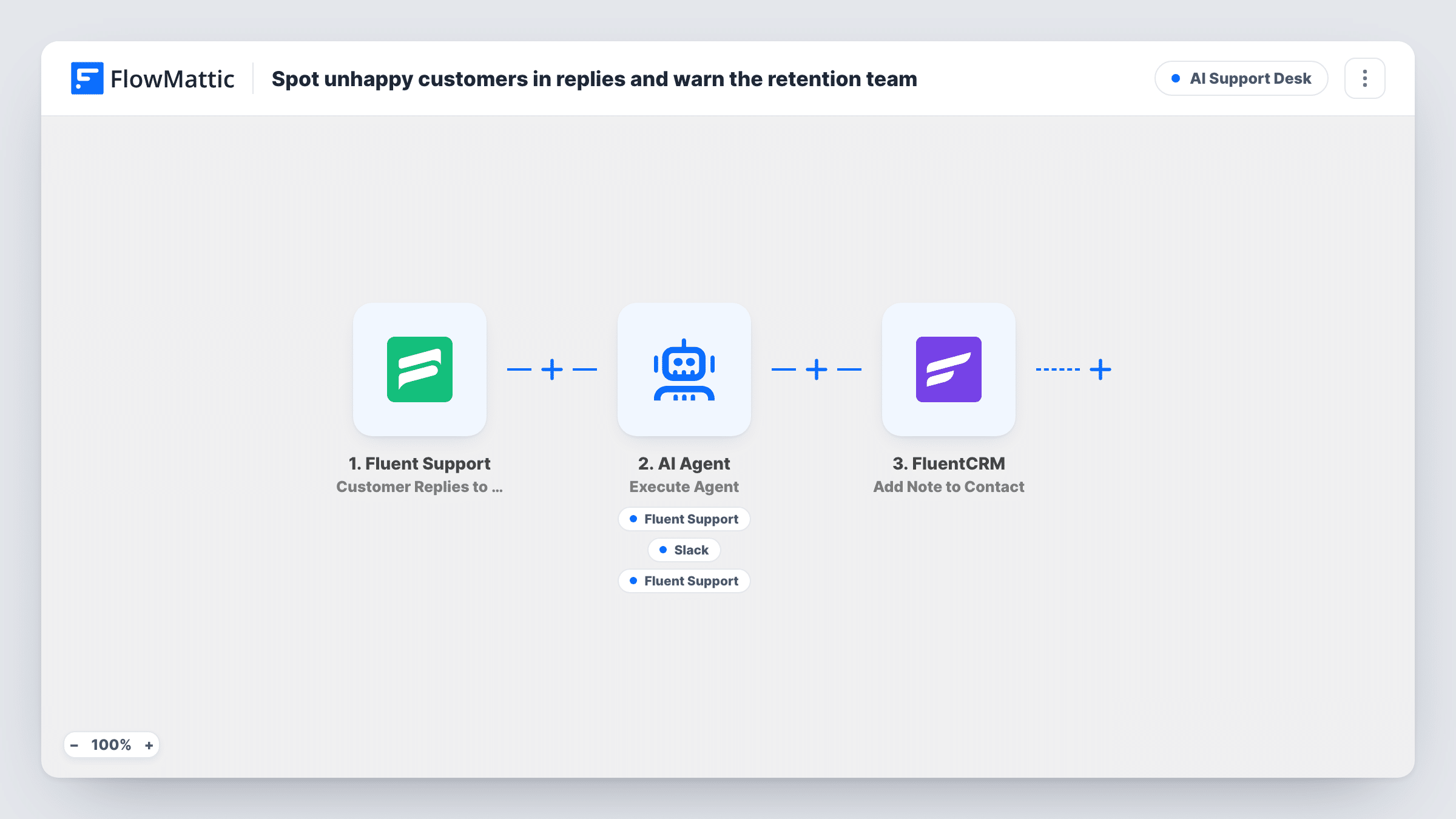
The Fluent Support trigger runs when a customer replies to a ticket and passes the reply text, subject, ticket ID and customer email. The AI Agent acts as a retention-focused support agent. It is told to judge the customer's mood, reply with empathy, and alert retention on Slack only if they seem frustrated or likely to leave. It has three tools: Reply to Ticket, Slack's Send Channel Message and Add Tag to Ticket (Pro), and it chooses when to use each.
After the agent, FluentCRM adds a note titled Support sentiment check to the customer's contact on every run. Keep in mind that the agent is told to answer each reply, so customers may get an AI-written response alongside your team's. Test it on a staging ticket before using it on live conversations.
Subscription software with monthly plans
A customer writes that this is the third time the bug has come back. The retention team sees the Slack alert and can offer help before the next renewal date.
Online course platform
Students who sound fed up in their ticket replies are flagged, and the tag on the ticket lets you filter Fluent Support for upset learners.
Hosting or agency support
Clients venting about downtime get a calm, empathetic reply, and the account manager hears about it in Slack while the issue is still open.
How this workflow runs
What happens at each step once the workflow is on, and what you need before you import it.
 Fluent Support Customer Replies to a Ticket
Runs when a customer replies to a Fluent Support ticket. The reply content, ticket subject, ticket ID and customer email are passed on.
- AI Agent Execute Agent
The AI Agent reads the latest reply and the subject, judges the mood, and is told to answer with empathy and warn retention only when the customer seems at risk. OpenAI GPT-4o is the configured model.
- Fluent Support Reply to Ticket
The agent's tool for replying on the same ticket, which it identifies by ticket ID. The agent supplies the reply. Use a test ticket to check how the reply appears in Fluent Support.
- Slack Send Channel Message
The agent's tool for warning the retention team in Slack. It writes the message and is told to use it only for frustrated or at-risk customers. Test which channel it posts to.
- Fluent Support Add Tag to Ticket (Pro)
The agent's tool for tagging the ticket with the sentiment it sees. The tool expects a Fluent Support tag ID, so list your tag IDs and their meaning in the agent's instructions.
- FluentCRM Add Note to Contact
Adds a note titled Support sentiment check to the FluentCRM contact with the customer's email, saying an AI reviewed their reply on that ticket.
What you need
- FlowMatticCore
- Fluent Support PluginPlugin
- AI ProviderAccount
- Slack AccountAccount
- FluentCRM PluginPlugin
After importing, map your own data. To keep the template universal, not every step is pre-filled. Open each step in the builder and connect your accounts and fields (channels, lists, sheets, recipients) before you switch the workflow on.
Make it yours
Changes worth making after you import it.
- Name your sentiment tags and their IDs in the agent's instructions, for example 12 for frustrated and 13 for at risk. The tool needs an ID, and the model cannot guess yours.
- If you only want the warning and not the AI reply, remove the Reply to Ticket tool and take the instruction to reply out of the system prompt.
- Ask the agent to include the ticket subject, customer email and a one-line reason in its Slack message, so the retention team can act without opening the ticket.
Questions about this workflow
Will the agent reply to every Fluent Support ticket message?
It is told to reply with empathy each time a customer writes, and the tool is available on every run. Remove the tool or change the instructions if replies should come only from your team.
Does every reply trigger a Slack alert?
No. The agent is told to alert retention only when the customer seems frustrated or likely to leave. Check a few test runs to see how it judges.
Do I need Fluent Support Pro?
The tagging tool is Add Tag to Ticket (Pro), so tagging needs the Pro version. The trigger and the reply tool are shown without that label.
What if the customer is not in FluentCRM?
The note step targets the contact with the customer's email and does not create one. Run a test with an address that is not yet a contact to see how it behaves.
More AI Support Desk workflows
Other ready-to-import templates from the same category.



Import this workflow into your WordPress site
Download the JSON, import it from the Workflows screen and connect your accounts. Every run stays on your server, with no per-task fees.
30-day money-back guarantee Unlimited workflows and runs Self-hosted