

Give faster support paths to premium plan customers
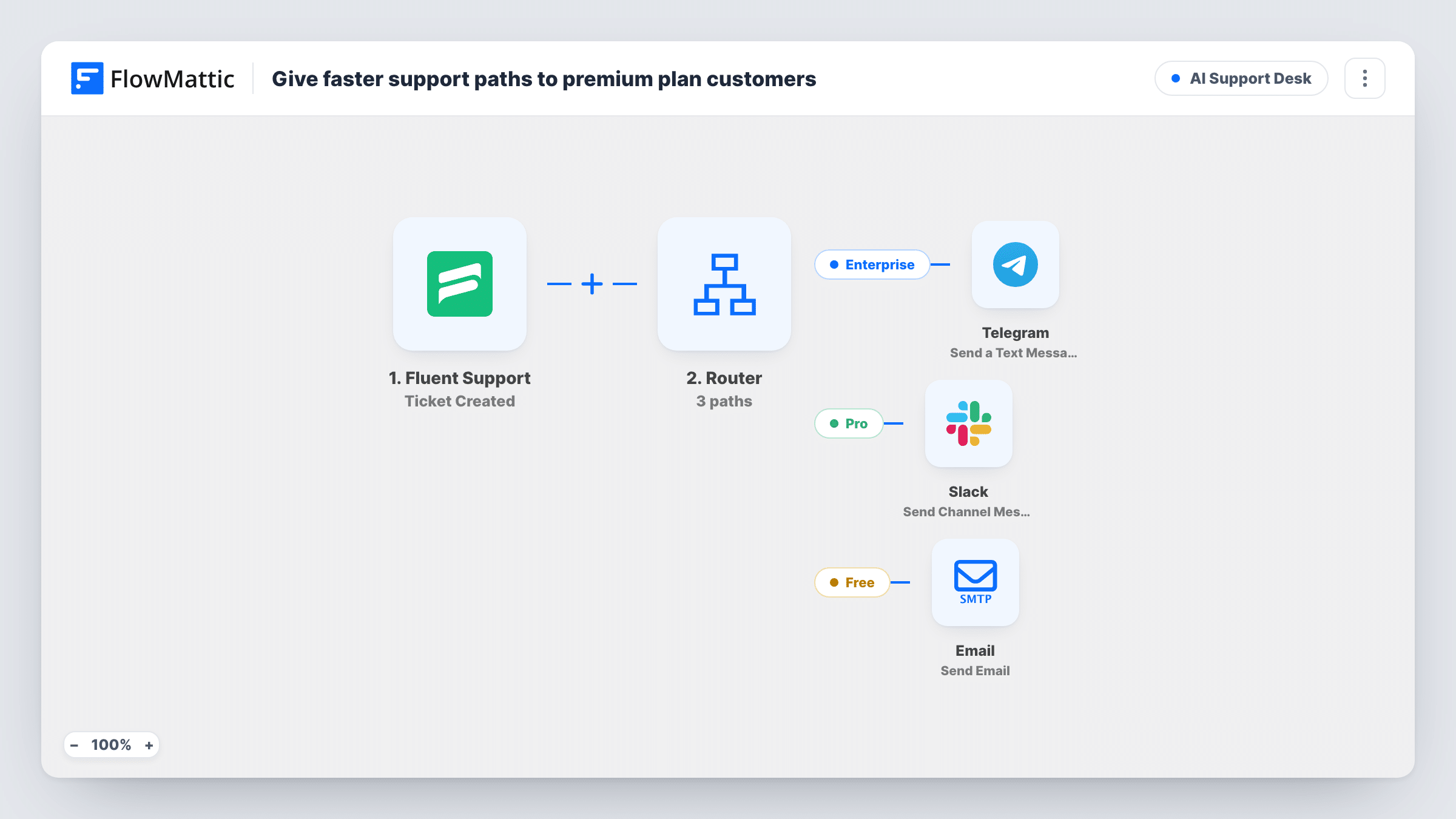
New Fluent Support tickets are sorted by the product they belong to: Enterprise tickets ping Telegram for priority handling, Pro tickets post to Slack, and everything else emails your support inbox.
 Fluent Support
 Router
 Telegram
 Slack
Slack
 Email
Email5 steps Setup ~8 min Used on 1.7k sites Agentic Support Free to import
What this workflow does
If you sell support in tiers, your top customers expect their tickets to be seen first. This workflow reads the product on each new Fluent Support ticket and alerts a different place for each tier, so the people who handle Enterprise accounts hear about those tickets on their phones while the rest flow into the normal queue.
The Fluent Support trigger fires whenever a ticket is created, by a customer or by an agent. A Router then checks the ticket's product field. Enterprise: the product contains "Enterprise", and a Telegram message says the ticket number needs priority handling. Pro: the product contains "Pro" but not "Enterprise", and Slack gets a channel message. Free: the product contains neither word, and an email goes to [email protected] saying the ticket entered the standard queue.
The Router runs every route that matches, but these three conditions exclude each other, so a ticket triggers exactly one alert. The routing depends on your product names in Fluent Support. Name the products after the plans, or edit the words in each condition to match what you use.
Watch for product names that contain "Pro" by accident, such as "Product Tour". Those would take the Pro route. Replace the example email address with your own before you turn the workflow on.
Enterprise SLA on call
A plugin company's on-call engineer keeps Telegram open on their phone, so an Enterprise ticket raised at the weekend reaches them without anyone checking the helpdesk.
Pro tickets in the team channel
A theme shop's support team sees each Pro ticket number in a Slack channel and picks it up ahead of the free queue.
Free-plan queue by email
A SaaS founder lets free-plan tickets arrive as email notices to the shared support inbox, where they are answered in order during office hours.
How this workflow runs
What happens at each step once the workflow is on, and what you need before you import it.
 Fluent Support Ticket Created
Fires when a new ticket is created in Fluent Support, whether a customer submits it or an agent opens it. Passes the ticket ID and product to the Router.
- Router 3 paths
Holds three routes, Enterprise, Pro and Free, each testing the ticket's product field. Their conditions can't overlap, so each ticket follows the one route it matches.
- Telegram Send a Text Message
Enterprise route. Sends a Telegram text message, formatted as HTML, saying the ticket number needs priority handling. Connect your Telegram bot after import and set the chat it should post to.
- Slack Send Channel Message
Pro route, for products containing "Pro" but not "Enterprise". Posts "Pro ticket" and the ticket number to the Slack channel you pick.
 Email Send Email
Free route, for any other product. Emails [email protected] with the subject "New free-plan ticket" and the ticket number. Change the address to your support inbox.
What you need
- FlowMatticCore
- Fluent Support PluginPlugin
- Telegram AccountAccount
- Slack AccountAccount
After importing, map your own data. To keep the template universal, not every step is pre-filled. Open each step in the builder and connect your accounts and fields (channels, lists, sheets, recipients) before you switch the workflow on.
Make it yours
Changes worth making after you import it.
- Add the ticket subject to each alert message, so the person reading Telegram or Slack knows what the ticket is about before opening it.
- If your product names don't include the plan, change the words in each route condition to your real product names, and keep the three conditions from overlapping.
- Use Slack's Send Private Channel Message action on the Pro route instead if that alert belongs in a private channel.
Questions about this workflow
How does the workflow know which plan a Fluent Support customer is on?
It reads the product chosen on the ticket, not a billing record. It works when your Fluent Support products are named after the plans, or when you edit the conditions to your product names.
Can one ticket alert Telegram, Slack and email at once?
No. The Router runs every route whose condition matches, but these three rule each other out: Enterprise, Pro without Enterprise, and neither.
What happens to tickets with no product selected?
An empty product contains neither word, so the ticket takes the Free route and the email notice goes out.
Are tickets that agents open on behalf of customers included?
Yes. FlowMattic describes the Ticket Created trigger as firing for tickets created by either a customer or an agent, so both start a run.
More AI Support Desk workflows
Other ready-to-import templates from the same category.




Import this workflow into your WordPress site
Download the JSON, import it from the Workflows screen and connect your accounts. Every run stays on your server, with no per-task fees.
30-day money-back guarantee Unlimited workflows and runs Self-hosted