

Give VIP customers white-glove ticket handling
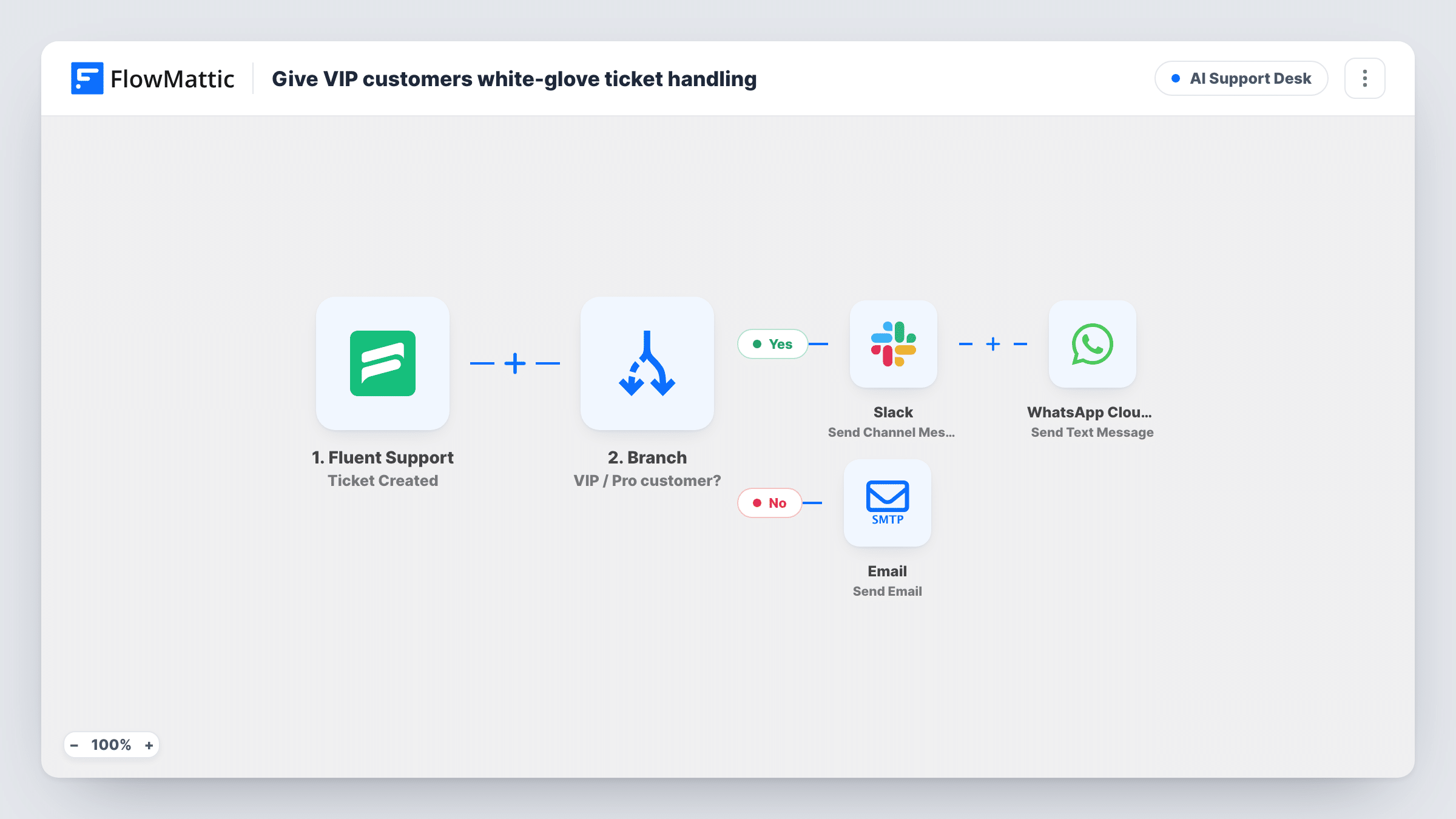
New Fluent Support tickets whose product contains “Pro” trigger a Slack alert for your team and a WhatsApp note to the customer. Every other ticket gets a standard acknowledgement email.
 Fluent Support
 Branch
 Slack
 WhatsApp Cloud API
 Email
5 steps Setup ~8 min Used on 3.1k sites Agentic Support Free to import
What this workflow does
Customers on your top plan expect to hear from a person quickly, and your team needs to know which tickets those are. This workflow splits new tickets in two at the moment they arrive, so premium customers get a faster, more personal first contact while everyone else still gets a reply.
The Fluent Support trigger fires when a ticket is created. A Branch then checks whether the ticket's product contains the text "Pro". On the Yes path, Slack gets a VIP alert with the ticket number and customer name, and WhatsApp Cloud API sends the customer a text saying your senior team is on their request, with the ticket number. On the No path, an email goes to the customer's address confirming the ticket number and saying you'll reply shortly.
Each ticket takes exactly one path. VIP customers get the WhatsApp text in place of the email, not as well as it. Standard customers get the email and no Slack alert. If you sell a product whose name contains "Pro" but isn't a premium tier, change the Branch condition before you turn the workflow on.
Plugin seller with a Pro edition
You sell a free plugin and a Pro version and support both in Fluent Support. Pro buyers get a WhatsApp reply and a Slack ping for your team, while free users get the email acknowledgement.
Agency with a premium care plan
Clients on your Pro care plan file tickets against that product. Their requests flag up in Slack straight away so an account manager can pick them up.
SaaS support team that watches Slack
Your senior agents live in Slack, not the helpdesk inbox. Only premium tickets reach them there, which keeps the channel quiet enough to act on.
How this workflow runs
What happens at each step once the workflow is on, and what you need before you import it.
 Fluent Support Ticket Created
Fires when a new ticket is created in Fluent Support. The ticket ID, product, customer name, email and phone are handed to the Branch and the actions on each path.
- Branch Branch
Checks whether the ticket's product contains the text Pro. Tickets that match go down the Yes path. Tickets that don't, including those with no product, go down the No path.
- Slack Send Channel Message
Yes path. Posts a VIP alert to Slack with the ticket number and the customer's name, so someone senior can open it first.
- WhatsApp Cloud API Send Text Message
Yes path. Sends a WhatsApp text to the customer's phone number on the ticket, telling them your senior team is already on their request and quoting the ticket number.
 Email Send Email
No path. Emails the customer a standard acknowledgement with the ticket number in the subject and a short note that you will reply shortly.
What you need
- FlowMatticCore
- Fluent Support PluginPlugin
- Slack AccountAccount
- WhatsApp Cloud API AccountAccount
After importing, map your own data. To keep the template universal, not every step is pre-filled. Open each step in the builder and connect your accounts and fields (channels, lists, sheets, recipients) before you switch the workflow on.
Make it yours
Changes worth making after you import it.
- Contains Pro also matches product names such as Product Tour. Change the Branch to an exact match on your premium product's name, or add a second condition, if your catalogue has names like that.
- Add a Send Email step after WhatsApp on the Yes path if VIP customers should also get the email acknowledgement. As imported, they only get the WhatsApp text.
- Not every ticket comes with a phone number. In the existing Branch, also require the customer phone to be not empty, so VIP tickets without one fall back to the email path.
- Send one test ticket on a Pro product and one on another product, then check Task History to confirm each took the path you expected.
- WhatsApp generally delivers free-form text only within 24 hours of the customer last messaging your business number. For VIPs who haven't written to you on WhatsApp, swap the step for Send Template Message with an approved template.
Questions about this workflow
How does the workflow decide a Fluent Support ticket is VIP?
Only by the ticket's product. If the product contains the text Pro, the ticket is treated as VIP. Nothing else about the customer, such as their order history or plan, is checked.
Do VIP customers also get the acknowledgement email?
No. Each ticket follows one path. The Yes path sends the Slack alert and the WhatsApp text, and the email only goes out on the No path.
What happens if a VIP ticket has no phone number?
The WhatsApp step has no number to send to, so that customer gets no message on the Yes path. Check Task History for those runs. The tips explain how to send tickets without a phone number down the email path instead.
Which email account sends the acknowledgement?
The Email step sends through the SMTP connection you set up in FlowMattic, so the message comes from that account rather than from Fluent Support's own mail settings.
More AI Support Desk workflows
Other ready-to-import templates from the same category.






Import this workflow into your WordPress site
Download the JSON, import it from the Workflows screen and connect your accounts. Every run stays on your server, with no per-task fees.
30-day money-back guarantee Unlimited workflows and runs Self-hosted