

AI agent that personalises onboarding for each new member
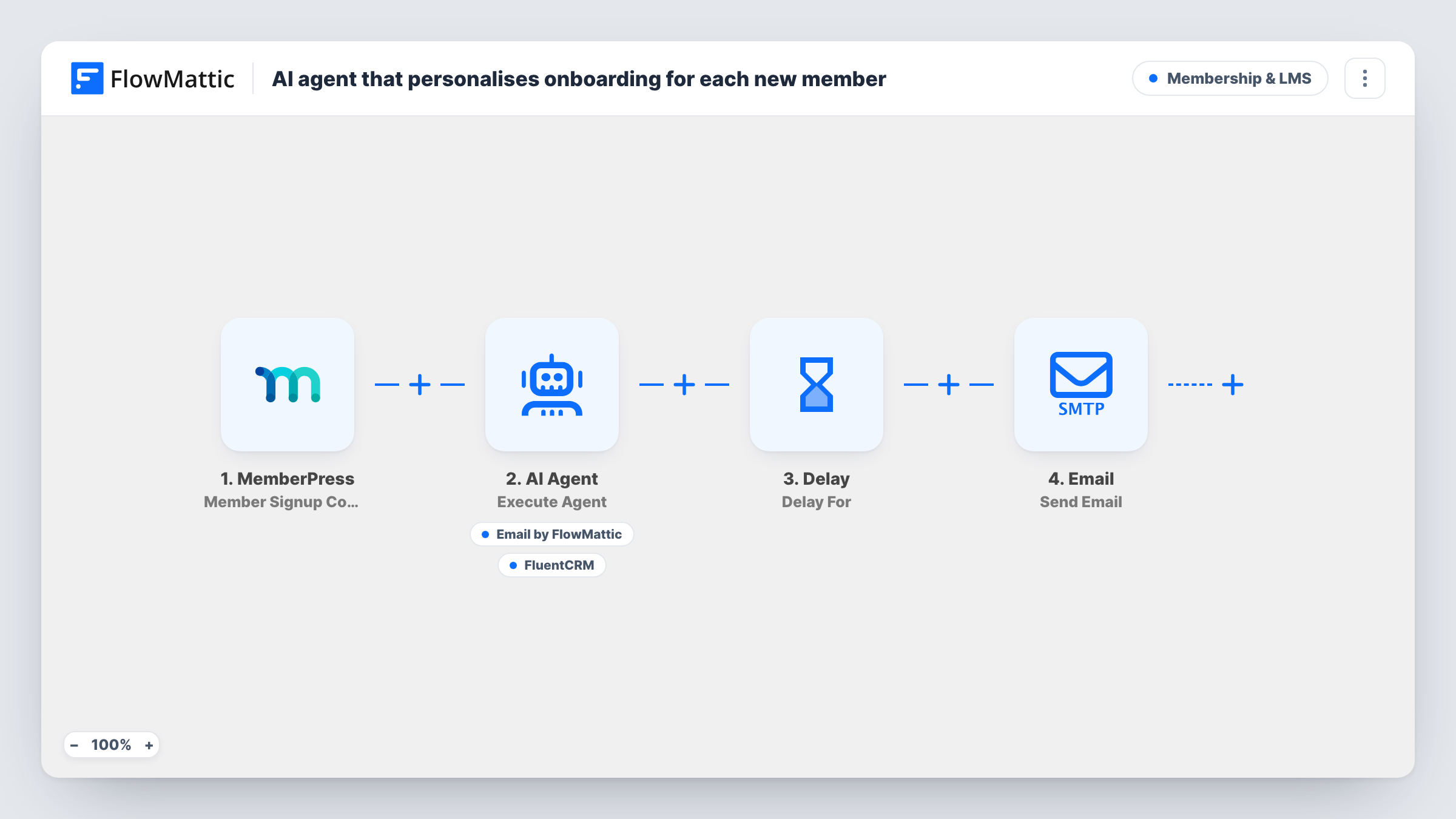
When someone completes a MemberPress signup, an AI agent writes a welcome email shaped by their plan and adds them to FluentCRM, then a second email checks in with them five days later.
 MemberPress
 AI Agent
 Email
Email
 FluentCRM
 Delay
Delay6 steps Setup ~12 min Used on 2.2k sites Community Free to import
What this workflow does
A new member decides early whether joining was worth it. One welcome email for every plan tends to miss the point of what each person bought, and writing a fresh note per signup is not realistic. This workflow lets an AI agent draft the welcome around the plan the member chose, then follows up on its own after a few days.
The MemberPress trigger fires when a member signup is completed. The AI Agent receives a single line: the member's first name and the membership they joined. Its instructions ask it to write a plan-specific welcome email, add the person to the CRM, and note a check-in. It has two tools to do that. Send Email goes to the member's address, with the subject and body left for the agent to write. FluentCRM Create or Update Contact uses the member's email and first name.
The agent decides when to use each tool, so read Task History after your first signups to confirm it sent the email and saved the contact. The check-in itself does not depend on the agent. After the agent step, a Delay holds the run for five days, and a fixed Email step then asks the member how it is going, naming their plan. The agent is set to OpenAI's GPT-4o, and you connect your own AI account when you import.
A membership site with several tiers
Basic and premium members get different welcome notes, because the agent is told which membership each person joined and writes to that.
Paid community onboarding
New members of a paid community get a personal-sounding welcome on signup, land in FluentCRM for later broadcasts, and hear from you again on day five.
Coaching programmes sold through MemberPress
Each new client gets a welcome tied to the programme they bought, and the five-day check-in gives them an easy moment to reply with questions.
How this workflow runs
What happens at each step once the workflow is on, and what you need before you import it.
 MemberPress Member Signup Completed
Runs when a member signup is completed in MemberPress. The member's email, first name and membership name are passed on to the later steps.
- AI Agent Execute Agent
The AI Agent is given the member's first name and membership, with instructions to write a plan-specific welcome, add them to the CRM and note a check-in. You link your own AI account to this step on import.
 Email Send Email
The agent's email tool. It sends to the member's MemberPress email address, and the agent writes the subject and body. Set up your SMTP details for Email after import.
- FluentCRM Create or Update Contact
The agent's CRM tool. It creates a FluentCRM contact from the member's email and first name, or updates the contact when that email is already in FluentCRM.
- Delay Delay For
Waits five days after the agent step before the run moves on. Change the number of days if your onboarding works to a different rhythm.
- Email Send Email
Sends a fixed check-in email to the member, with their first name in the subject and their membership named in the body. Rewrite this text to point to a real next step on your site.
What you need
- FlowMatticCore
- MemberPress PluginPlugin
- AI ProviderAccount
- FluentCRM PluginPlugin
After importing, map your own data. To keep the template universal, not every step is pre-filled. Open each step in the builder and connect your accounts and fields (channels, lists, sheets, recipients) before you switch the workflow on.
Make it yours
Changes worth making after you import it.
- Add a few lines about each of your plans to the agent's instructions. It only receives the plan name, so it cannot know what each membership includes unless you tell it.
- Extend the check-in email so it links to the page you most want new members to visit first, since the template's body only mentions what members on the plan do next.
- If you want plan-based grouping in FluentCRM, add your own FluentCRM step after the agent step and check its options with a test run, so grouping does not depend on what the agent chooses to do.
Questions about this workflow
Does the AI agent always send the MemberPress welcome email?
It is instructed to, and it has the Send Email tool, but the agent chooses when to use its tools. Check Task History for your first few signups to see what it did on each run.
Does the agent tag the member in FluentCRM?
Not as imported. Its FluentCRM tool creates or updates the contact from the email and first name only. Add a separate FluentCRM step after the agent if you need more than that.
Is the five-day check-in written by the AI?
No. The Delay and the follow-up email are ordinary steps after the agent, with fixed text you can edit. Every member who signs up gets it after five days.
Which AI model writes the welcome email?
The agent step is set to OpenAI's GPT-4o. You connect your own provider account on import and can pick a different model in the agent step.
More Membership & LMS workflows
Other ready-to-import templates from the same category.





Import this workflow into your WordPress site
Download the JSON, import it from the Workflows screen and connect your accounts. Every run stays on your server, with no per-task fees.
30-day money-back guarantee Unlimited workflows and runs Self-hosted