

AI agent that encourages students after each lesson they complete
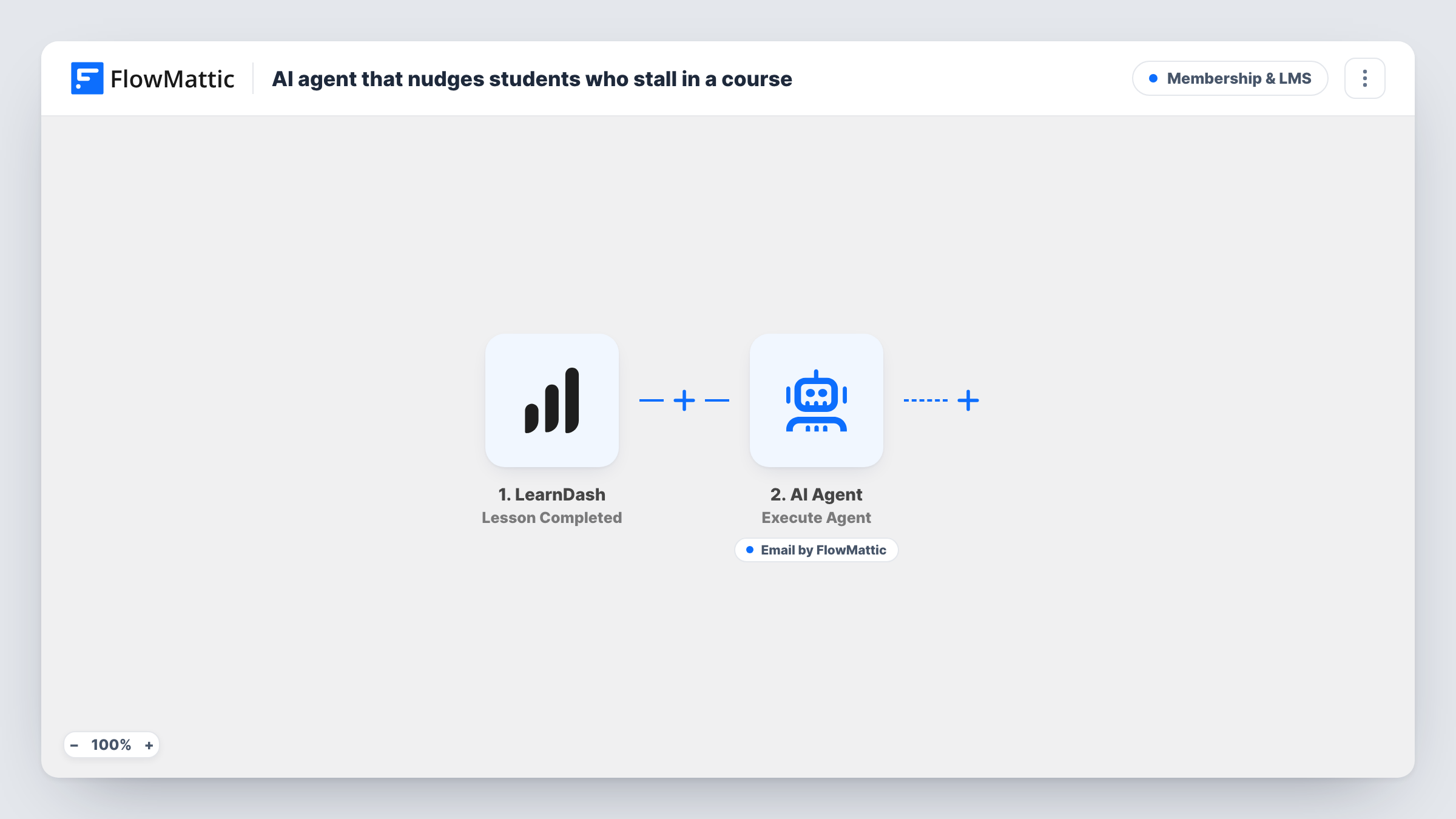
Each time a student completes a LearnDash lesson, an AI agent writes a short note of encouragement that names the lesson and course, and can email it to the student with its Send Email tool.
 LearnDash
 AI Agent
 Email
Email3 steps Setup ~5 min Used on 559 sites Community Free to import
What this workflow does
Self-paced students drop off quietly, often between lessons. A personal note right after they finish one is easy to send for a handful of students and impossible by hand for hundreds. This workflow hands that job to an AI agent, which writes a fresh message for each completed lesson.
The LearnDash trigger fires when a lesson is completed. The AI Agent step, set to OpenAI's GPT-4o, receives one line built from the trigger: the student's display name, the lesson title and the course title. Its instructions are to encourage the student and point them to the next best step in the course.
The agent has one tool, Send Email from FlowMattic's Email module, set to the student's email address with the subject and body left for the agent to write. The agent decides when to use its tools, so check Task History during testing to confirm it emails the note rather than only returning text.
The agent knows only the names it is given. It doesn't see your course outline, so its idea of the next step is general unless you add more to its input, such as the next lesson's title or a link. Every completed lesson starts a run, so a student who finishes five lessons in a sitting gets five emails.
Self-paced online course
A course creator with students working alone sends each one a note after every lesson, mentioning the lesson they just finished by name.
Compliance training at work
A company running mandatory training in LearnDash keeps staff moving with a short message after each completed module.
Language lessons
A language school uses the agent to cheer students on after each lesson and suggest they practise before the next one.
How this workflow runs
What happens at each step once the workflow is on, and what you need before you import it.
 LearnDash Lesson Completed
Fires when a student completes a LearnDash lesson. The student's display name and email, the lesson title and the course title are passed to the agent.
- AI Agent Execute Agent
Runs an AI agent on OpenAI's GPT-4o. It is told to encourage the student and point them to the next best step, and it receives the student's name, the lesson and the course.
 Email Send Email
The agent's tool for sending the note. It emails the student's address from LearnDash, with the subject and body written by the agent. The agent chooses when to call it.
What you need
- FlowMatticCore
- LearnDash PluginPlugin
- AI ProviderAccount
After importing, map your own data. To keep the template universal, not every step is pre-filled. Open each step in the builder and connect your accounts and fields (channels, lists, sheets, recipients) before you switch the workflow on.
Make it yours
Changes worth making after you import it.
- Add the course's next lesson title or a link to the agent's user input, if a test run shows LearnDash passes it, so the agent can name a real next step instead of a general one.
- Write your sign-off and tone into the system prompt, for example a first-person note from the instructor, so every email sounds like your school.
- Put a Filter between the LearnDash trigger and the AI Agent step that continues only for one course title, if you want notes for a single course rather than every course on the site.
- Tell the agent in its system prompt to always send the note by email, which makes it more likely to call the Send Email tool on every run.
Questions about this workflow
Does every LearnDash lesson completion send an email?
Every completion starts a run, and the agent has the Send Email tool. The agent decides whether to call it, so check Task History on a few test runs and tighten the system prompt if it ever skips the email.
Does the AI agent know what is in my LearnDash course?
No. It receives the student's name, the lesson title and the course title. Anything else, such as the next lesson or a link, has to be added to its input.
Which AI provider does this template use?
The agent ships set to OpenAI's GPT-4o, so connect your OpenAI account in FlowMattic before you turn the workflow on.
Can students who finish many lessons at once get too many emails?
Yes. Each completed lesson is its own run. If that's a concern, add a Filter between the LearnDash trigger and the AI Agent step on the lesson title, so only milestone lessons get a note.
More Membership & LMS workflows
Other ready-to-import templates from the same category.





Import this workflow into your WordPress site
Download the JSON, import it from the Workflows screen and connect your accounts. Every run stays on your server, with no per-task fees.
30-day money-back guarantee Unlimited workflows and runs Self-hosted