

AI agent that celebrates course completions and suggests what's next
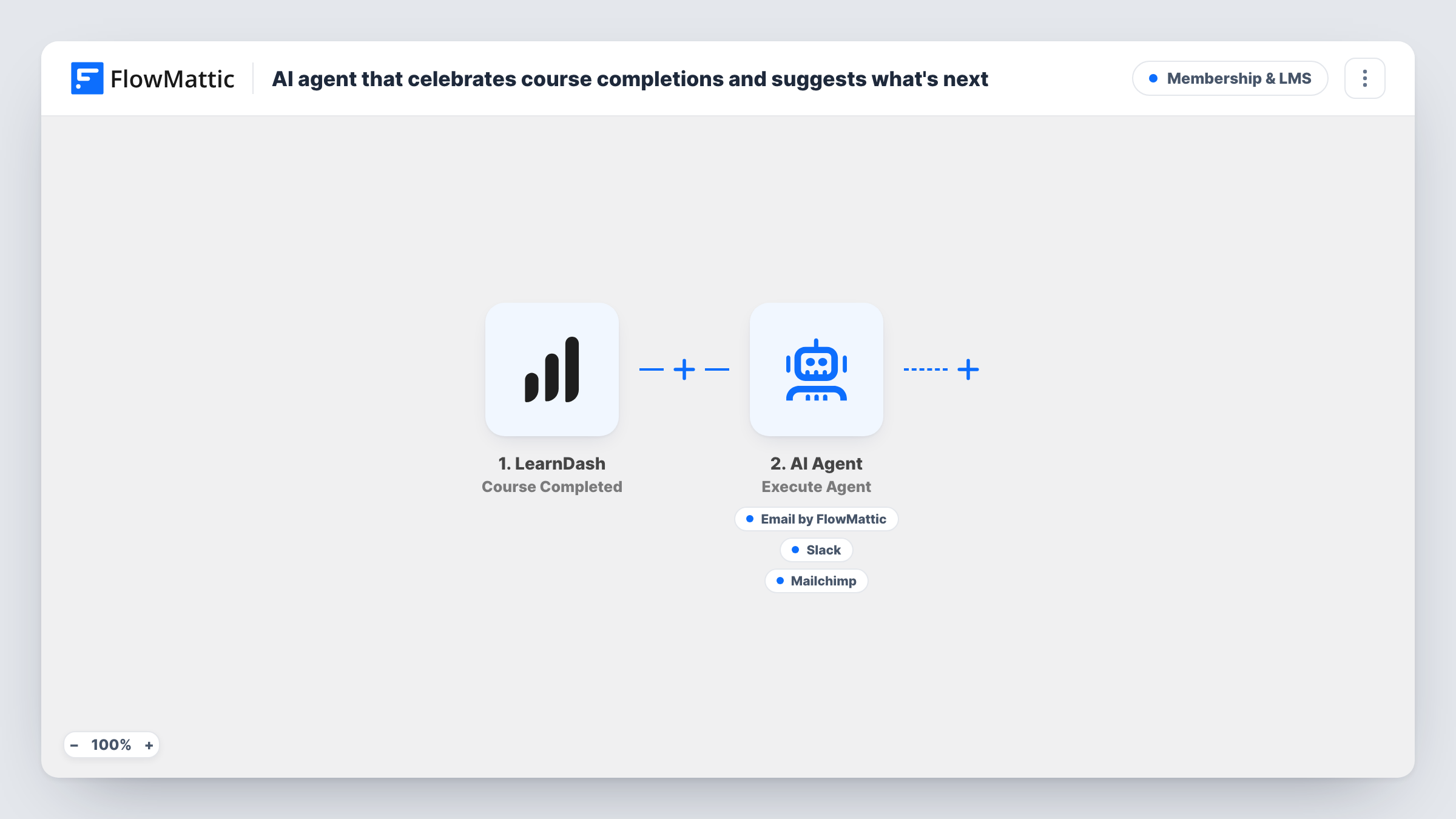
When a student completes a LearnDash course, an AI agent can email them congratulations with a suggested next course, post the news to Slack, and subscribe them in Mailchimp.
 LearnDash
 AI Agent
 Email
Email
 Slack
Slack
 Mailchimp
5 steps Setup ~8 min Used on 2.6k sites Community Free to import
What this workflow does
Finishing a course is the moment a student is most open to the next one. If nobody says well done, that moment passes. This workflow hands each LearnDash completion to an AI agent that can thank the student, share the win with your team and keep the student on your mailing list.
The LearnDash trigger runs when a student completes a course. The AI Agent is told the student's display name and the course title. Its instructions ask it to congratulate the student, recommend a logical next course, celebrate in Slack and add them to the alumni segment. It has three tools for that work: Send Email to the student's address, a Slack channel message, and Mailchimp Add New Member, which subscribes the student's email.
Two limits are worth knowing before you import. The agent receives only the course title, not your catalogue, so any course it suggests is a guess unless you list your courses in its instructions. The Mailchimp tool sends the email with a subscribed status and nothing else, so test once to see which audience it uses and whether anything places the student in an alumni group. The agent picks which tools to call on each run, and Task History shows what it did. The model is set to OpenAI's GPT-4o.
An online academy with a course path
List your course order in the agent's instructions, and each graduate gets a congratulations email naming the next course on the path.
Team morale in a course business
Instructors and support staff see completions in a Slack channel, written by the agent, without anyone checking LearnDash reports.
Building a graduate mailing list
Students who finish a course are subscribed in Mailchimp, so you can send them news about advanced courses or events later.
How this workflow runs
What happens at each step once the workflow is on, and what you need before you import it.
 LearnDash Course Completed
Runs when a student completes a course in LearnDash. The student's display name, email and the course title are passed to the AI Agent and its tools.
- AI Agent Execute Agent
The AI Agent reads the student's name and course title, then follows its instructions to congratulate them, suggest a next course, post in Slack and add them to Mailchimp. Your AI account is connected to this step.
 Email Send Email
The agent's email tool. It sends to the student's LearnDash email address, and the agent writes the subject and body. Email sends through the SMTP account you configure in FlowMattic.
- Slack Send Channel Message
The agent's Slack tool. The agent writes the message text celebrating the completion. Connect your Slack workspace and confirm the channel with a test run.
- Mailchimp Add New Member
The agent's Mailchimp tool. It adds the student's email as a subscribed member. Connect your Mailchimp account and run a test to see which audience the member joins.
What you need
- FlowMatticCore
- LearnDash PluginPlugin
- AI ProviderAccount
- Slack AccountAccount
- Mailchimp AccountAccount
After importing, map your own data. To keep the template universal, not every step is pre-filled. Open each step in the builder and connect your accounts and fields (channels, lists, sheets, recipients) before you switch the workflow on.
Make it yours
Changes worth making after you import it.
- Paste a short list of your courses and the order you recommend them into the agent's instructions, so the next-course suggestion names a course you actually sell.
- Want graduates kept apart from the rest of your Mailchimp list? Build the group in Mailchimp from the subscribe date or source, or add a separate Mailchimp step after the agent and test what it can set.
- Before going live, complete a test course with your own account and read Task History to check the email wording, the Slack post and the Mailchimp result.
Questions about this workflow
Will the agent recommend courses that don't exist?
It might. It only receives the student's name and the completed course title. Add your course list to its instructions so the recommendation comes from courses you offer.
Does every LearnDash completion trigger all three tools?
Each completion starts a run, and the instructions ask for the email, the Slack post and the Mailchimp signup. The agent still chooses which tools to call, so check Task History to confirm.
Does the Mailchimp step put students into an alumni segment?
Not by itself. The tool sends the student's email with a subscribed status and nothing that names a segment. Build the segment in Mailchimp, or add another Mailchimp step and check its options with a test run.
Will students who already finished courses get emails?
No. Only course completions that happen after you switch the workflow on start a run.
More Membership & LMS workflows
Other ready-to-import templates from the same category.





Import this workflow into your WordPress site
Download the JSON, import it from the Workflows screen and connect your accounts. Every run stays on your server, with no per-task fees.
30-day money-back guarantee Unlimited workflows and runs Self-hosted