

Email suppliers a reorder request for every product in your low-stock sheet each week
Once a week the workflow reads your low-stock sheet in Google Sheets and emails each product’s supplier a reorder request with the product name and current quantity.
 Schedule
 Google Sheets
 Iterator
 Email
Email4 steps Setup ~8 min Used on 1.4k sites Store Ops Free to import
What this workflow does
Reordering is easy to put off when it means writing the same email to several suppliers. If you keep a sheet of products that are running low, this workflow sends those emails for you every week, one per product, addressed to the supplier listed on that row.
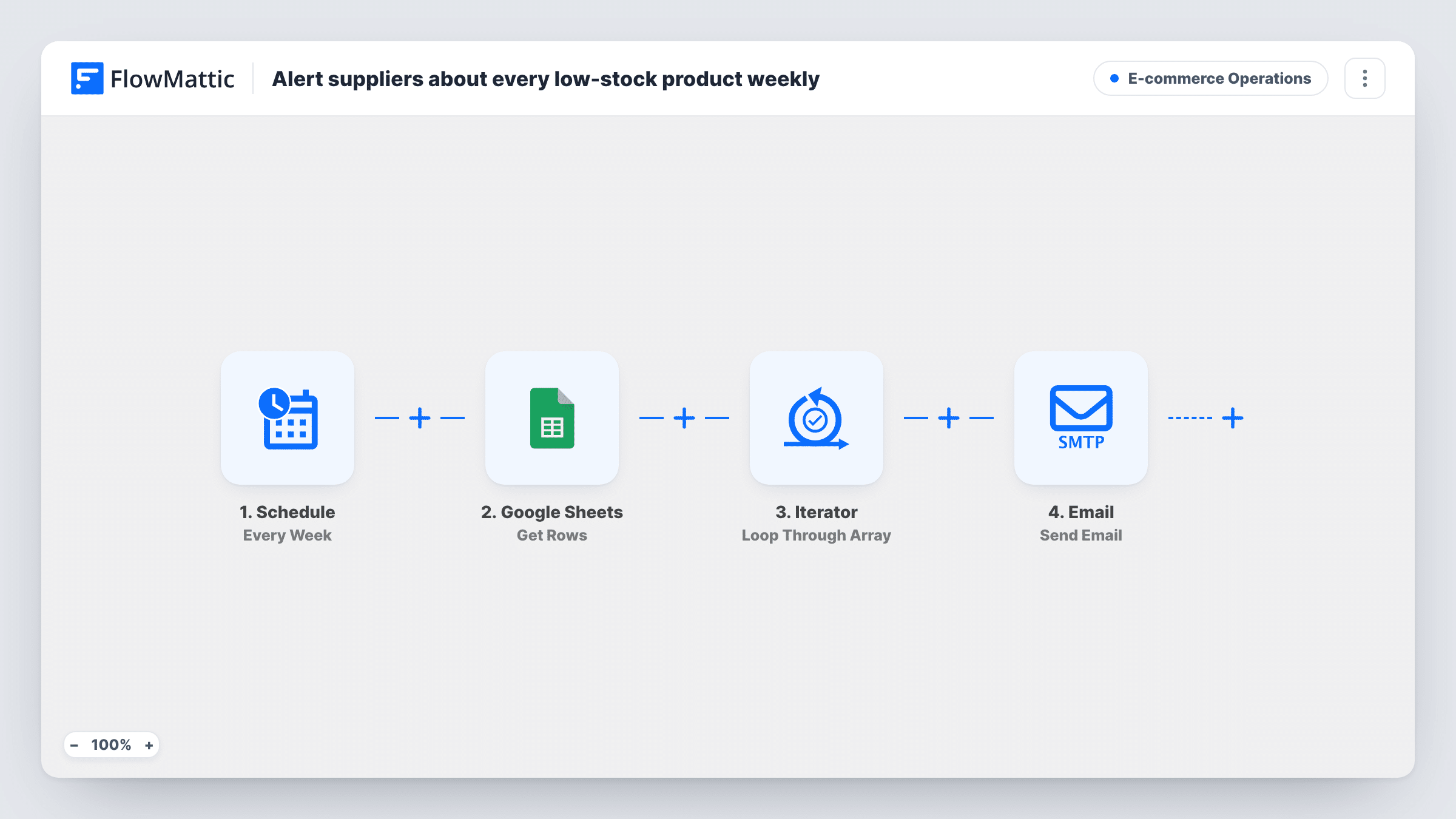
The Schedule trigger starts a run every seven days. Google Sheets Get Rows reads the rows of your low-stock sheet; it ships unmapped, so choose the spreadsheet and sheet after import. An Iterator then goes through the rows one by one.
For each row, the Email step sends a message to the supplier_email column with the subject "Reorder request:" and the product name. The body says you are low on the product, gives the quantity from the stock column and asks the supplier to advise on a reorder. The step uses WordPress mail or the SMTP account you connect.
The workflow doesn't check stock levels itself. It emails every row in the sheet, every week, so the sheet must hold only products that need restocking. Remove a row once the order is placed, or the supplier gets the same request next week. The template expects columns named product_name, stock and supplier_email.
Weekly restock for a small shop
A tea shop lists blends that are running low on a sheet during the week, and each Monday their suppliers get a reorder request for each one.
Several suppliers, one sheet
A pet supply store keeps the supplier's email next to every product, so food, toys and bedding requests each go to the right company.
Shared low-stock list for staff
Café staff add items to the sheet when they open the last box, and the owner no longer writes reorder emails on Friday evenings.
How this workflow runs
What happens at each step once the workflow is on, and what you need before you import it.
 Schedule Every Week
Starts the workflow once every week. Check the schedule after import so the emails go out on the day your suppliers expect orders.
- Google Sheets Get Rows
Reads the rows of your low-stock sheet. Ships unmapped, so choose the low-stock spreadsheet and tab. Each row should have product_name, stock and supplier_email columns.
- Iterator Loop Through Array
Loops through the rows from the sheet and runs the email step once for each product.
 Email Send Email
Emails the row's supplier_email with the subject "Reorder request:" plus the product name, and a body giving the current quantity and asking the supplier to advise on a reorder.
What you need
- FlowMatticCore
- Google Sheets AccountAccount
After importing, map your own data. To keep the template universal, not every step is pre-filled. Open each step in the builder and connect your accounts and fields (channels, lists, sheets, recipients) before you switch the workflow on.
Make it yours
Changes worth making after you import it.
- Put a Filter between the Iterator and the Email step that continues only when the stock value is less than your reorder point. Inside the Iterator it skips only the rows that fail, so you can keep every product in the sheet.
- Add your shop name and a reply-to address in the email body, so suppliers know who is ordering and where to answer.
- Add a quantity-to-order column and mention it in the email, so the supplier can quote without asking how many you need.
Questions about this workflow
Does the workflow check which products are low on stock?
No. It emails a supplier for every row in the sheet. Keep only products that need restocking there, or add a Filter on the stock column between the Iterator and the Email step.
Will a supplier get the same Google Sheets row request again next week?
It will while that product's row stays in the sheet. Every weekly run reads the whole sheet, so delete or move the row once you've placed the order.
Can one supplier get several reorder emails at once?
Yes. Each row sends its own email, so a supplier with three low products gets three messages in the same run.
Which email account sends the reorder requests?
FlowMattic's Email module, using WordPress mail or the SMTP account you enter in the step. Use your business mail server's SMTP details so replies come back to you.
More E-commerce Operations workflows
Other ready-to-import templates from the same category.






Import this workflow into your WordPress site
Download the JSON, import it from the Workflows screen and connect your accounts. Every run stays on your server, with no per-task fees.
30-day money-back guarantee Unlimited workflows and runs Self-hosted