

AI agent that processes refund requests and keeps everyone informed
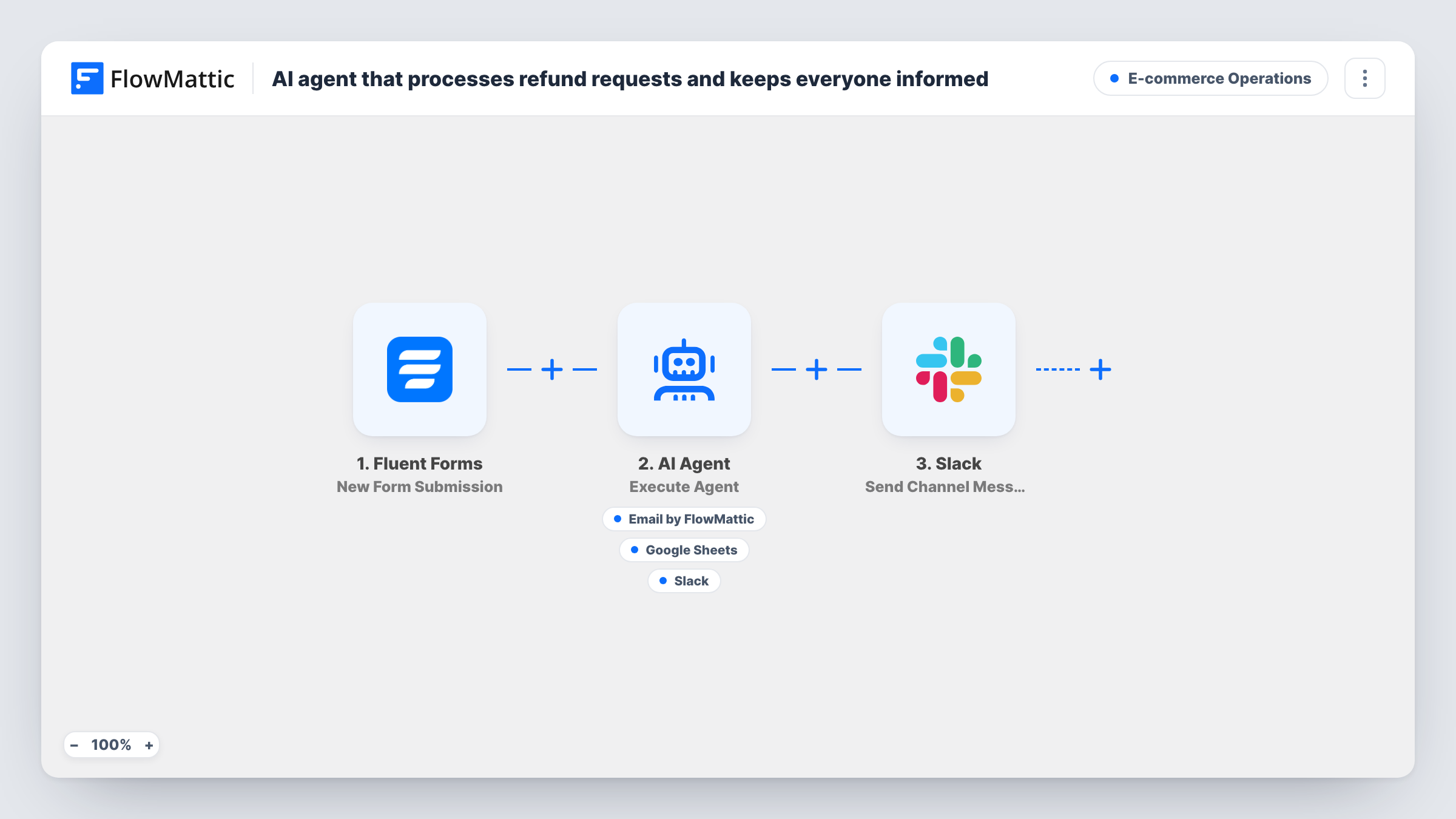
A refund request submitted through Fluent Forms goes to an AI agent that can email the customer an acknowledgement, log the request in Google Sheets and post a recommendation for finance in Slack.
 Fluent Forms
 AI Agent
 Email
Email
 Google Sheets
 Slack
Slack6 steps Setup ~12 min Used on 3.5k sites Store Ops Free to import
What this workflow does
Refund requests need three quick replies: the customer wants to know you got it, someone needs a record, and finance needs enough context to decide. This workflow hands that first round of admin to an AI agent so nothing waits in an inbox.
The customer fills in a Fluent Forms refund form with their order number, reason and email. An AI Agent on OpenAI GPT-4o receives those three values. It is told to acknowledge the request to the customer, log it, and give finance a short recommendation. To do that it can call an email tool addressed to the customer, a Google Sheets Add New Row tool, and a Slack channel message tool. The agent writes the email and the Slack text itself.
The agent chooses which tools to use, so read a few runs in Task History before trusting it. After the agent step, a fixed Slack message says a refund request was logged for the order number. It is posted on every run, even if the agent skipped the sheet.
No refund is issued by this workflow. It acknowledges, records and advises; a person still approves and pays out the refund in your store or payment tool.
Online shop without a helpdesk
Refund requests come through a form on your site. Customers get a reply straight away, and finance sees each request in Slack with a suggested next step.
Digital product sellers
Buyers of courses or downloads ask for refunds with a short reason. The agent's note to finance gives a first read on the reason before someone decides.
Keeping a refund log for reporting
Each request can be added as a row in Google Sheets, giving you one place to review reasons and volumes at the end of the month.
How this workflow runs
What happens at each step once the workflow is on, and what you need before you import it.
 Fluent Forms New Form Submission
Begins when a customer submits your refund form in Fluent Forms. The workflow reads fields named order_number, reason and email, so match those names or remap them in the agent step.
- AI Agent Execute Agent
Runs an AI agent on OpenAI GPT-4o with the order number, reason and customer email. It is told to acknowledge the request, log it and give finance a short recommendation, using the tools below as it sees fit.
 Email Send Email
Agent tool for the refund acknowledgement, sent to the email address the customer typed into the form. The agent writes its subject and body.
- Google Sheets Add New Row
Agent tool that adds a row to Google Sheets to log the request. The template ships this tool unconfigured, so set it up after import and confirm the row with a test submission.
- Slack Send Channel Message
Agent tool that posts a Slack channel message for finance. The agent writes the text, including its recommendation on the refund.
- Slack Send Channel Message
After the agent finishes, posts a fixed Slack channel message saying a refund request was logged for the order number. This runs on every submission.
What you need
- FlowMatticCore
- Fluent Forms PluginPlugin
- AI ProviderAccount
- Google Sheets AccountAccount
- Slack AccountAccount
After importing, map your own data. To keep the template universal, not every step is pre-filled. Open each step in the builder and connect your accounts and fields (channels, lists, sheets, recipients) before you switch the workflow on.
Make it yours
Changes worth making after you import it.
- Spell out your refund policy in the agent's instructions, such as the time window and which reasons qualify, so its recommendation to finance follows your rules.
- Tell the agent not to promise a refund in the customer email, only to confirm the request was received, until a person has approved it.
- Add a Filter before the final Slack step if you only want the fixed notice for certain reasons, such as a reason field that contains damaged.
- Submit a test request after import with a made-up order number, then check Task History to see which tools the agent called.
Questions about this workflow
Does this workflow issue refunds in WooCommerce or my payment provider?
No. None of the steps touch an order or a payment. The agent emails, logs and advises, and a person still processes the refund.
Will the agent always email the customer and log the refund request?
It is told to, but the agent decides which tools to call. Check the first few runs in Task History, and tighten the instructions if a step is missed.
Why is there a second Slack message after the agent?
It is a fixed notice with the order number that posts every time, so finance sees each request even if the agent's own message differs or is skipped.
Does the AI see the customer's email address?
Yes. The agent's input includes the order number, the reason and the customer's email, and that input is sent to OpenAI.
More E-commerce Operations workflows
Other ready-to-import templates from the same category.


Import this workflow into your WordPress site
Download the JSON, import it from the Workflows screen and connect your accounts. Every run stays on your server, with no per-task fees.
30-day money-back guarantee Unlimited workflows and runs Self-hosted