

Create HubSpot contacts from Jotform submissions
Each new Jotform submission creates a HubSpot contact from the submitted email and name, so leads from your Jotform forms reach your HubSpot CRM without exporting or retyping them.
 Jotform
 HubSpot CRM
2 steps Setup ~5 min Used on 1.4k sites Lead Capture Free to import
What this workflow does
Jotform makes it easy to publish a form anywhere, but its submissions live in Jotform until someone moves them. If your sales or service team works in HubSpot, every lead that stays in Jotform is one they can't see. This workflow creates a HubSpot contact for each submission.
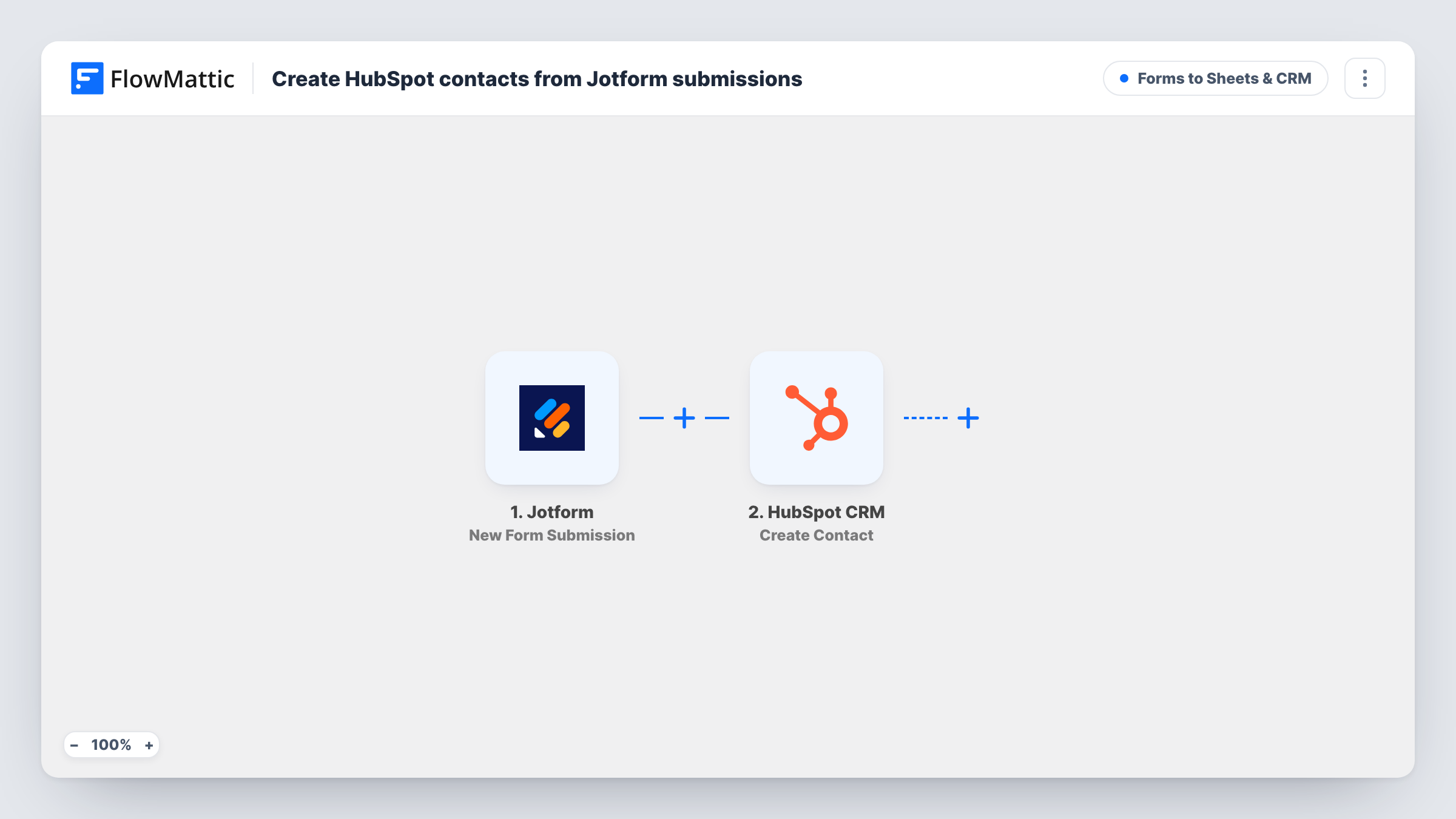
FlowMattic listens for new Jotform submissions. For each one, the HubSpot CRM step runs Create Contact with the submitted email as the contact's email and the name answer as the first name. The last name is sent blank in the template, so a form with separate name fields needs a small mapping change.
This is a two-step flow with no conditions. Every submission produces one Create Contact request. The step does not update existing contacts, so a repeat submission with an email HubSpot already holds may not go through; Task History shows the result of each run. Submissions stay in Jotform as well.
Contact form on a landing page
A Jotform embedded on a campaign page sends each enquirer to HubSpot as a contact, ready for the sales team to work on.
Trade show lead capture
Staff use a Jotform on a tablet at your booth. Every visitor they enter becomes a HubSpot contact for follow-up after the show.
Quote request form
Customers request a quote through Jotform, and each request creates a HubSpot contact the sales rep can open before replying.
How this workflow runs
What happens at each step once the workflow is on, and what you need before you import it.
 Jotform New Form Submission
Picks up each new submission to your Jotform form. The answers mapped as email and name are passed to the HubSpot step.
- HubSpot CRM Create Contact
Creates a HubSpot contact with the Jotform email and with the name answer as first name. No value is sent for the last name. Link your HubSpot account when you import the workflow.
What you need
- FlowMatticCore
- Jotform AccountAccount
- HubSpot CRM AccountAccount
After importing, map your own data. To keep the template universal, not every step is pre-filled. Open each step in the builder and connect your accounts and fields (channels, lists, sheets, recipients) before you switch the workflow on.
Make it yours
Changes worth making after you import it.
- If your Jotform uses a Full Name field with first and last parts, map each part to the matching HubSpot name property after a test submission.
- Add a Slack or email step after HubSpot so the sales team hears about each new contact as it is created.
- Put a Filter after the trigger that skips submissions with no email, since HubSpot contacts are identified by email address.
Questions about this workflow
Does the Jotform to HubSpot flow update contacts that already exist?
No. It uses Create Contact only. If HubSpot already has that email, the request may be refused. Check Task History for that run.
Which Jotform answers reach HubSpot?
As imported, only email and name. Add more HubSpot properties in the step, if a test run shows them, and map other Jotform answers into them.
Will past Jotform submissions be added to HubSpot?
No. Only submissions made after you turn the workflow on create contacts. Export older ones from Jotform and import them into HubSpot if needed.
More Forms to Sheets & CRM workflows
Other ready-to-import templates from the same category.









Import this workflow into your WordPress site
Download the JSON, import it from the Workflows screen and connect your accounts. Every run stays on your server, with no per-task fees.
30-day money-back guarantee Unlimited workflows and runs Self-hosted