

Update AffiliatePress affiliate profile with Contact Form 7 submission data for better targeting
When an affiliate sends a Contact Form 7 form on your site, FlowMattic saves the answers as meta on their AffiliatePress profile, so details partners share with you are stored where you manage them.
 Contact Form 7
 AffiliatePress
2 steps Setup ~5 min Used on 1.7k sites Free to import
What this workflow does
Affiliates often tell you useful things through a form: the niche they promote in, the channels they use, a preferred payout note. If those answers only reach your inbox, you have to copy them into each affiliate's profile by hand. This workflow writes them to AffiliatePress for you.
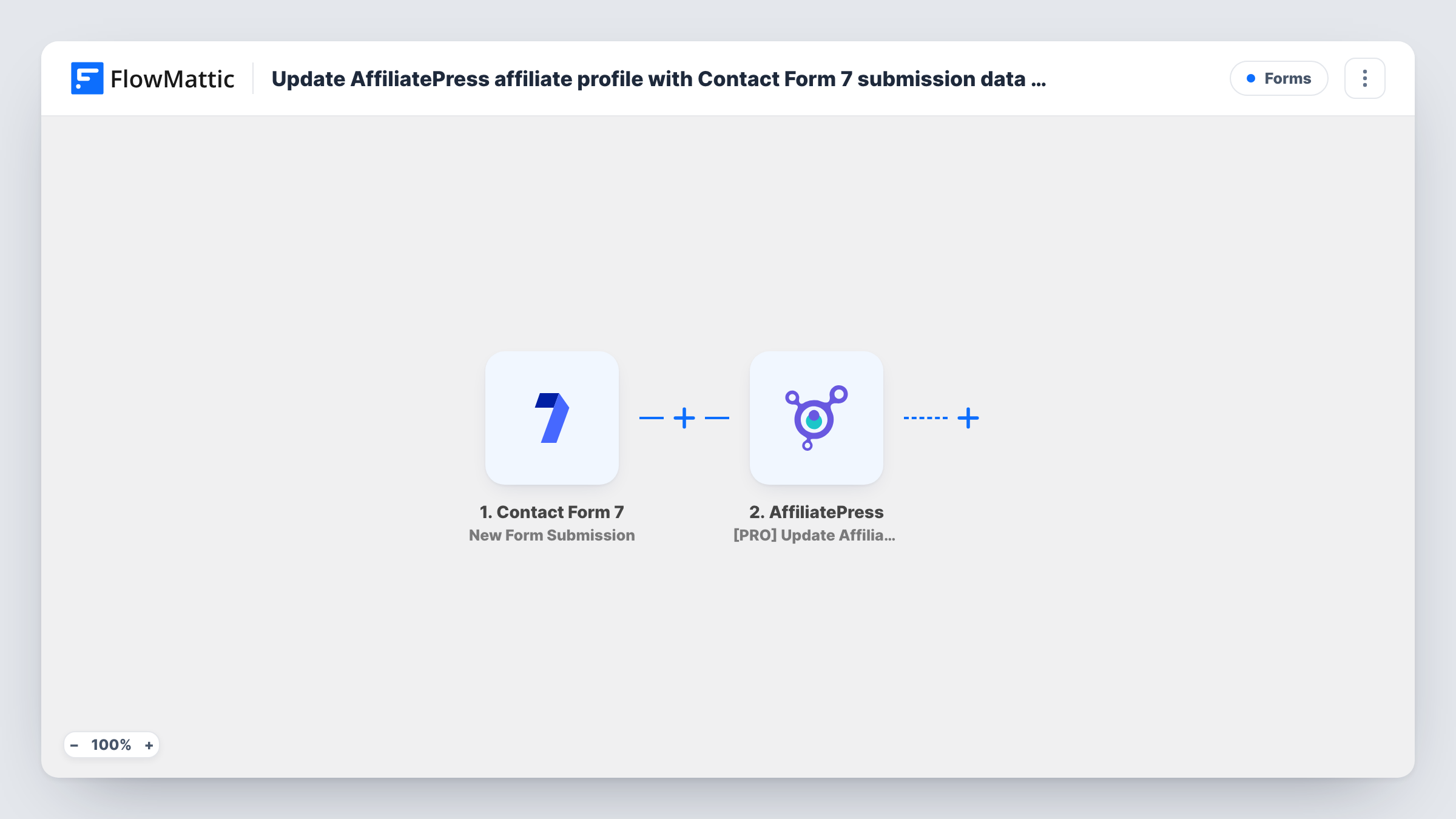
The Contact Form 7 trigger runs on each new submission of the form you select. FlowMattic passes the submitted fields to AffiliatePress, where the Update Affiliate Meta action saves data against an affiliate. You map the form data that tells the step which affiliate to update, and the answers you want stored. Send a test submission after import and check the result in Task History to confirm the right profile changed.
Both plugins run on your WordPress site, so the submission data stays on your own server. Every submission of the chosen form runs the update, so the form should be one only your affiliates fill in.
Affiliate onboarding questionnaire
New partners fill in a Contact Form 7 form about their audience and traffic sources. The answers are saved on their AffiliatePress profile for you to review.
Partners updating their own details
An affiliate's promotion channels change. They submit the form again, and the new answers are written to their profile.
Grouping affiliates by niche
A dropdown in the form asks for the affiliate's niche. Storing it as meta on each profile gives you a value to group partners by when you plan campaigns.
How this workflow runs
What happens at each step once the workflow is on, and what you need before you import it.
 Contact Form 7 New Form Submission
Runs when a visitor submits the Contact Form 7 form you choose. Each field in the form is passed on for mapping in the AffiliatePress step.
- AffiliatePress [PRO] Update Affiliate Meta
Saves data as meta on an AffiliatePress affiliate. Map the form data that identifies the affiliate and the answers to store, then confirm the update with a test run.
What you need
- FlowMatticCore
- Contact Form 7 PluginPlugin
- AffiliatePress PluginPlugin
After importing, map your own data. To keep the template universal, not every step is pre-filled. Open each step in the builder and connect your accounts and fields (channels, lists, sheets, recipients) before you switch the workflow on.
Make it yours
Changes worth making after you import it.
- Make the field that identifies the affiliate required in the Contact Form 7 form tag, so every submission carries what the AffiliatePress step needs to find the profile.
- Add a Filter after the trigger that continues only when that identifying field is not empty, so incomplete submissions don't reach AffiliatePress.
- Use a separate Contact Form 7 form for affiliates instead of your main contact form, and select only that form in the trigger.
Questions about this workflow
What happens if the submission doesn't match an AffiliatePress affiliate?
The update has no profile to change. Task History shows the AffiliatePress step's response for that run, so you can see which submission failed and why.
Does the Contact Form 7 form still send its email notification?
Yes. The workflow listens for the submission and does not change the form's mail settings.
Can this create new affiliates in AffiliatePress?
No. The template only uses Update Affiliate Meta, which changes data on an existing affiliate. Adding new affiliates would need a different AffiliatePress action.
Do Contact Form 7 and AffiliatePress need to be on the same site?
Yes. Both are WordPress plugins, and they need to be installed on the same site as FlowMattic for this workflow to reach them.
More Forms workflows
Other ready-to-import templates from the same category.







Import this workflow into your WordPress site
Download the JSON, import it from the Workflows screen and connect your accounts. Every run stays on your server, with no per-task fees.
30-day money-back guarantee Unlimited workflows and runs Self-hosted