

When a new Gravity Forms submission is received, generate a QR code for phone number in QR Generator, then add details to FlowMattic Tables
Each Gravity Forms entry gets a QR code made from the phone number it contains, saved to your media library, and a FlowMattic Tables record that stores the form details with the QR code.
 Gravity Forms
 QR Generator
 Tables by FlowMattic
3 steps Setup ~5 min Used on 321 sites Free to import
What this workflow does
A QR code that holds someone's phone number lets staff read the number off a phone camera with one scan, which helps at check-in desks, on printed badges or on delivery slips. This workflow makes that code for each Gravity Forms submission and keeps it alongside the rest of the entry in a FlowMattic table you can search and reuse.
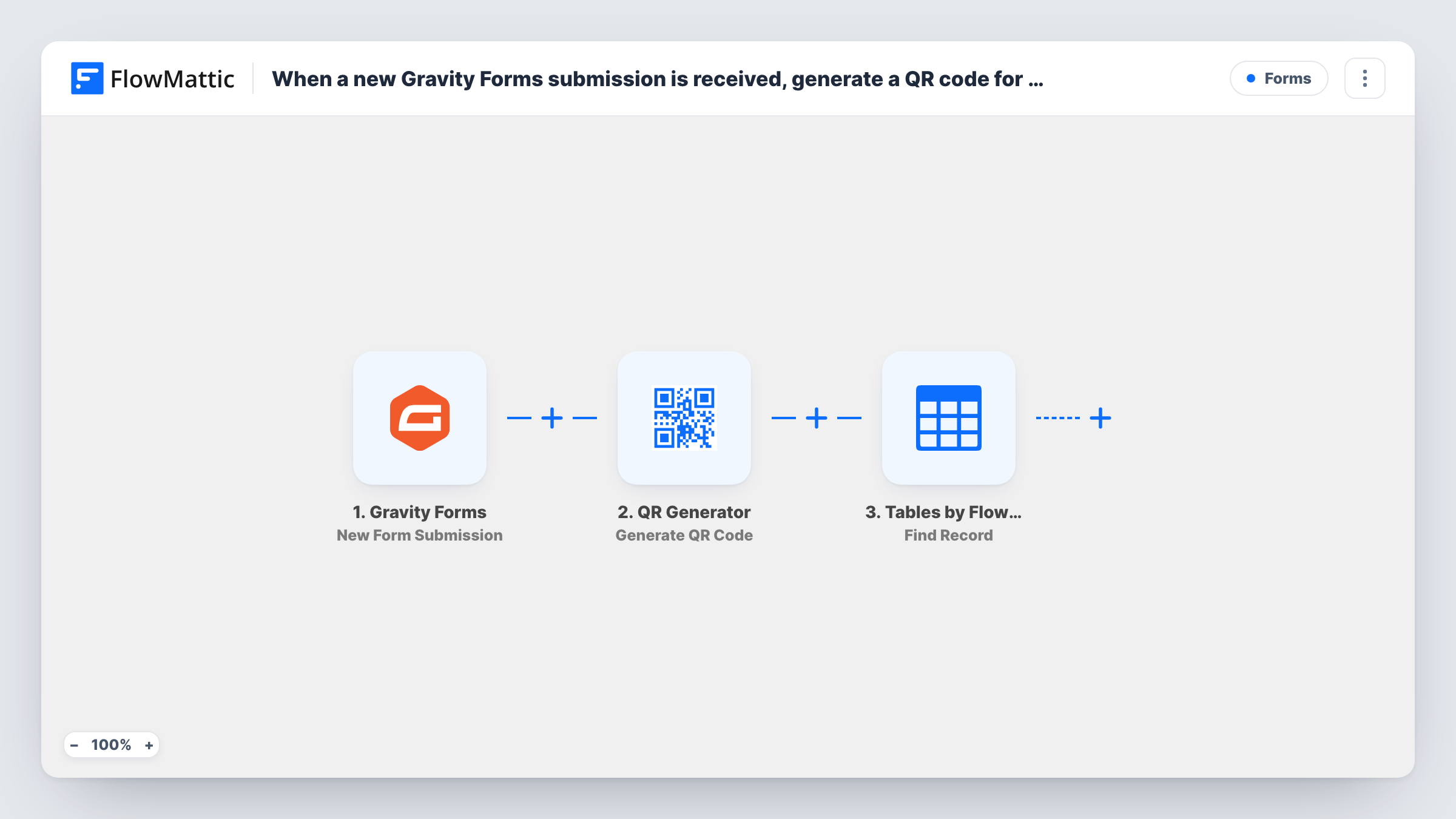
The Gravity Forms trigger starts a run when a form is submitted and passes the answers on. The QR Generator step generates a QR code and saves the image to your WordPress media library. After import, map the form's phone field into it as the content to encode.
The last step adds a new record to a table in FlowMattic Tables. Pick the table, then map the form fields you want to keep plus the QR code details from the previous step's result, such as the image link. Both action steps need this setup, because the template leaves the mapping to you.
Every entry creates a new image and a new record, even for a repeat submitter. Send a test entry and open Task History to see which values the QR step returned, so you map the right one into the table.
Event check-in badges
An event organiser stores each registrant's phone QR code in a table and prints it on the badge, so staff can scan it to get the number of a no-show.
Delivery contact slips
A local shop taking orders through Gravity Forms prints the QR code on the delivery slip, so the driver can scan it for the customer's number.
Volunteer contact cards
A charity collects volunteer sign-ups and keeps a scannable phone code for each person in FlowMattic Tables for the coordinators.
How this workflow runs
What happens at each step once the workflow is on, and what you need before you import it.
 Gravity Forms New Form Submission
Starts the workflow when someone submits your Gravity Forms form. All the entry's fields, including the phone number, are available to the QR and table steps.
- QR Generator Generate QR Code
Generates a QR code and saves it to the WordPress media library. The template leaves the content empty: map the form's phone field into it after import, then check a test run for the image details returned.
- Tables by FlowMattic New Record
Adds a new record to a FlowMattic Tables table. Choose the table and map the form answers you want to store, along with the QR code link or file details from the step before.
What you need
- FlowMatticCore
- Gravity Forms PluginPlugin
After importing, map your own data. To keep the template universal, not every step is pre-filled. Open each step in the builder and connect your accounts and fields (channels, lists, sheets, recipients) before you switch the workflow on.
Make it yours
Changes worth making after you import it.
- Make the phone field required in Gravity Forms, and ask for the country code, so the QR code holds the full international number.
- Put a Filter between the Gravity Forms trigger and the QR Generator step that continues only when the phone field is not empty. Entries it stops create neither a QR image nor a table record.
- Add a column in your FlowMattic table for the QR image link, so you can pull it into badges, emails or other workflows later.
Questions about this workflow
Where are the Gravity Forms QR code images stored?
In the WordPress media library. The QR Generator step saves each image there, and the table record can hold its link or details for you to use later.
Do I need FlowMattic Tables set up before importing?
You need a table to write to. Create one with columns for the form fields and the QR code, then pick it in the New Record step.
Can the QR code hold something other than the phone number?
Yes. Map a different form field, or combine several, into the QR Generator step. Run a test entry and scan the result to check the code shows what you expect.
Will a repeat Gravity Forms submission create another QR code?
Yes. Each entry starts its own run, so it gets a new image and a new table record even if the phone number was seen before.
More Forms workflows
Other ready-to-import templates from the same category.







Import this workflow into your WordPress site
Download the JSON, import it from the Workflows screen and connect your accounts. Every run stays on your server, with no per-task fees.
30-day money-back guarantee Unlimited workflows and runs Self-hosted