

Add new GrooveSell buyers to a Mailchimp audience after a purchase
Each time someone buys a product through GrooveSell, FlowMattic adds them as a member of the Mailchimp audience you choose, so new buyers are on your list without exporting and importing contacts.
 GrooveSell
 Mailchimp
2 steps Setup ~5 min Used on 2.5k sites Free to import
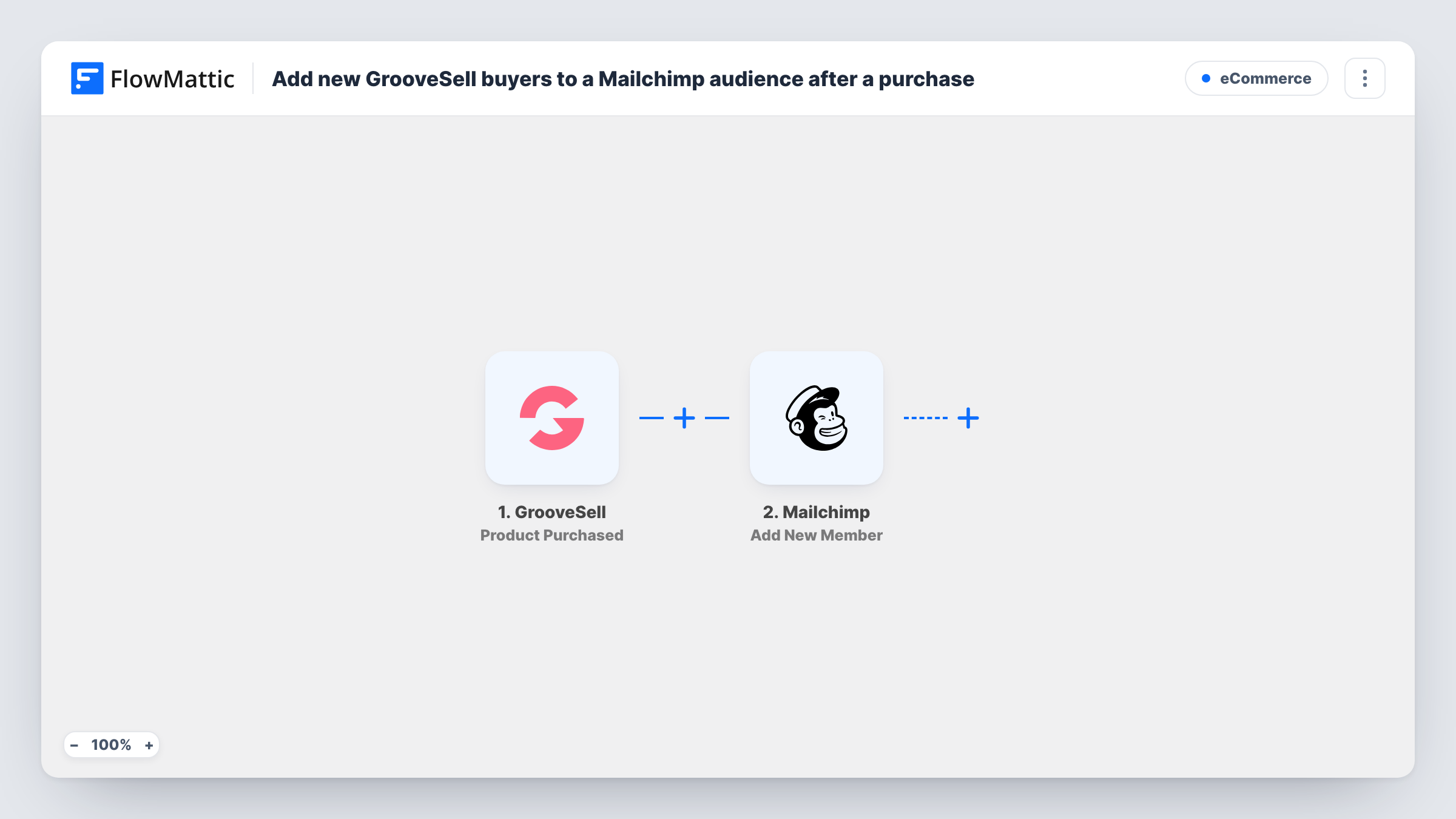
What this workflow does
Buyers from GrooveSell are the people most likely to want your product updates and onboarding emails. Getting them into Mailchimp usually means exporting a buyer list and importing it, and anyone who buys between imports waits. This workflow adds each buyer at the time of purchase.
The GrooveSell trigger fires on a product purchase. FlowMattic receives the purchase data, including the buyer details GrooveSell sends, and passes it to Mailchimp. The Add New Member action adds the buyer to the audience you select, using the buyer data you map into it.
Every purchase runs the workflow, whichever product was bought. If you sell several products and want each one on a different list, add a Filter or Router after the trigger. Task History records each run, so you can check which buyers were sent to Mailchimp.
Onboarding emails for a digital course
Buyers of your course on GrooveSell join a Mailchimp audience that sends welcome and how-to-start emails.
Launch with several price points
During a launch, every GrooveSell purchase lands in the same Mailchimp audience, so your post-launch emails reach all buyers without a manual import.
Keeping buyers apart from free subscribers
Use a buyers-only Mailchimp audience as the target, so emails meant for customers don't go to people who only joined your free list.
How this workflow runs
What happens at each step once the workflow is on, and what you need before you import it.
 GrooveSell Product Purchased
Runs when a product is purchased through your GrooveSell account. The buyer and purchase details become available to map in the Mailchimp step.
- Mailchimp Add New Member
Adds the buyer to the Mailchimp audience you choose. Map the buyer details from the GrooveSell data into it and connect your Mailchimp account. A test run shows what Mailchimp received.
What you need
- FlowMatticCore
- GrooveSell AccountAccount
- Mailchimp AccountAccount
After importing, map your own data. To keep the template universal, not every step is pre-filled. Open each step in the builder and connect your accounts and fields (channels, lists, sheets, recipients) before you switch the workflow on.
Make it yours
Changes worth making after you import it.
- Add a Router after the GrooveSell trigger with one route per product and a Mailchimp step on each, so buyers of different products join different audiences.
- Add a Filter that checks the product in the GrooveSell data if you want a single product's buyers in this audience.
- Let the first purchase after import be captured, then map the GrooveSell values in the Mailchimp step from that real data.
Questions about this workflow
What if the GrooveSell buyer is already in my Mailchimp audience?
Add New Member updates the GrooveSell buyer's existing member record with the details you map, so a second copy isn't created.
Are refunded GrooveSell buyers removed from Mailchimp?
No. The GrooveSell trigger here is Product Purchased, and nothing listens for refunds. Removing refunded buyers would need a separate workflow with its own trigger and a Mailchimp action that unsubscribes or removes them.
Do past GrooveSell customers get added?
No. Only purchases made after the workflow is turned on are sent to Mailchimp. Import earlier buyers into your audience once by hand.
Can buyers of one GrooveSell product go to a separate Mailchimp audience?
Yes, after a small change. Add a Filter or Router after the trigger that checks the product in the purchase data, and point each Mailchimp step at the audience for that product.
More E-Commerce workflows
Other ready-to-import templates from the same category.






Import this workflow into your WordPress site
Download the JSON, import it from the Workflows screen and connect your accounts. Every run stays on your server, with no per-task fees.
30-day money-back guarantee Unlimited workflows and runs Self-hosted