

When a new response is received, update a record in Airtable
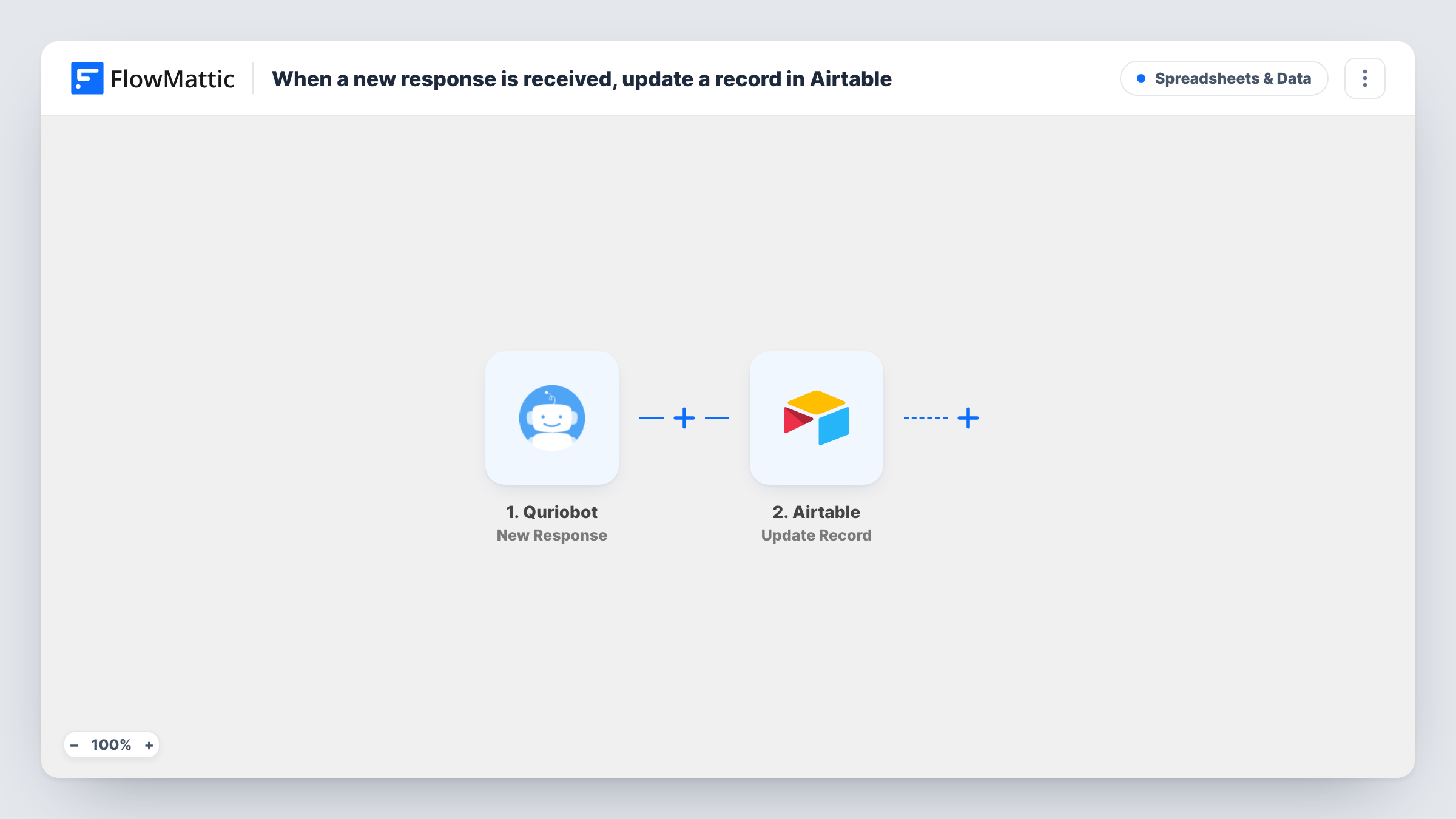
Each new Quriobot response looks up a matching record in your Airtable base with a filter formula, then updates that record with what the visitor told your bot.
 Quriobot
 Airtable
3 steps Setup ~5 min Used on 2.5k sites Free to import
What this workflow does
A chatbot often talks to people you already track: existing leads, applicants, customers who come back with a question. Rather than adding a fresh row every time, this workflow finds the person's existing record in Airtable and writes the new answers onto it, so one record keeps building up.
The Quriobot trigger starts a run whenever a new response is received from one of your bots. The answers the visitor gave, such as a name, email address or reply to a question, are passed to the next steps.
Step two searches your Airtable table with a filter formula. The template doesn't set the base, table or formula, so after import you pick them and build the formula around a value both sides share, usually the email address from the response. Step three then updates the record the search found. You map the record ID from the search result and choose which Airtable fields receive which Quriobot answers.
The flow only updates. It never creates a record, so a visitor who isn't in your table yet has nothing to match. Run a test with an email you know is in the table and open Task History to see what the search returned and which record changed.
Lead qualification on existing records
A sales team keeps leads in Airtable. When a known lead answers the Quriobot qualifying questions on the pricing page, budget and timeline land on that lead's record.
Applicants finishing a follow-up chat
A recruiter sends shortlisted applicants a Quriobot link. Their answers about notice period and salary expectations are written to the applicant's row in the hiring base.
Customer preference updates
A subscription shop runs a bot asking customers about delivery days. Each reply updates the matching customer record so the packing team sees the new preference.
How this workflow runs
What happens at each step once the workflow is on, and what you need before you import it.
 Quriobot New Response
Starts the workflow when Quriobot receives a new response. The visitor's answers from the bot conversation become available to map into the Airtable steps.
- Airtable Search Record
Searches an Airtable table for records that match a filter formula. The step ships unmapped: pick the base and table, then write a formula that compares a field, such as Email, with the matching answer from the response.
- Airtable Update Record
Updates an existing Airtable record. Map the record ID from the search step so the right record changes, then map the Quriobot answers into the fields you want filled. Nothing is set in the template.
What you need
- FlowMatticCore
- Quriobot AccountAccount
- Airtable AccountAccount
After importing, map your own data. To keep the template universal, not every step is pre-filled. Open each step in the builder and connect your accounts and fields (channels, lists, sheets, recipients) before you switch the workflow on.
Make it yours
Changes worth making after you import it.
- Ask for the email address early in the Quriobot conversation and make it a required question, so every response carries the value your filter formula needs.
- Put a Filter between the Search Record step and the Update Record step that continues only when the search returned a record ID. Responses from people who aren't in the table then stop there.
- Map only the answers that should overwrite what's in Airtable. A field you map to an empty Quriobot answer may be cleared, so test with a partial response first.
- Keep the formula on a field with unique values. If several records share the same email, check in a test run which one the search hands to the update.
Questions about this workflow
Does this create a new Airtable record when Quriobot gets an answer from someone new?
No. Both Airtable steps work on records that already exist: one searches, the other updates. To add new people too, put a Router between the Search Record step and the Update Record step. Give one route a condition that the search returned a record ID and keep Update Record on it; give the other the opposite condition and Airtable's Create Record action.
What should the Airtable filter formula look like?
It should compare one of your table's fields with an answer from the Quriobot response, typically the email. You write it in the Search Record step after import, mapping the response value into the formula. A test run shows whether it returns the record you expect.
Which Airtable fields get updated?
Only the ones you map in the Update Record step. The template leaves it empty, so you choose each field and the Quriobot answer that fills it. Fields you leave out keep their current values.
Can the same Quriobot workflow handle more than one bot?
Check the New Response trigger after you connect your Quriobot account and send a test response. If your bots ask different questions, a separate workflow for each one keeps the Airtable field mapping simple to read.
More Spreadsheets & Data workflows
Other ready-to-import templates from the same category.






Import this workflow into your WordPress site
Download the JSON, import it from the Workflows screen and connect your accounts. Every run stays on your server, with no per-task fees.
30-day money-back guarantee Unlimited workflows and runs Self-hosted