

Email a personalized thank-you to customers after a Gumroad purchase, then tag them in FluentCRM
After each Gumroad sale, the buyer gets a thank-you email from your Gmail account, then is created or updated as a FluentCRM contact so you can tag and follow up with them.
 Gumroad
 Gmail
Gmail
 FluentCRM
3 steps Setup ~5 min Used on 403 sites Free to import
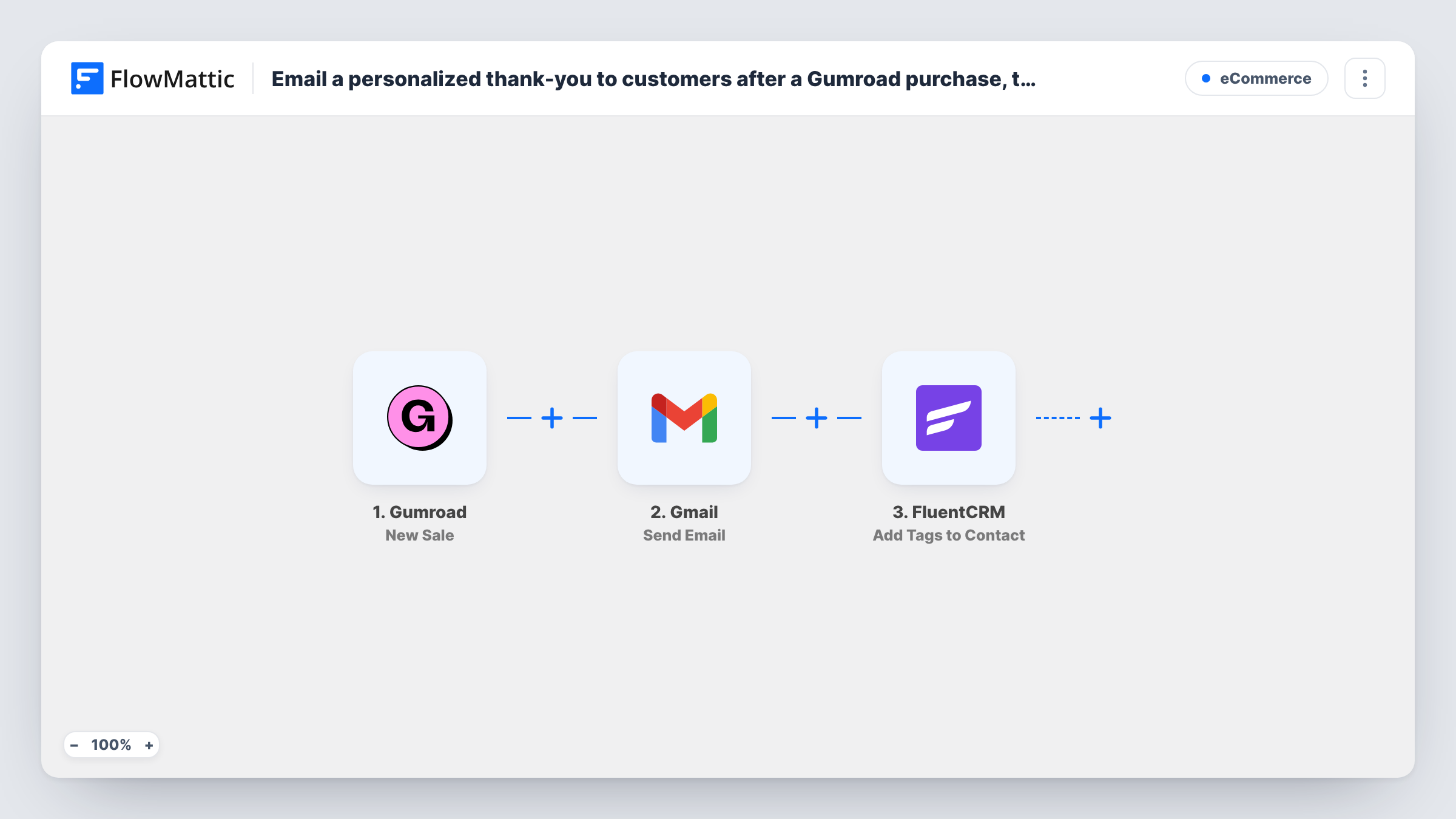
What this workflow does
Gumroad sends its own receipt, but a short note from your own inbox reads like it came from a person. This workflow writes that note for every sale and also brings the buyer into FluentCRM on your WordPress site, where your newsletters and sequences already live.
The Gumroad New Sale trigger starts a run when one of your products is purchased. The sale details, such as the buyer's email and the product name, are passed on.
Step two sends an email through Gmail. The template doesn't fill in the recipient, subject or message, so after import you map the buyer's email from the sale and write the thank-you text, mapping the product name or buyer's name in wherever you want them.
The last step creates a contact in FluentCRM, or updates the existing one with the same email address. It ships unmapped too. Map the email and name from the sale, and set the tag you want buyers to carry. If the step doesn't show a tag option when you open it, add FluentCRM's Add Tags to Contact action after it, which works because the contact was just created or updated. Every sale runs the whole flow, so repeat buyers get another email and their contact is updated again.
Personal thanks for digital product buyers
A designer selling icon packs on Gumroad sends each buyer a note from their own Gmail address with a tip for using the pack, then keeps them as a FluentCRM contact for launch emails.
Course buyers tagged for onboarding
A creator selling a video course tags each Gumroad buyer in FluentCRM, so a tag-based automation can send the lesson schedule.
Ebook readers on your own list
An author who sells ebooks through Gumroad builds a reader list in WordPress, ready for the next release, alongside the personal thank-you.
How this workflow runs
What happens at each step once the workflow is on, and what you need before you import it.
 Gumroad New Sale
Starts the workflow whenever one of your Gumroad products is purchased. The sale's buyer and product details become available to map into the email and the contact.
- Gmail Send Email
Sends the Gumroad buyer a thank-you through your Gmail inbox. The step ships unmapped: set the recipient to the buyer's email from the sale, write the subject and thank-you message, and map in any sale details you want to mention.
- FluentCRM Create or Update Contact
Creates the buyer as a FluentCRM contact, or updates the contact that already has that email address. After import, map the email and name, and add the tag; if no tag setting appears, add an Add Tags to Contact step after this one.
What you need
- FlowMatticCore
- Gumroad AccountAccount
- Gmail AccountAccount
- FluentCRM PluginPlugin
After importing, map your own data. To keep the template universal, not every step is pre-filled. Open each step in the builder and connect your accounts and fields (channels, lists, sheets, recipients) before you switch the workflow on.
Make it yours
Changes worth making after you import it.
- Create a FluentCRM custom field for the product and map the Gumroad product name into it, if the contact step lets you, so you can segment buyers by what they bought.
- Put a Filter between the Gumroad trigger and the Gmail step that checks the product name if only one product should get this email. Sales it stops don't reach FluentCRM either.
- Keep the Gmail message short and sign it with your own name, so buyers know a real person reads the replies.
- Build a FluentCRM automation that starts when a contact gets your buyer tag, and the follow-up sequence begins without another FlowMattic step.
Questions about this workflow
Does the FluentCRM step add the tag by itself?
Not as imported: the step ships empty, so you set the tag when you configure it. If the Create or Update Contact step doesn't offer a tag setting, add FluentCRM's Add Tags to Contact action as a fourth step and point it at the contact from step three.
What if the Gumroad buyer is already a FluentCRM contact?
FluentCRM matches by email address, so the existing contact is updated rather than duplicated. Check in a test run that the tag you set is applied to it.
Will a repeat Gumroad customer get the thank-you email again?
Yes. Every sale starts a run, so a second purchase sends another email and updates the same contact. Word the message so it still reads well for a returning buyer.
Do I need FluentCRM installed on my WordPress site?
Yes. FluentCRM is a WordPress plugin, and FlowMattic writes the contact to it on the same site. You also connect a Gmail account for the email step.
More E-Commerce workflows
Other ready-to-import templates from the same category.






Import this workflow into your WordPress site
Download the JSON, import it from the Workflows screen and connect your accounts. Every run stays on your server, with no per-task fees.
30-day money-back guarantee Unlimited workflows and runs Self-hosted