

When conversation status is updated, add tag to member in MailChimp
When a ThriveDesk conversation changes status, this workflow adds a tag to the customer in your Mailchimp audience, so your email list reflects who has been in touch with support.
 ThriveDesk
 Mailchimp
2 steps Setup ~5 min Used on 1.8k sites Free to import
What this workflow does
Support conversations tell you a lot about a customer, but that knowledge stays in the help desk. Tagging people in Mailchimp lets you group them by their support history, for example to leave recent complainers out of a promotion or to follow up after an issue is solved. This workflow adds that tag for you.
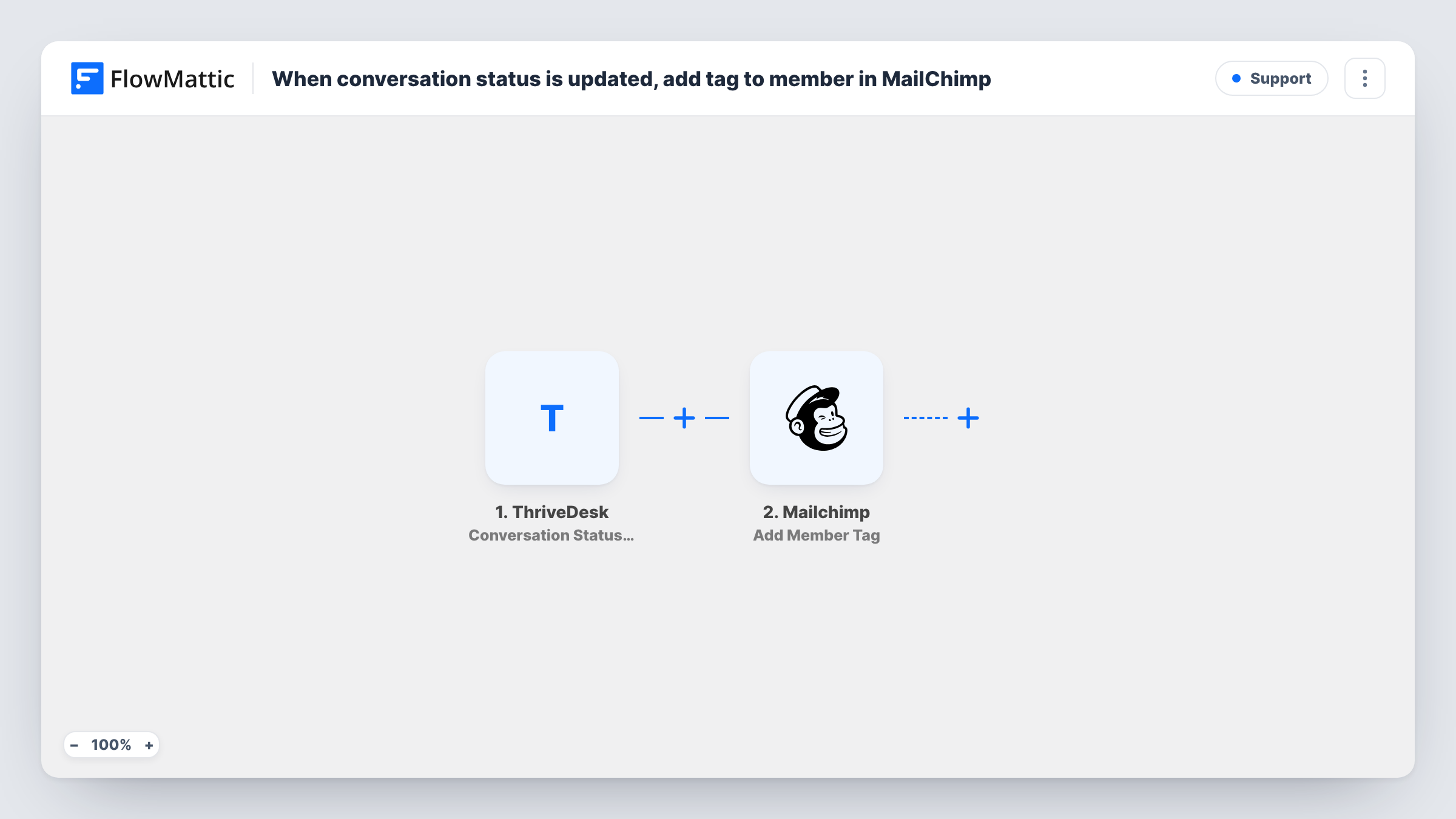
The ThriveDesk trigger fires when a conversation's status is updated. Details of the conversation and the customer, including their email, become data you can map. The second step uses Mailchimp to add a tag to the member with that email in the audience you pick.
As imported, every status change runs the workflow, whatever the new status is. You choose the tag yourself, either a fixed word or a value mapped from ThriveDesk such as the new status. The customer needs to be a member of your Mailchimp audience to be tagged; if they are not, Task History shows the Mailchimp error for that run.
Leaving recent support contacts out of a promotion
Customers tagged after a ThriveDesk status change form a Mailchimp segment you can exclude from a sales campaign sent the same week.
Post-support feedback emails
A tag added when a conversation's status changes lets a Mailchimp automation send a short feedback request to those customers.
Seeing support activity in your list
Marketing can tell from tags in Mailchimp which subscribers have contacted support, without opening ThriveDesk.
How this workflow runs
What happens at each step once the workflow is on, and what you need before you import it.
 ThriveDesk Conversation Status Updated
Runs when the status of a ThriveDesk conversation changes. Details of the conversation, the new status and the customer are passed to Mailchimp.
- Mailchimp Add Member Tag
Tags a member of your Mailchimp audience. Connect Mailchimp, choose the audience, map the customer's email from ThriveDesk, and set the tag you want added.
What you need
- FlowMatticCore
- ThriveDesk AccountAccount
- Mailchimp AccountAccount
After importing, map your own data. To keep the template universal, not every step is pre-filled. Open each step in the builder and connect your accounts and fields (channels, lists, sheets, recipients) before you switch the workflow on.
Make it yours
Changes worth making after you import it.
- Add a Filter after the trigger so the tag is added only for one status, such as when a conversation is closed, rather than on every change.
- Map the new status from ThriveDesk as the tag name if you want a different tag for each status instead of one fixed tag.
- Change a test conversation's status in ThriveDesk after import, then check the member in Mailchimp to confirm the tag appeared.
Questions about this workflow
Does every ThriveDesk status change add a Mailchimp tag?
Yes, as imported. Nothing checks the new status before Mailchimp is called, so any change adds the tag. Add a Filter on the status to limit it.
What if the ThriveDesk customer isn't in my Mailchimp audience?
The step tags existing members. If the email is not in the audience, Mailchimp returns an error, which Task History shows for that run. Add a step that adds the member first if you want everyone tagged.
Are Mailchimp tags removed when the conversation status changes again?
No. This workflow only adds tags. Earlier tags stay on the member unless you remove them in Mailchimp.
More Support workflows
Other ready-to-import templates from the same category.





Import this workflow into your WordPress site
Download the JSON, import it from the Workflows screen and connect your accounts. Every run stays on your server, with no per-task fees.
30-day money-back guarantee Unlimited workflows and runs Self-hosted