

When Beagle Security sends a new test response, notify the team in a Discord channel
Each new response that Beagle Security sends to FlowMattic is posted as a message in the Discord channel you pick, so your developers see security test results where they already talk.
 Beagle Security
 Discord
2 steps Setup ~5 min Used on 1.1k sites Free to import
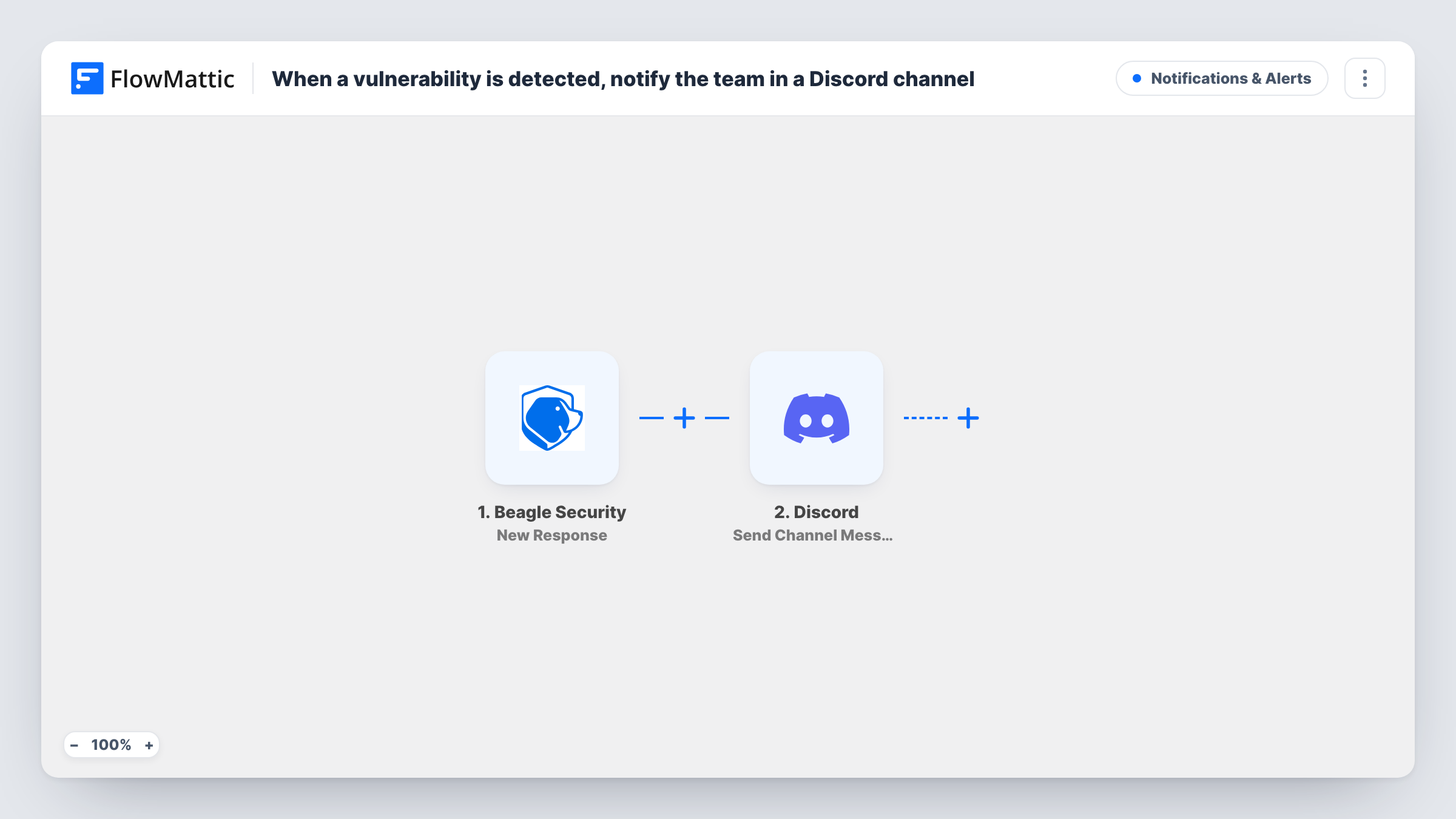
What this workflow does
Security test results are easy to miss when they only arrive in a dashboard or an inbox one person reads. If your developers already coordinate in Discord, posting each Beagle Security result in a shared channel puts it in front of the people who will fix the issues.
The Beagle Security trigger fires when FlowMattic receives a new response from Beagle Security. FlowMattic describes the event simply as a new response being received, so run a test after import and look at the data it carries, such as the target, the test status or the findings, before you decide what to show in the message.
The second step uses Discord to post a message to one channel. It ships unmapped: after import you connect your Discord account, choose the server and channel, and write the message, mapping in the Beagle Security values you want the team to read.
Every response starts a run, so every one of them reaches the channel. Keep the message short and include a link or name the team can act on. Task History lists each run with the Beagle Security data and Discord's reply.
Pen test results in the dev channel
A web agency posts each Beagle Security result to its #security channel, so the developer on duty sees it during the working day and picks it up.
One place for every client's scans
A team testing several client sites with Beagle Security keeps all the results in one Discord channel, with the target named in each message.
Visible proof that tests ran
A small SaaS team uses the channel history as a running record that scheduled security tests finished, without anyone logging in to check.
How this workflow runs
What happens at each step once the workflow is on, and what you need before you import it.
 Beagle Security New Response
Fires when FlowMattic receives a new response from Beagle Security. Check a test run to see which details arrive, such as the application, the test status or the results, so you know what to put in the message.
- Discord Send Channel Message
Sends the alert text into one Discord channel of your choice. The step ships unmapped: connect Discord, select the server and channel, then write the text and map the Beagle Security values into it.
What you need
- FlowMatticCore
- Beagle Security AccountAccount
- Discord AccountAccount
After importing, map your own data. To keep the template universal, not every step is pre-filled. Open each step in the builder and connect your accounts and fields (channels, lists, sheets, recipients) before you switch the workflow on.
Make it yours
Changes worth making after you import it.
- Put the application or site name at the start of the Discord message, so people scrolling the channel can tell which target each result belongs to.
- Add a Filter between the Beagle Security trigger and the Discord step that continues only when a field from the response, such as the status, holds the value you care about. Pick the field from a test run.
- Use a channel just for these results, so normal team chat doesn't bury them and people can mute or follow it on purpose.
Questions about this workflow
Which Beagle Security details can I show in the Discord message?
Any value the response carries. Run a test after import, open Task History to see the fields that arrived, and map the ones you want into the message text.
Will every Beagle Security response reach Discord?
Yes, as imported. There is no condition in the template, so each new response starts a run and posts a message to the channel.
Can I alert a different Discord channel for some results?
Yes. Put a Router between the Beagle Security trigger and the Discord step, give each route a condition that can't match the same response as another route, and add a Send Channel Message step on each route for its channel.
Does the template write the Discord message for me?
No. The Send Channel Message step arrives empty, so you write the text yourself and map in the Beagle Security values. A test response gives you real data to build it from.
More Notifications & Alerts workflows
Other ready-to-import templates from the same category.




Import this workflow into your WordPress site
Download the JSON, import it from the Workflows screen and connect your accounts. Every run stays on your server, with no per-task fees.
30-day money-back guarantee Unlimited workflows and runs Self-hosted