

When a new registration form is submitted, enroll the user in a LearnDash course
Each Bit Form registration creates a WordPress user from the form data, then LearnDash enrolls that user in the course you choose, so new students get an account and course access in one go.
 Bit Form
 WordPress
 LearnDash
3 steps Setup ~5 min Used on 591 sites Free to import
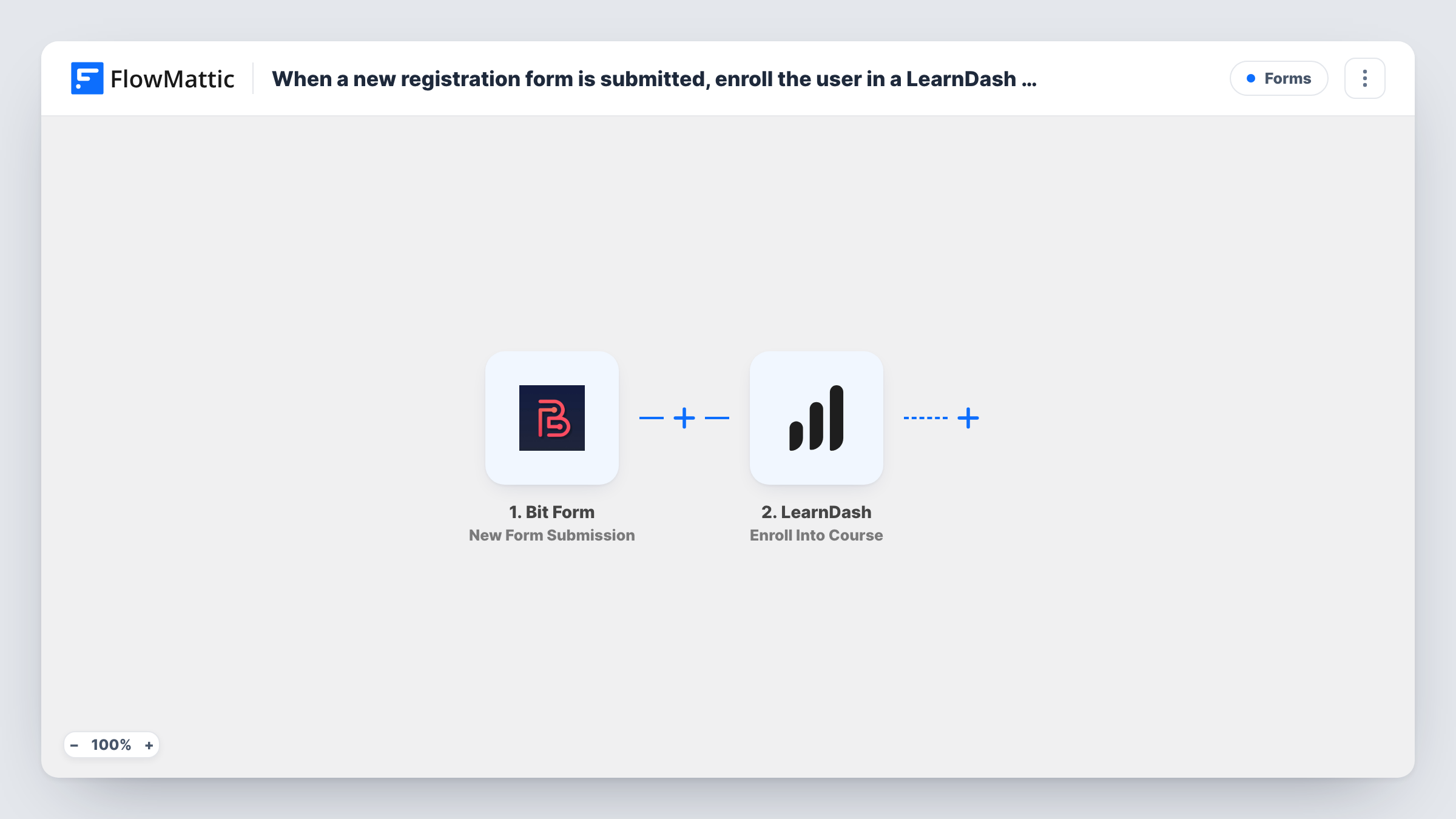
What this workflow does
Course sites often collect sign-ups through a form, then someone creates the account and enrolls the student by hand. Here the registration form becomes a WordPress account, and that account is enrolled in a LearnDash course, with no manual step in between.
The Bit Form trigger fires on every new submission of the form you select. The WordPress New User step then creates an account. It ships unmapped, so after import you map the form fields for the account, such as the email address, a username and the name, and set the role new students should get.
The LearnDash Enroll Into Course step needs a WordPress user ID. Map the user ID that the New User step returns, then choose the course. Because the account is created one step earlier, the person no longer has to exist before they submit the form.
If the email on the form already belongs to a WordPress account, FlowMattic's New User step doesn't create a second one: it returns the existing user's ID, so that account is the one enrolled. Every submission of the form starts a run, so pick a form used only for course registration. Open Task History to see the account and enrollment results for each run.
Free mini-course sign-up
A coach puts a Bit Form on a landing page; each person who fills it in gets a WordPress login and is enrolled in the free email-skills course.
Staff training onboarding
An HR team shares a registration form with new hires, and each submission creates their account and enrolls them in the compliance course.
Workshop attendees get the recordings
After a live workshop, attendees register through the form and land in the LearnDash course that holds the session recordings.
How this workflow runs
What happens at each step once the workflow is on, and what you need before you import it.
 Bit Form New Form Submission
Fires each time the selected Bit Form receives a new submission. The answers, such as the person's name and email, are passed to the account step.
- WordPress New User
Creates a WordPress user from the form answers. The step ships unmapped: map the email, username and name fields and choose the role. If the email already has an account, the existing user's ID is returned instead.
- LearnDash Enroll Into Course
Enrolls the user in a LearnDash course. Map the user ID returned by the New User step and pick the course; neither is filled in when you import.
What you need
- FlowMatticCore
- Bit Form PluginPlugin
- LearnDash PluginPlugin
After importing, map your own data. To keep the template universal, not every step is pre-filled. Open each step in the builder and connect your accounts and fields (channels, lists, sheets, recipients) before you switch the workflow on.
Make it yours
Changes worth making after you import it.
- Map the form's email address as the username too, if your form has no username field, so every account gets a unique login.
- Put a Filter between the Bit Form trigger and the New User step that continues only when a consent or course-choice field holds the value you expect. The field is an example to change to your own form.
- To offer more than one course from the same form, add a Router between the New User step and the enroll step, with one route per course choice and conditions that can't both match, and give each route its own copy of the enroll step.
Questions about this workflow
What if the student already has a WordPress account?
FlowMattic's New User step looks the email up first. If an account exists, it returns that user's ID instead of creating a new one, and the LearnDash step enrolls that existing account.
Does the new user get a password?
The New User step sets one when it creates the account. Check the step's options after import to decide how the password is set and whether WordPress sends the new user a notification.
Can I enroll students in several LearnDash courses at once?
Yes. Add another Enroll Into Course step after the first one, map the same user ID from the New User step, and pick the second course.
Which Bit Form fields do I need?
At least an email address, plus whatever you map into the account, such as a name. The form is yours to build; the template only maps what you choose after import.
More Forms workflows
Other ready-to-import templates from the same category.







Import this workflow into your WordPress site
Download the JSON, import it from the Workflows screen and connect your accounts. Every run stays on your server, with no per-task fees.
30-day money-back guarantee Unlimited workflows and runs Self-hosted